This post will write about Docker, AWS ECR, ECS, Fargate, RDS, and Github Action.
Contents
Overview
Getting Start AWS
-
Step 1. Create AWS Account
-
Step 2. Create IAM Account
Create Amazon ECR
Create Amazon ECS
Create Amazon RDS
Deploy: Push your Docker Image
-
Option 1. AWS Command line tool on macOS
-
Fargate Task Pending Issue!!
-
Try to access the Vapor app on Web Browser
-
-
Option 2. Github Action
MEMO
I’m not a DevOps or backend engineer. Before posting it, I read books about AWS and Server-Side Swift and tutorials and took advice from friends who work as backend engineers.
Overview

To deploy the vapor docker container, I’ll use AWS services.
You can push your docker image to the ECR. And then, ECS pull your docker image by setting the ECR URI. ECS launch docker container on AWS. Also, It has integration with Load Balancer. The Fargate is a task of ECS. It is responsible for offering serverless. You can set memory and CPU for containers.
Getting Start AWS
Step 1. Create AWS Account
If you haven’t an account yet, let’s create a new account.


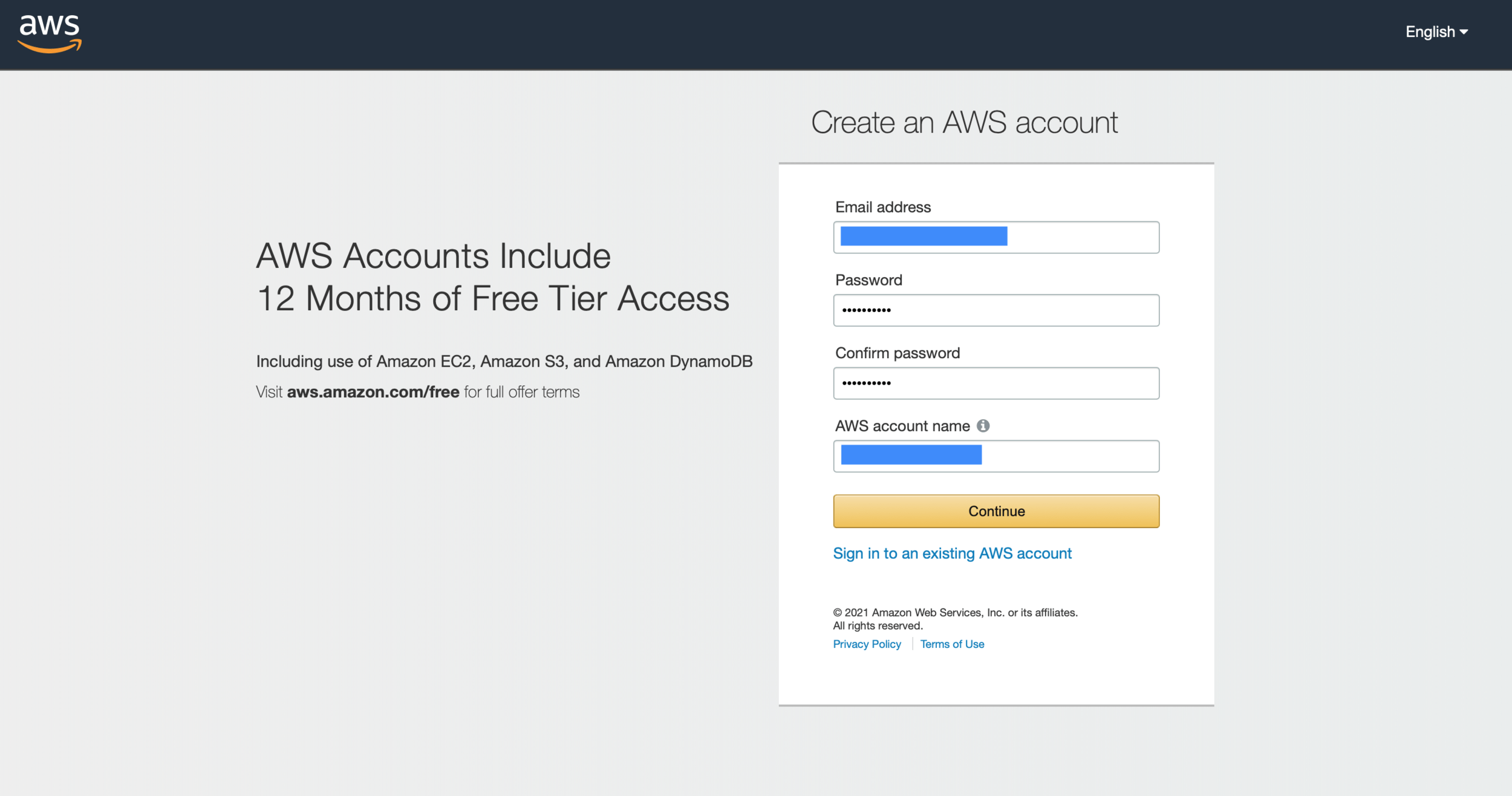


Now You have an AWS account. This account is called a root account.
Step 2. Create IAM Account
Log in as root account. And then search the IAM at the top of the search bar.

Before creating IAM Account, Let’s make the group for users. I captured all of the steps. You just followed the steps below.
Create Groups
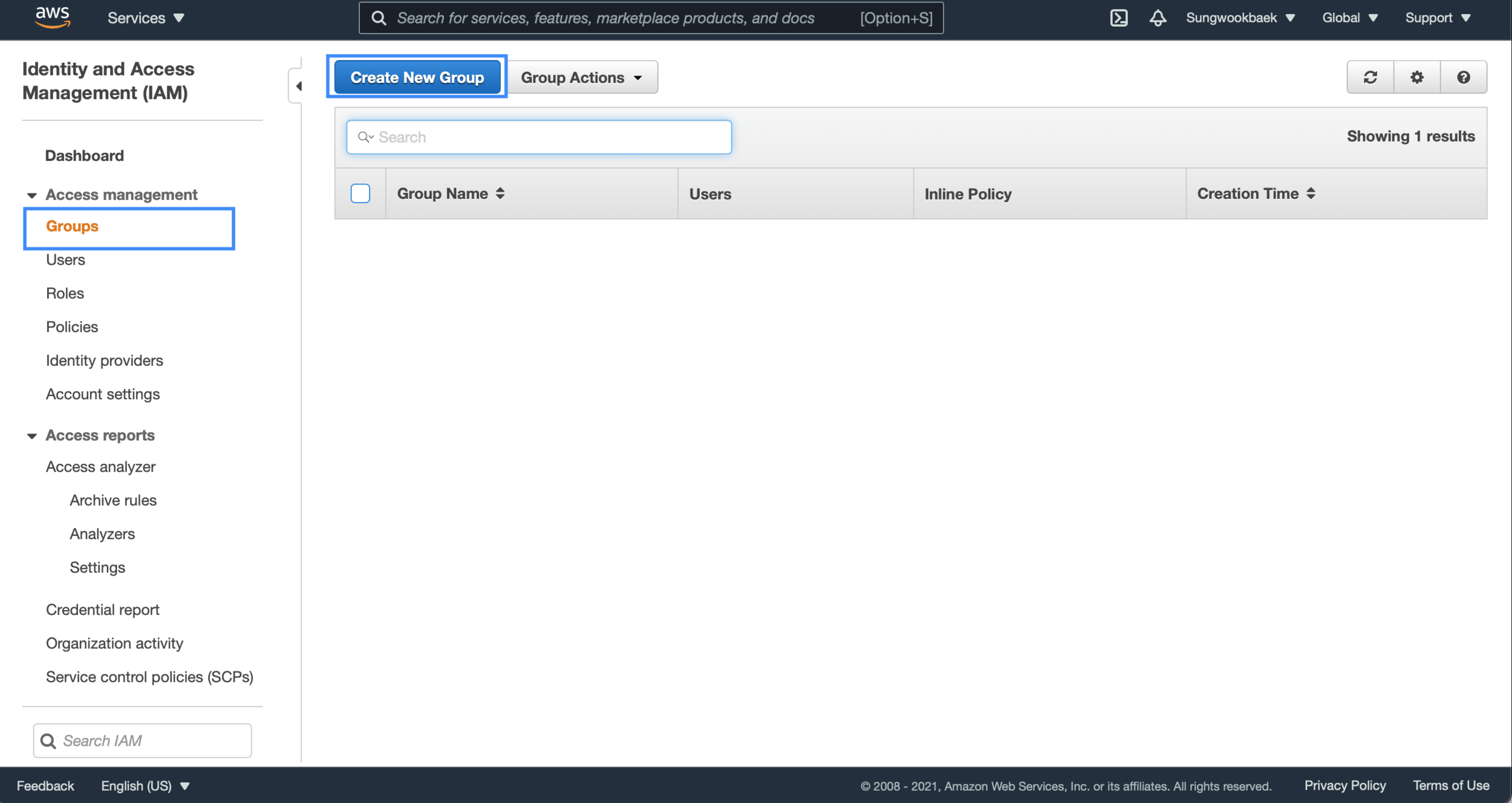

Enter the group name you want to use it.


You created the group. As you can see, there are no Users in the group. Let’s create an IAM account and add it to the group we made.
Create IAM Account


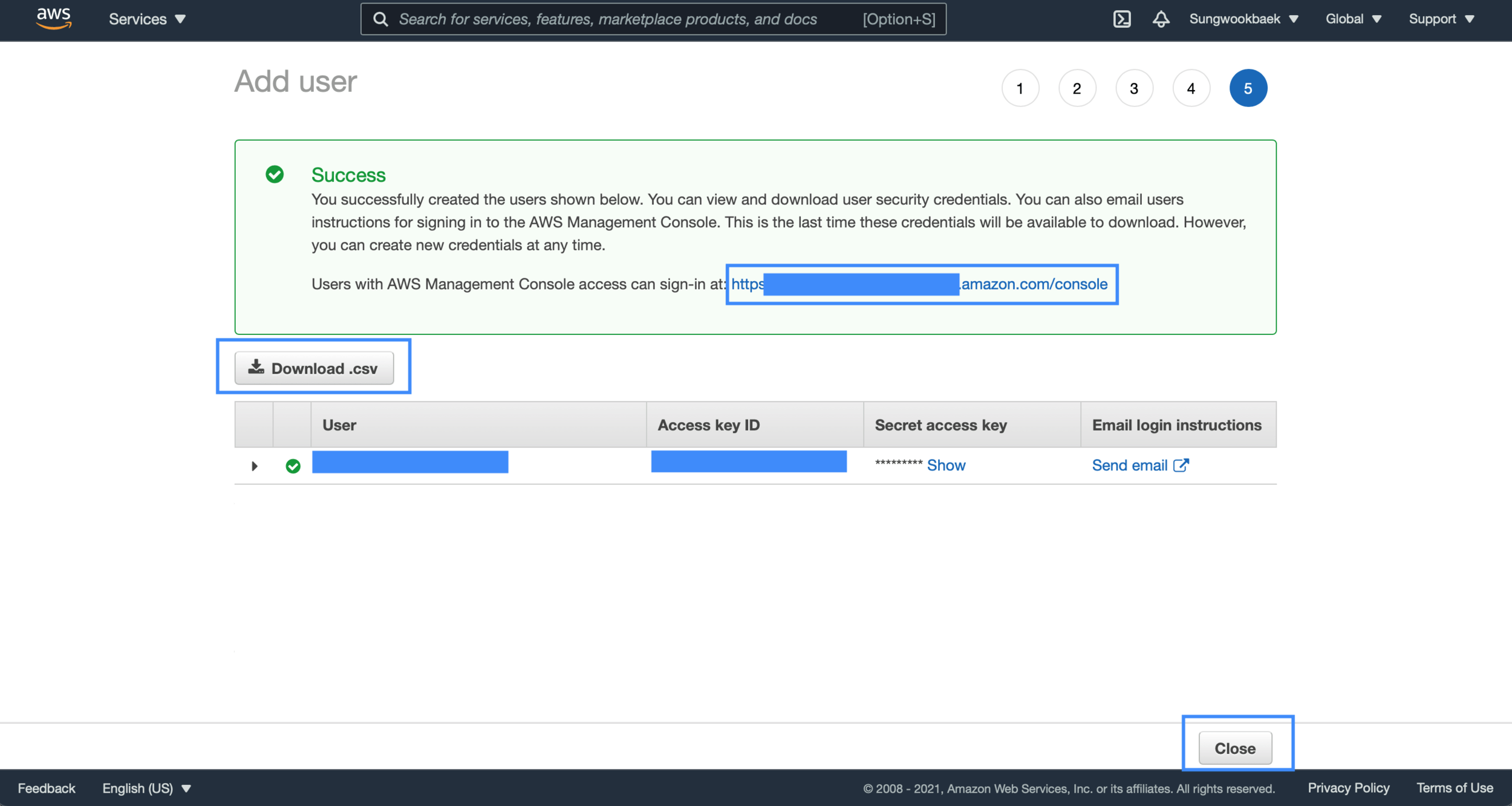
Don’t forget to download .csv file. To access AWS using the CLI tool, you need to set accessKey, secretKey, and console login link.
Now You have an IAM Account. In the AWS document, You should not use the root account for creating the other services. You can use the root account when managing users (IAM service) and billings.
That’s all about the root account’s role. Please log out root account now. And login with an IAM account you created to create an ECR, ECS, Fargate, and RDS services.
You can check the IAM account login URL in the above screenshot.(e.g, https://xxxxx.signin.aws.amazon.com/console)


If you forgot the accountID(12 digits), you log in as a root account and check your accountID(12 digits).

You will see your 12 digits of account id in the blue box above the screenshot.
Create Amazon ECR
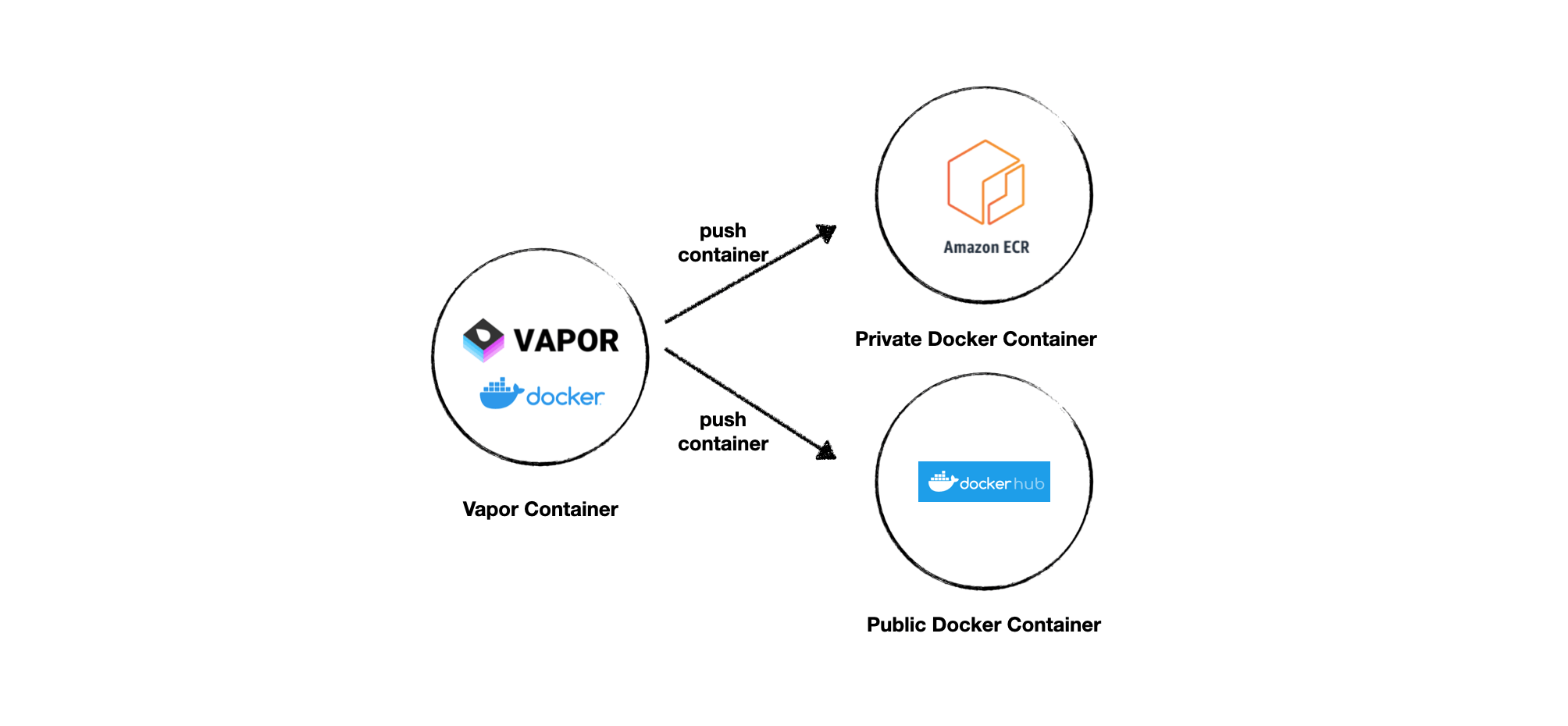
ECR is a repository for Docker Images like Docker Hub. You can push and pull your Docker images and set version tags. The default setting is private, and also you can select a public repository.

Search the ECR at the top of the search bar and create a repository.

Set the repository name you want.

That’s it. Click the Create repository button.

Wait a few seconds. You will see the repository you created. Now You are ready to push your Docker image to the ECR.
Create Amazon ECS
Now You need to create an ECS cluster and task to run your Docker Image in ECR.

Copy your ECR URI. (We will use this URI:latest as an image URI)

Select the ECS Clusters and Click the Get started button.

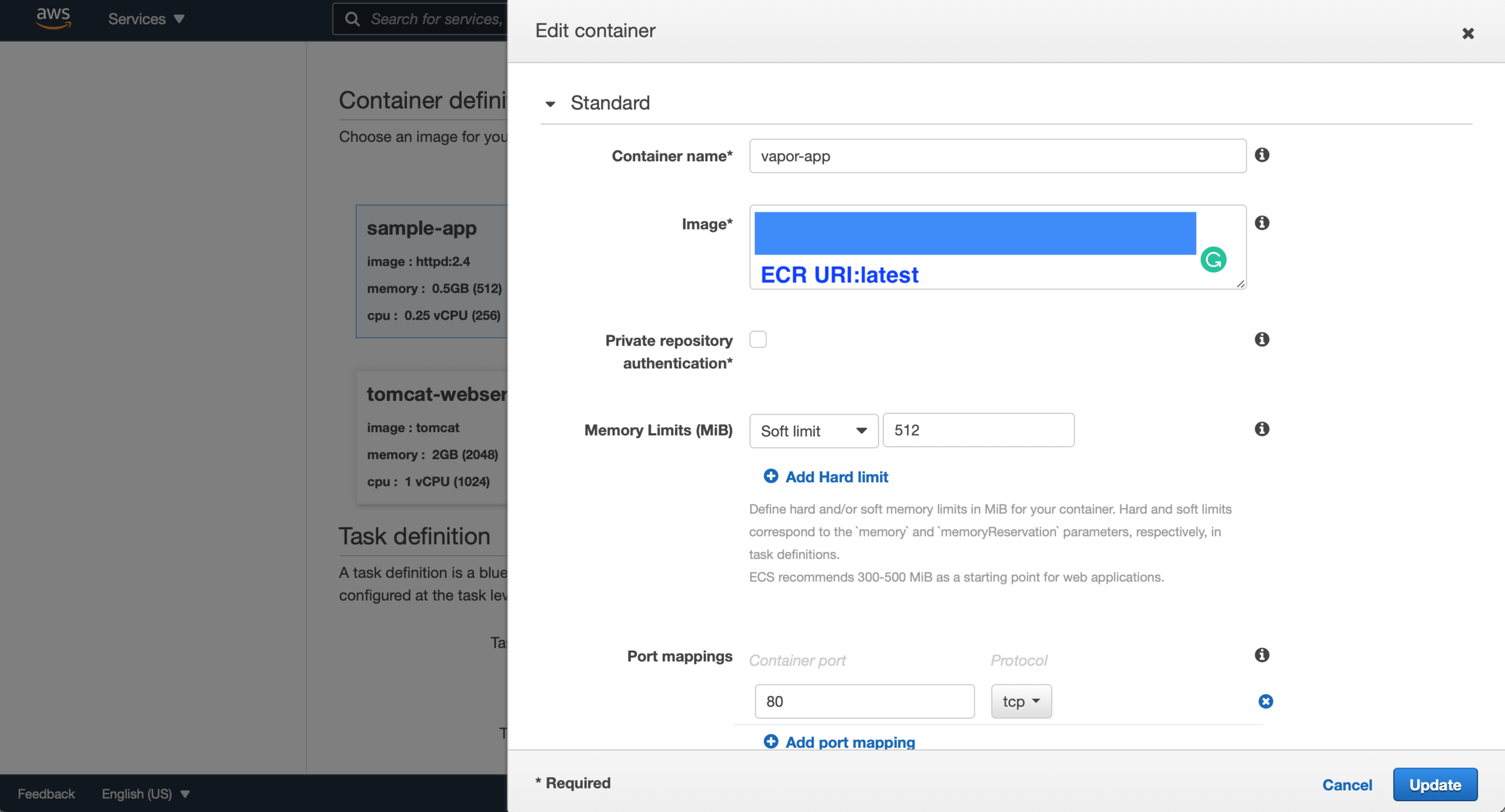
Paste your ECR URI you copied. e.g., ecrUri:latest

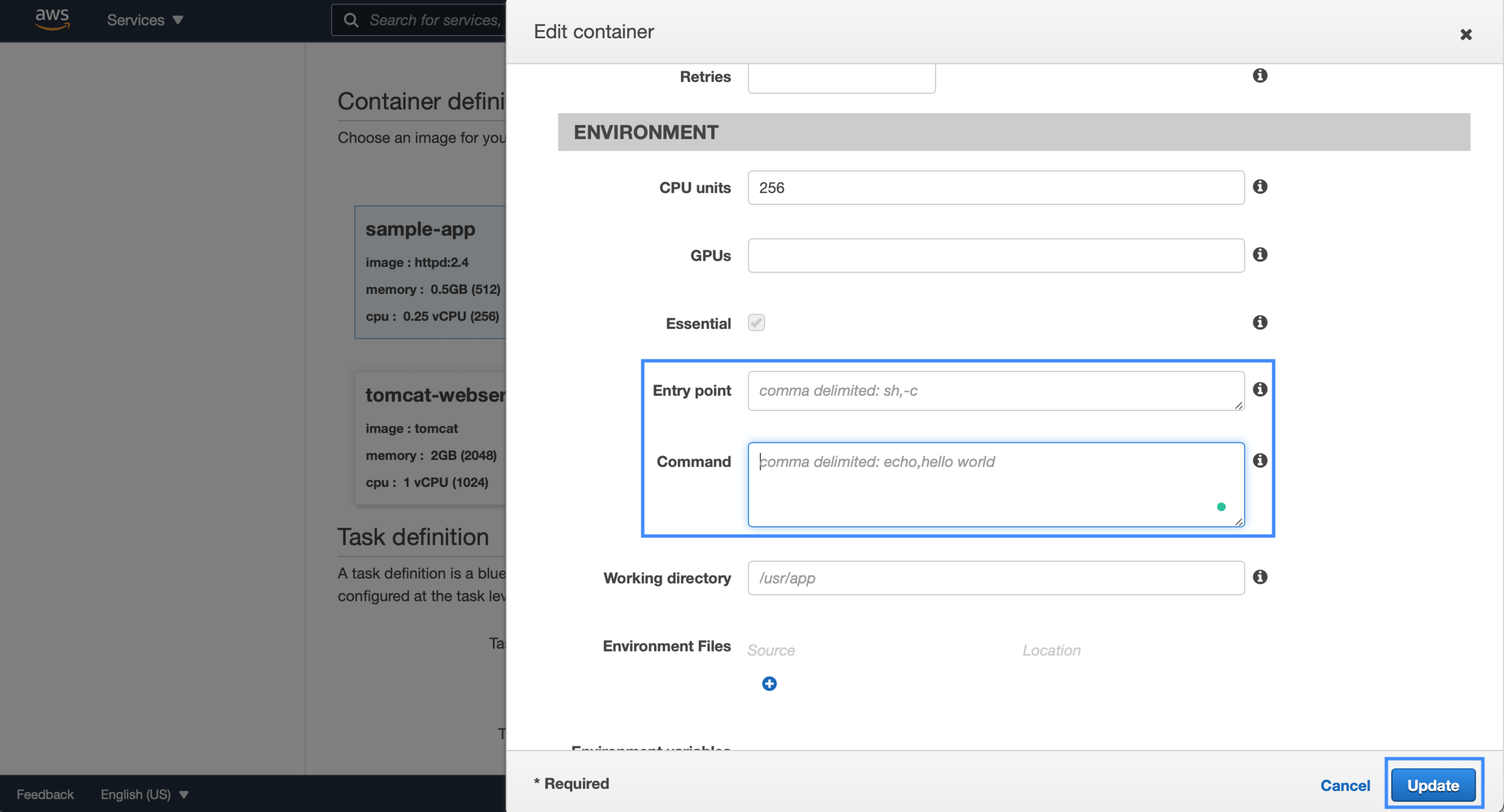
Expand the Advanced Container Configuration. Scroll down to Environment section. Remove the default settings in the blue box above the screenshot.


Enter the task definition name you want.
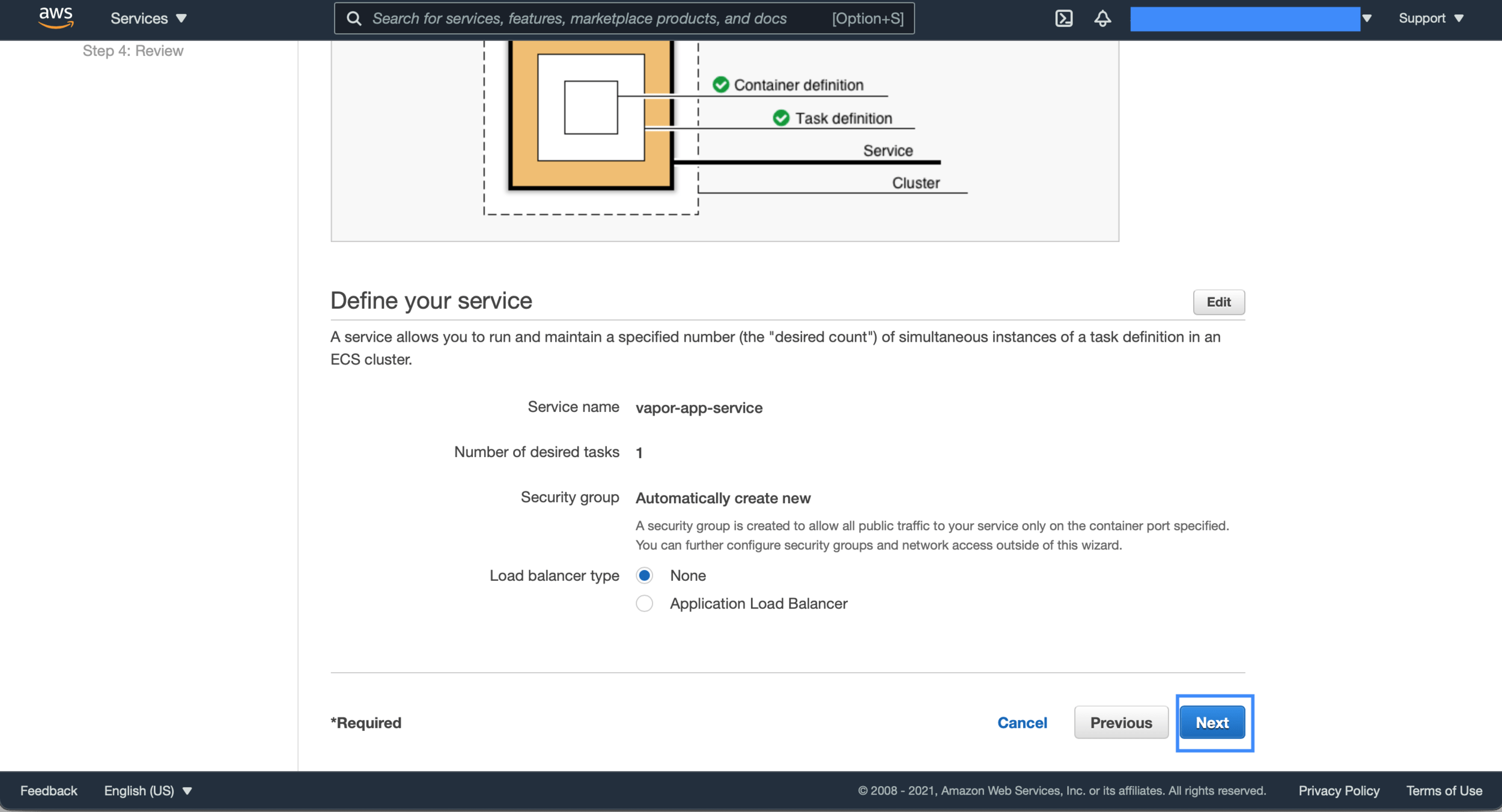


Create Amazon RDS
To set up a database for your vapor app, You have to create an RDS service database. Search for the RDS keyword at the top of the search bar.
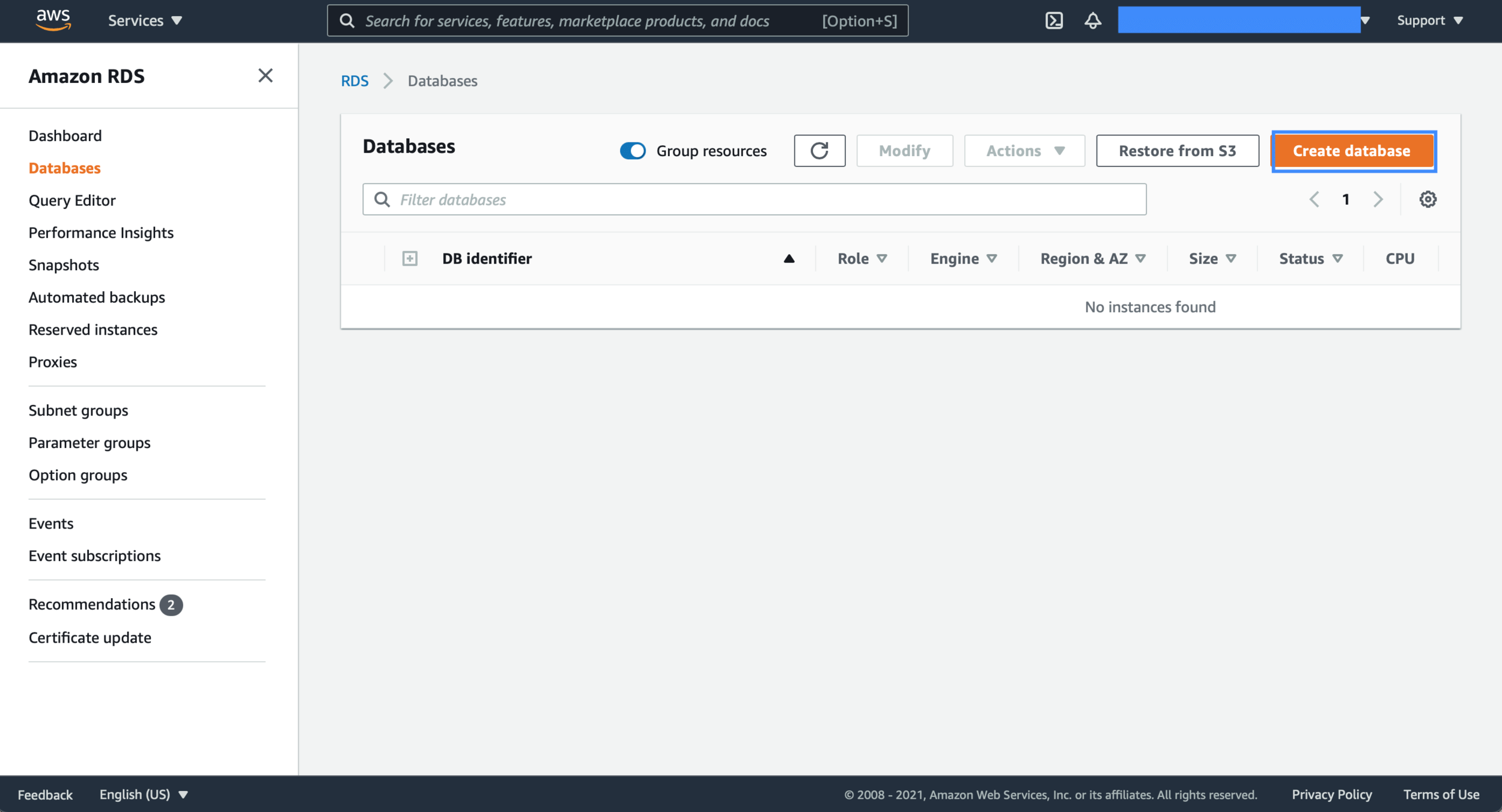

I’ll use PostgreSQL. (Select database you want to use for vapor app)


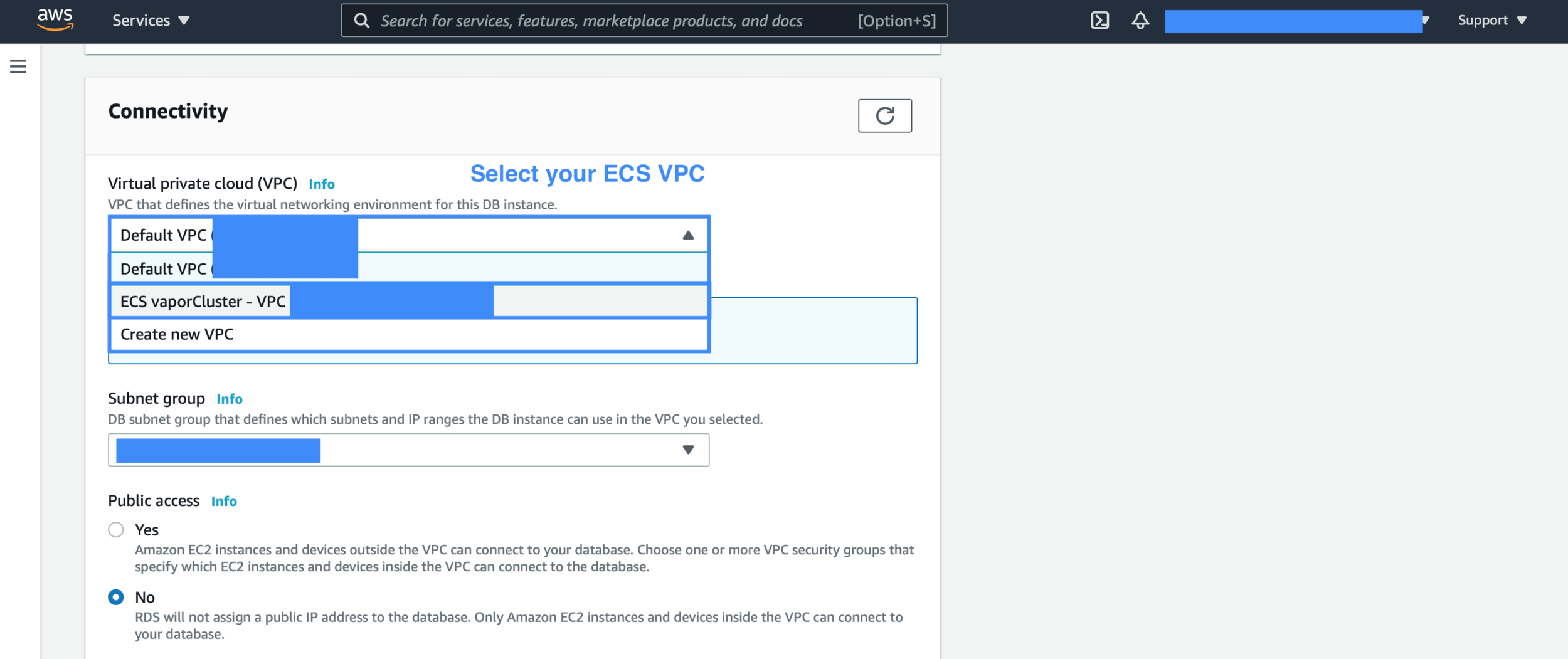
Set your ECS VPC. The subgroup is automatically updated when you select the VPC.
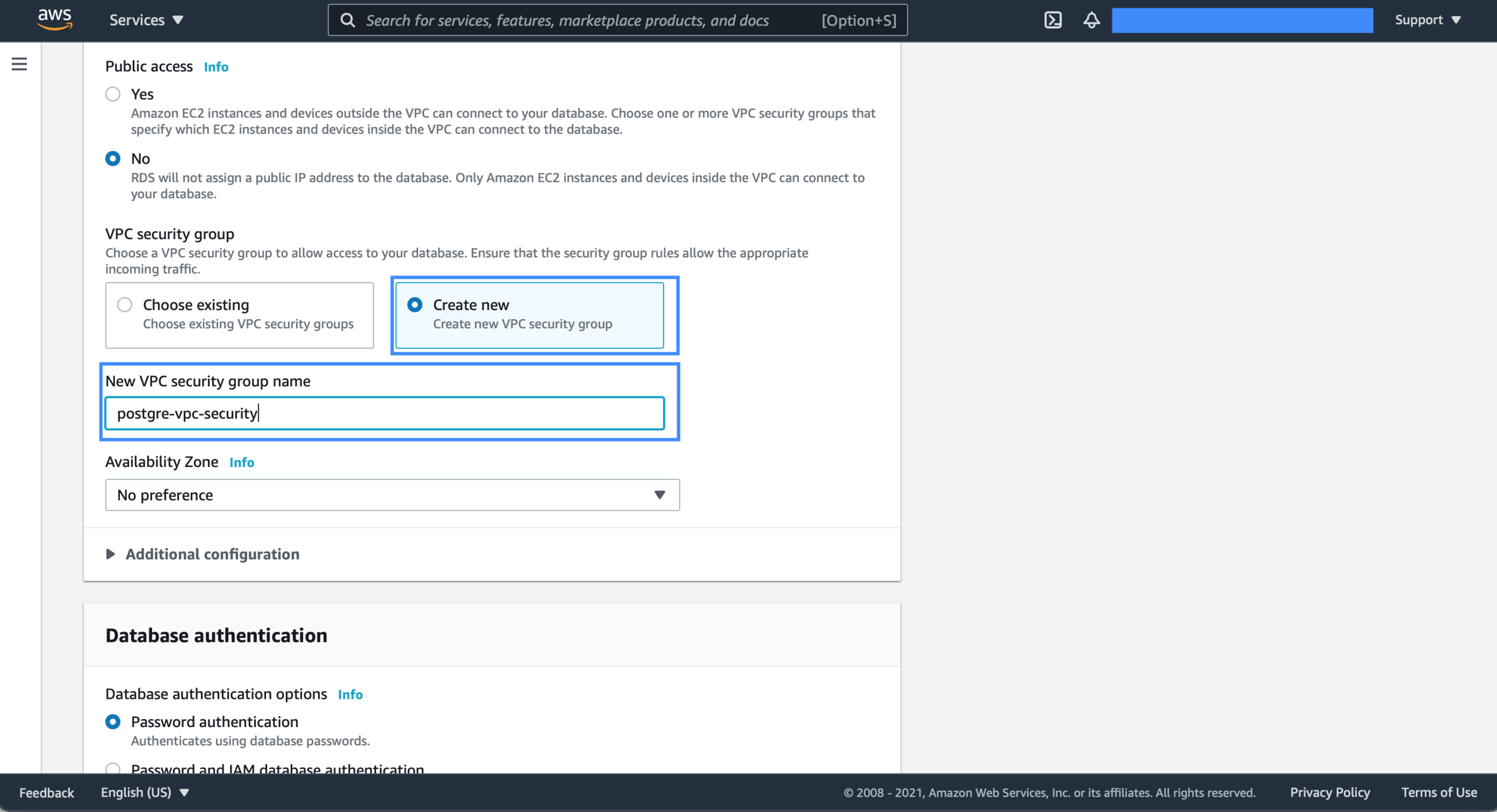
Create New VPC security group to set the inbound for PostgreSQL default port 5432.

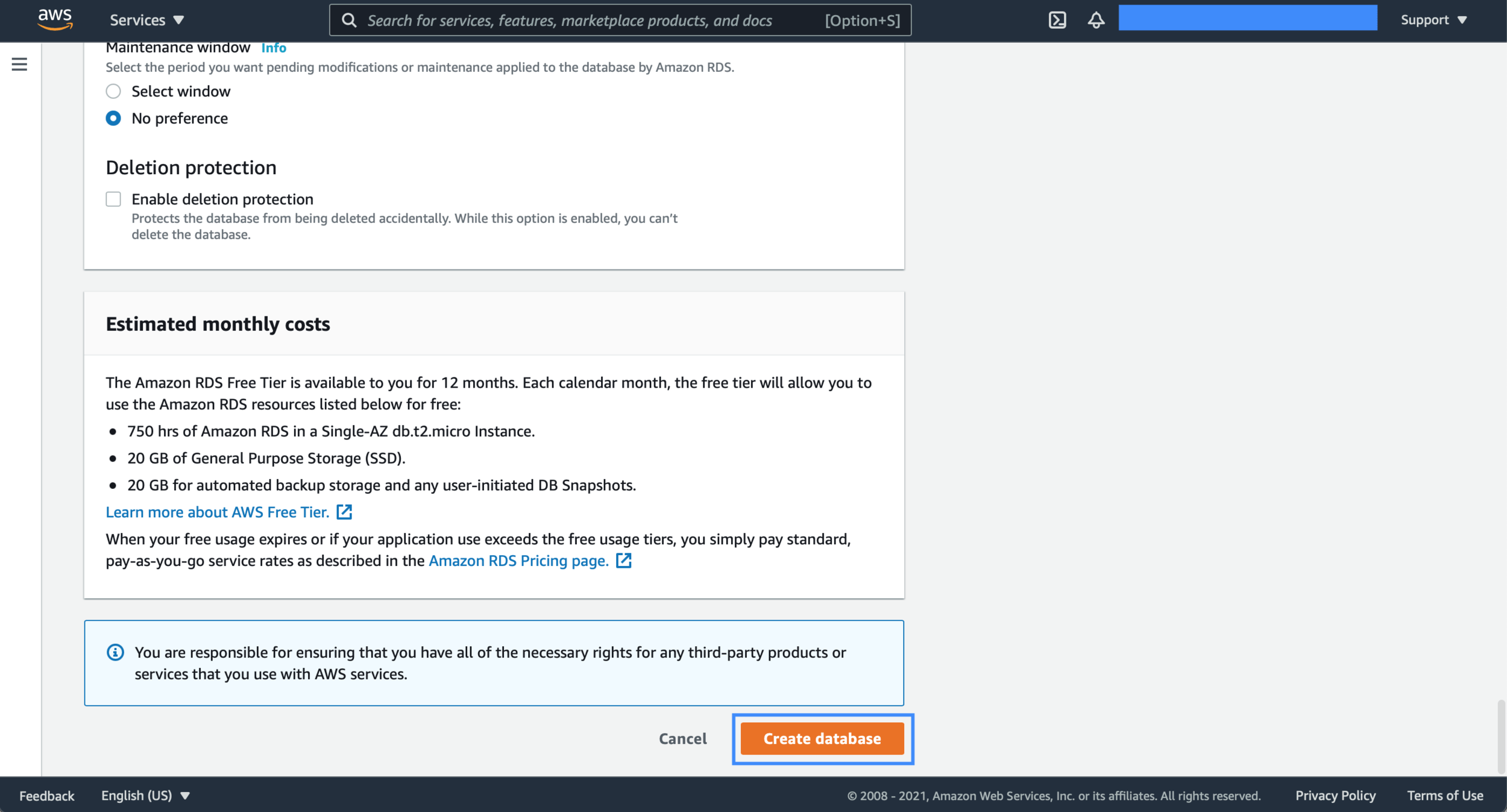
That’s it. You can check the database you create.
Deploy: Push your Docker Image
I’ll show you how to push your Docker image to the ECR. There are two options. Choose the option you like.
# Build image
FROM swift:5.3.2-focal as build

RUN apt-get update -y \
    && apt-get install -y libsqlite3-dev

WORKDIR /build

COPY . .

RUN swift build \
    --enable-test-discovery \
    -c release \
    -Xswiftc -g

# Run image
FROM swift:5.3.2-focal-slim

RUN useradd --user-group --create-home --home-dir /app vapor

WORKDIR /app

COPY --from=build --chown=vapor:vapor /build/.build/release /app
COPY --from=build --chown=vapor:vapor /build/Public /app/Public
COPY --from=build --chown=vapor:vapor /build/Resources /app/Resources

# ARS RDS Environment ARG
ARG AWS_RDS_HOST
ARG AWS_RDS_PORT
ARG AWS_RDS_USER
ARG AWS_RDS_PASS
ARG AWS_RDS_DB

# SignInWithApple Environment ARG
ARG SIWA_ID
ARG SIWA_REDIRECT_URL
ARG SIWA_JWK_ID
ARG SIWA_PRIVATE_KEY
ARG SIWA_TEAM_ID
ARG SIWA_APP_BUNDLE_ID

# Set Environment
RUN echo "SIWA_ID=${SIWA_ID}" > .env.production
RUN echo "SIWA_REDIRECT_URL=${SIWA_REDIRECT_URL}" >> .env.production
RUN echo "SIWA_JWK_ID=${SIWA_JWK_ID}" >> .env.production
RUN echo "SIWA_PRIVATE_KEY=${SIWA_PRIVATE_KEY}" >> .env.production
RUN echo "SIWA_TEAM_ID=${SIWA_TEAM_ID}" >> .env.production
RUN echo "SIWA_APP_BUNDLE_ID=${SIWA_APP_BUNDLE_ID}" >> .env.production

RUN echo "DB_HOST=${AWS_RDS_HOST}" >> .env.production
RUN echo "DB_PORT=${AWS_RDS_PORT}" >> .env.production
RUN echo "DB_USER=${AWS_RDS_USER}" >> .env.production
RUN echo "DB_PASS=${AWS_RDS_PASS}" >> .env.production
RUN echo "DB_NAME=${AWS_RDS_DB}" >> .env.production

USER vapor

# Export Port
EXPOSE 8080

ENTRYPOINT ["./Run"]
CMD ["serve", "--env", "production", "--hostname", "0.0.0.0", "--port", "8080"]
The code is my Dockerfile for the Vapor app. I’ll write the post about server-side swift. In this post, I focused on deploying the Docker Image to AWS. Don’t forget to export 8080.
Option 1. AWS Command line tool on macOS
Install AWS cli tool on macOS


Download the pkg file and install it. You don’t need to set the installation path. Just click the continue button until the installation is completed.
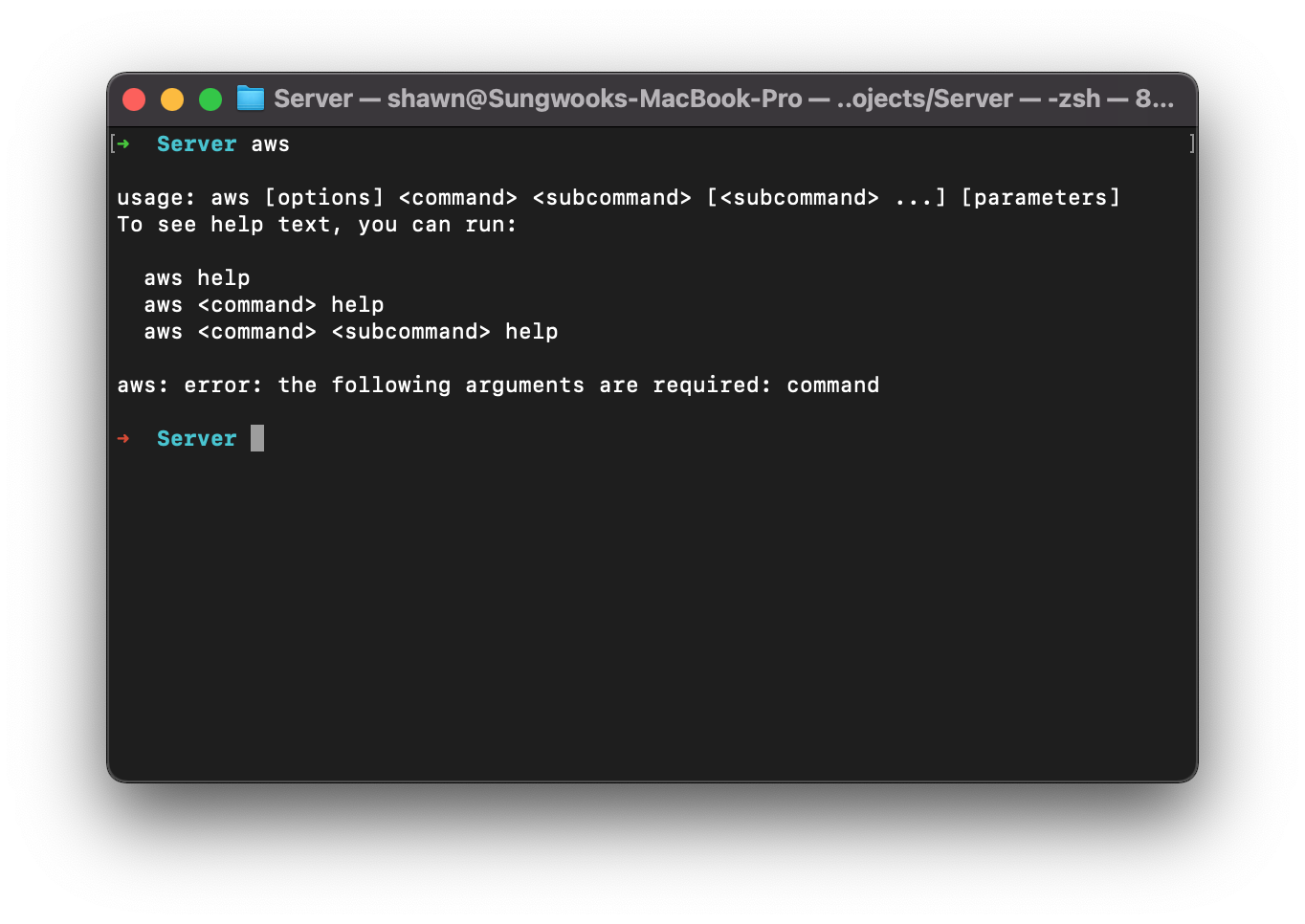
Open the terminal and check the CLI tool.
Deploy the Docker image using the CLI tool.
Let’s create a `deploy.sh` file in the path which has Dockerfile.
#!/bin/bash
#Set Variables
containerName="Enter your ECR Repository name"
ecrURI="EnterYour12DigitNumber.dkr.ecr.YourRegion.amazonaws.com/${containerName}"

echo "Step 1. Setup AWS Config"

aws configure set aws_access_key_id YourAccessKey --profile default
aws configure set aws_secret_access_key YourSecretKey --profile default
aws configure set region YourRegion --profile default

echo "Step 2. AWS ECR Login"
aws ecr get-login-password --region YourRegion | docker login --username AWS --password-stdin $ecrURI


echo "Step 3. Build Docker Image"
 docker build \
--build-arg SIWA_ID=SignInWithAppleID \
--build-arg SIWA_REDIRECT_URL=SetYourRedirectUrlForSignInWithApple \
--build-arg SIWA_JWK_ID=YourJWKIDForSignInWithApple \
--build-arg SIWA_PRIVATE_KEY=YourSignInWithApplePrivateKey \
--build-arg SIWA_TEAM_ID=YourSignInWithAppleTeamId \
--build-arg SIWA_APP_BUNDLE_ID=YourAppBundleId \
--build-arg AWS_RDS_HOST=YourRDSHostUrl \
--build-arg AWS_RDS_PORT=5432 \
--build-arg AWS_RDS_USER=YourRDSUserName \
--build-arg AWS_RDS_PASS=YourRDSPassword \
--build-arg AWS_RDS_DB=YourRDSDatabaseName \
-t "${containerName}:latest" -f Dockerfile .

echo "Step 4. Set tag on Docker Image"
docker tag "${containerName}:latest" "${ecrURI}:latest"

echo "Step 5. Push Docker Image to AWS ECR"
# docker push "vapor-app-image:latest"
docker push "${ecrURI}:latest"
Set your containerName and region. You can check these names on Amazon ECR.
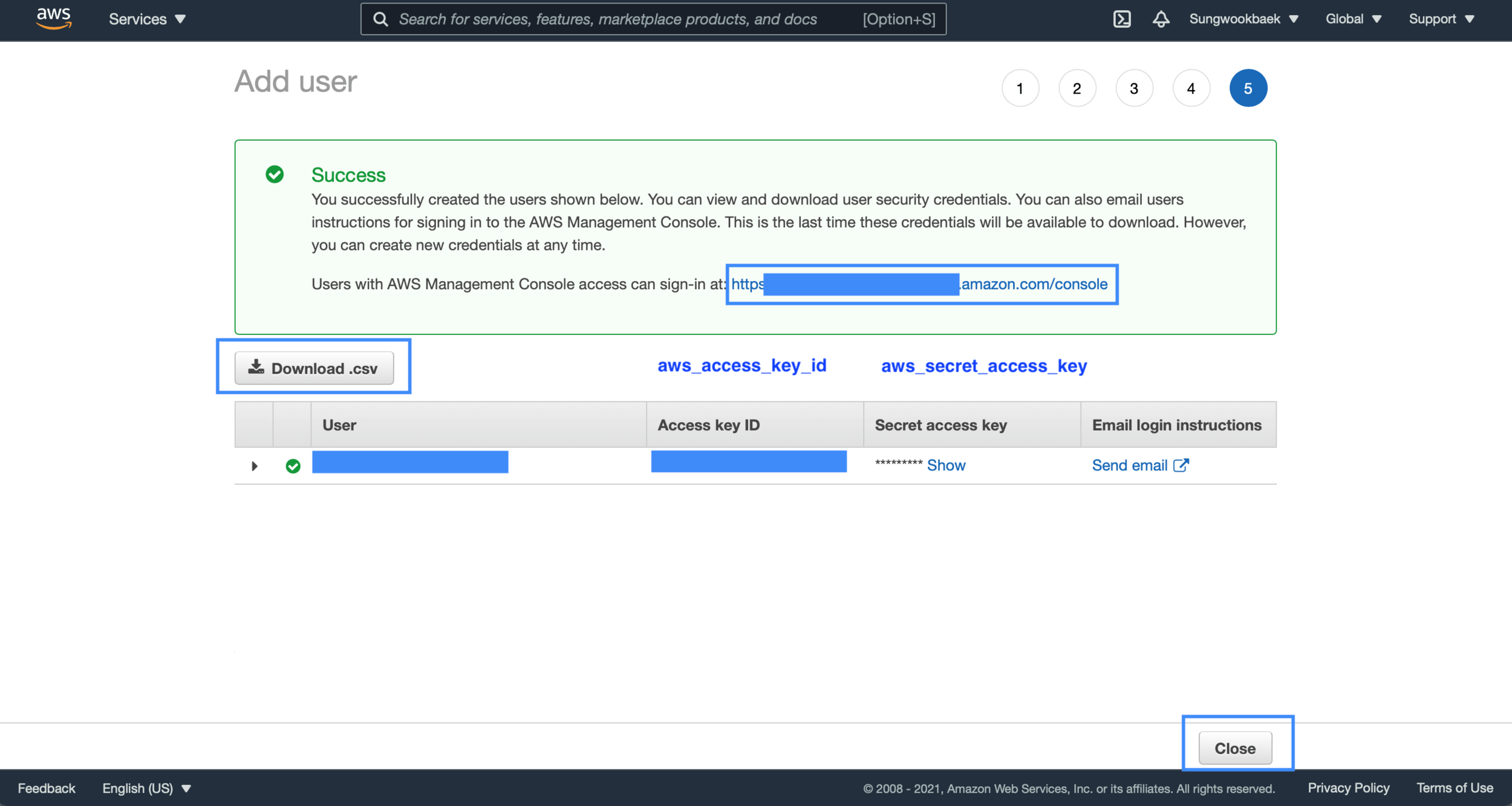
Step 1. You can check the access key and secret key in the CSV file of the IAM Account you create.
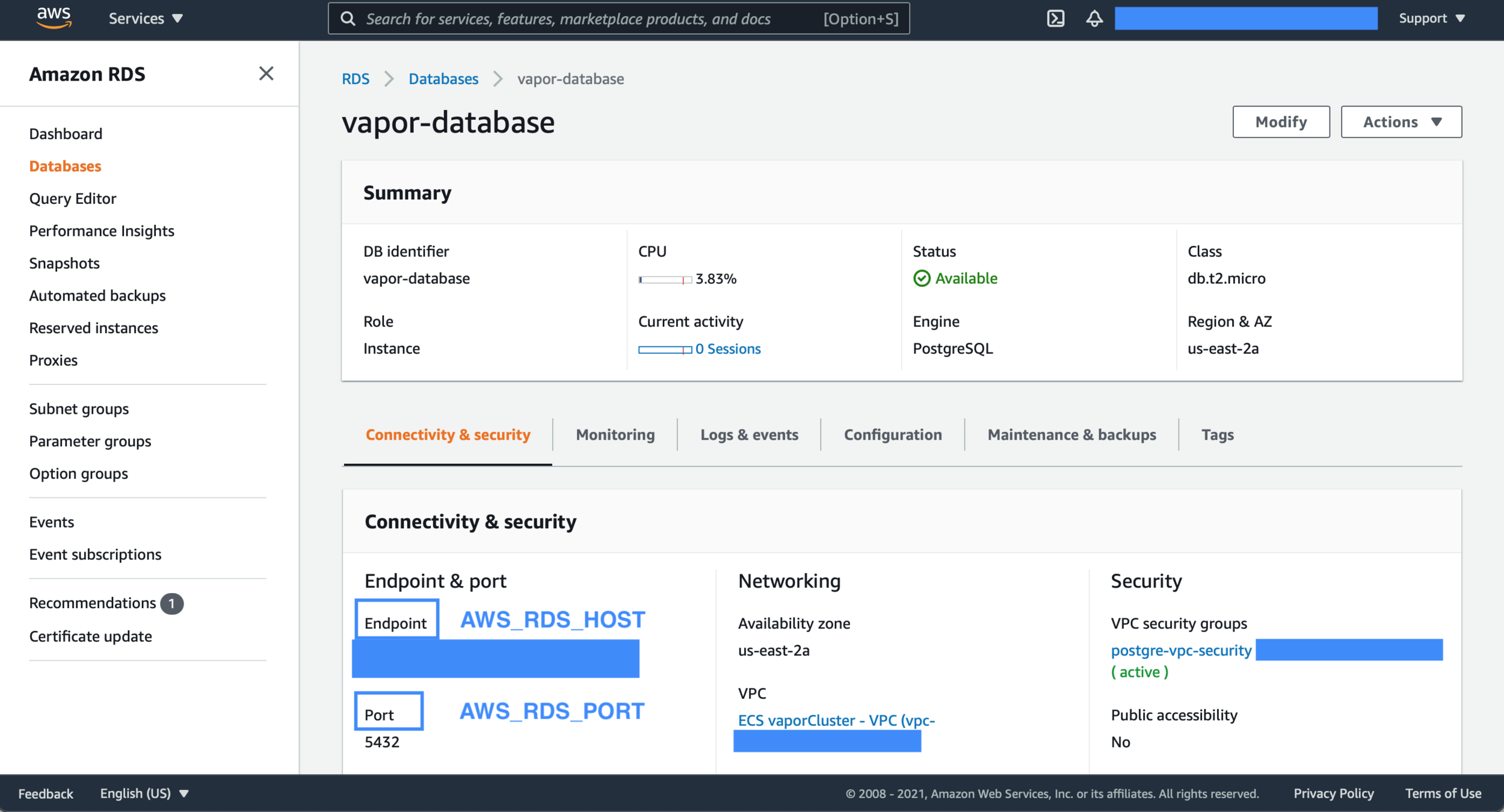

Step 3. Check your RDS values on the RDS Database settings.
sh ./deploy.sh
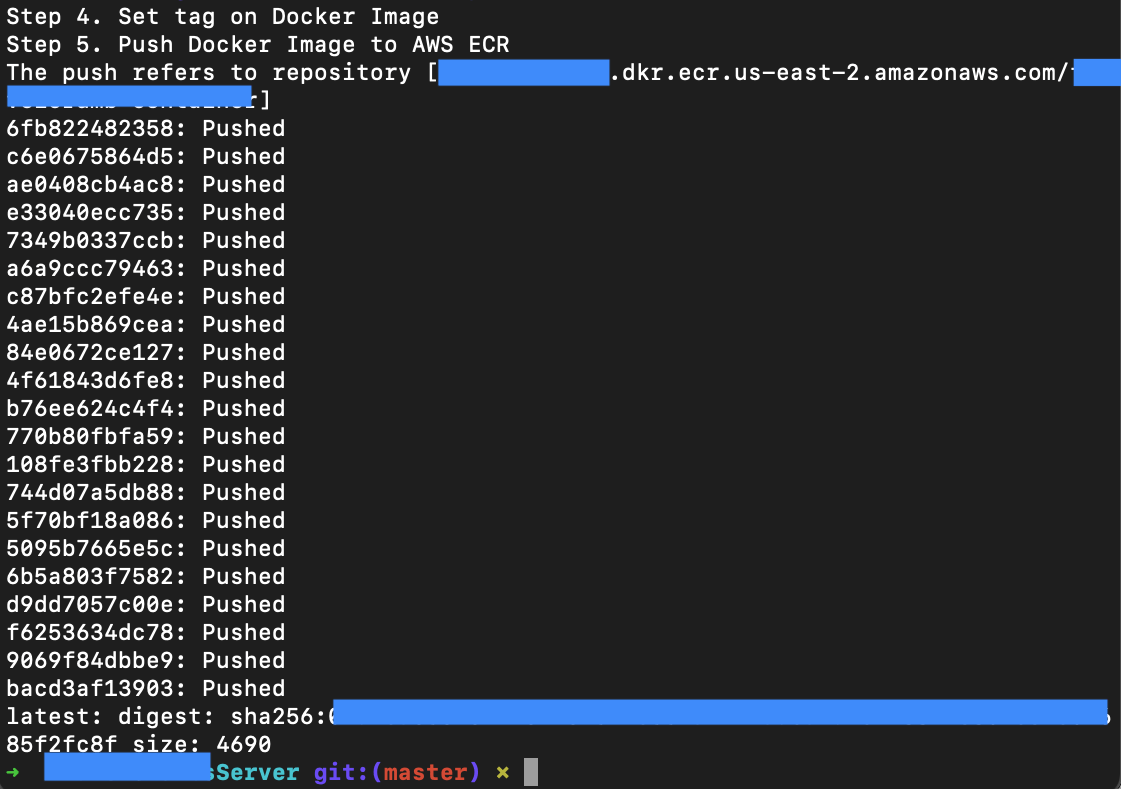
Let’s run the deploy script and check the result. There is no issue, and You pushed the Docker image to the ECR successfully.

You can see the image you pushed. If you want to check the command for push image using CLI, click the View push commands above the screenshot.
Fargate Task Pending Issue!!
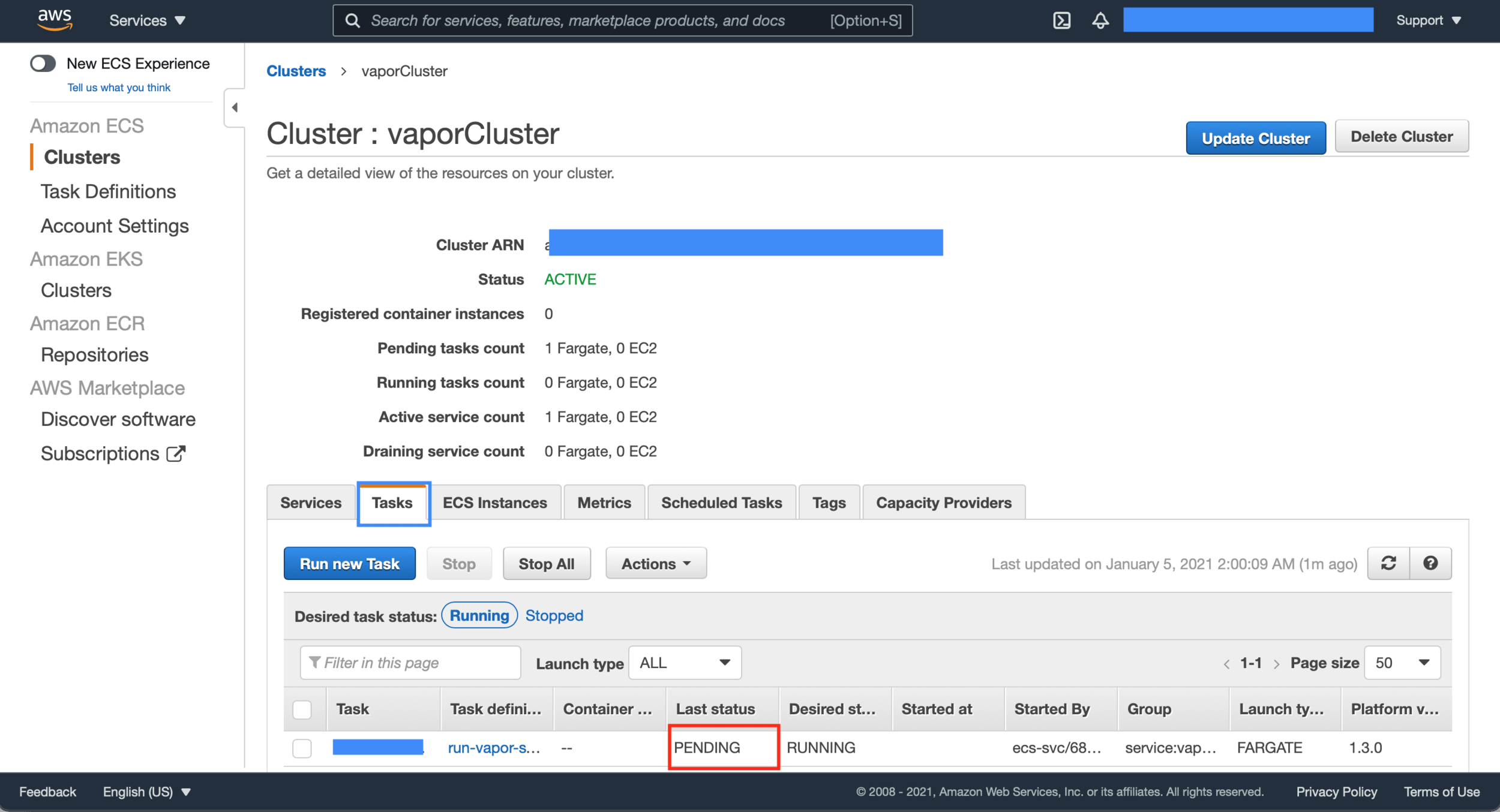
You pushed the Docker image to the ECR. The ECS Fargate task is automatically started to run the Vapor container. Let’s check the Fargate task’s status. You may find-out the problem. Its status is pending. Why?
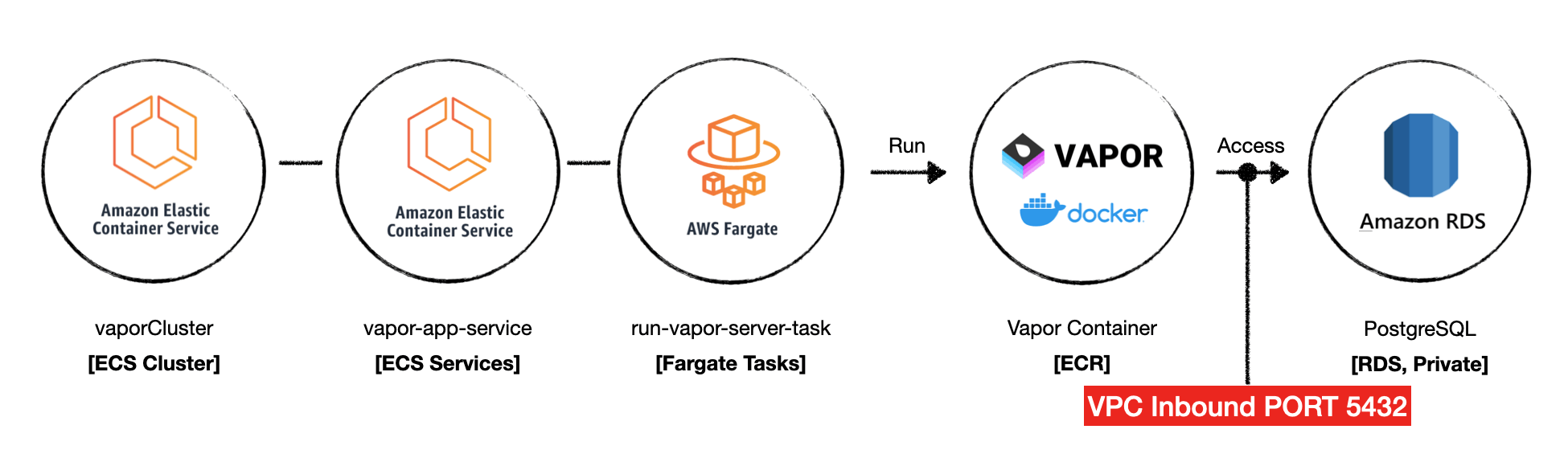
You didn’t set the inbound rule for your ECS VPC. Let’s put the inbound rule of the security group on RDS for ECS VPC.


Add custom TCP 5432 PORT. Don’t forget to select the source as your ECS Container Security Group.
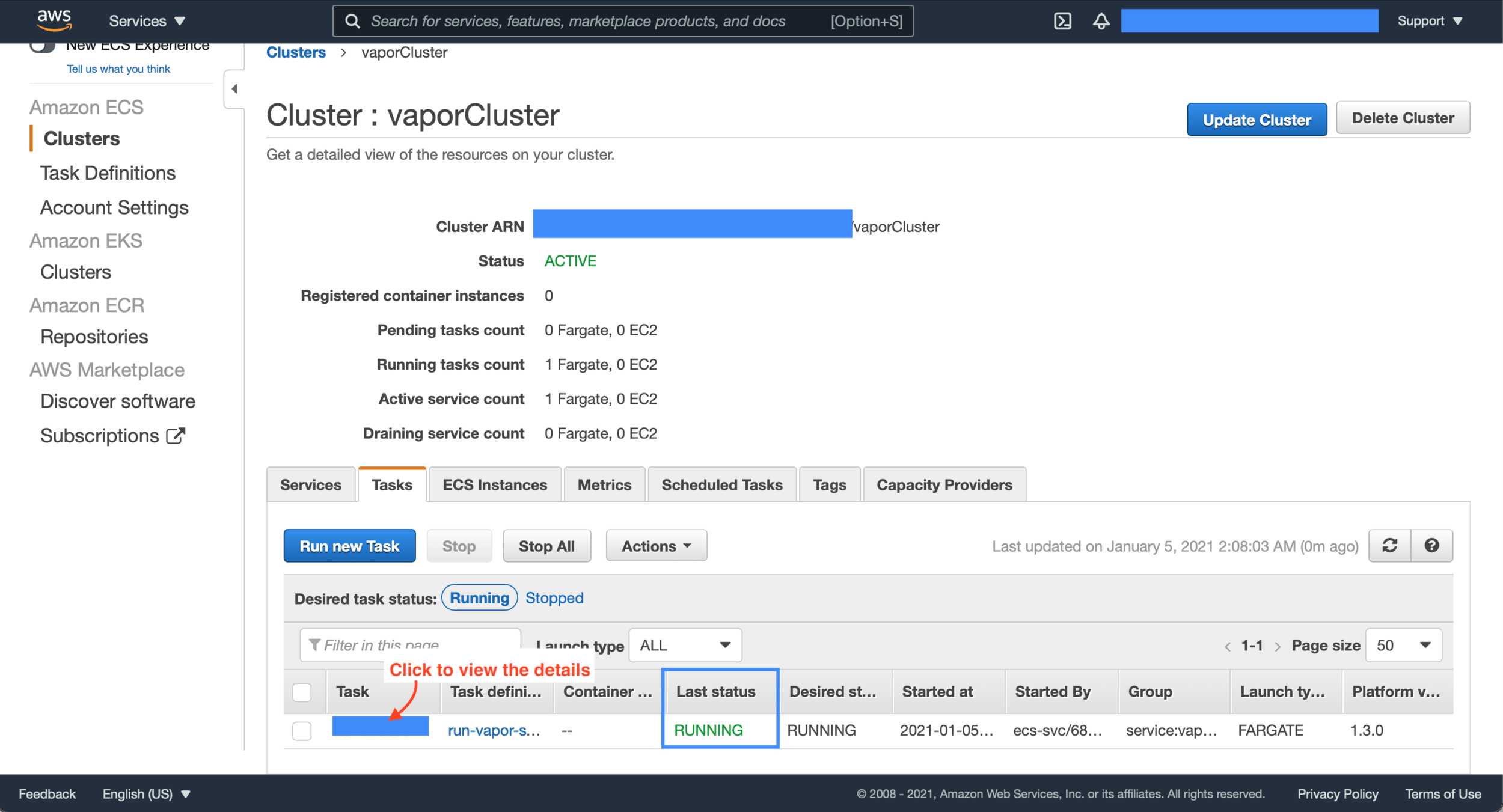
Let’s recheck the Fargate task. Its status is updated to Running. You resolve the RDS accessing problem!

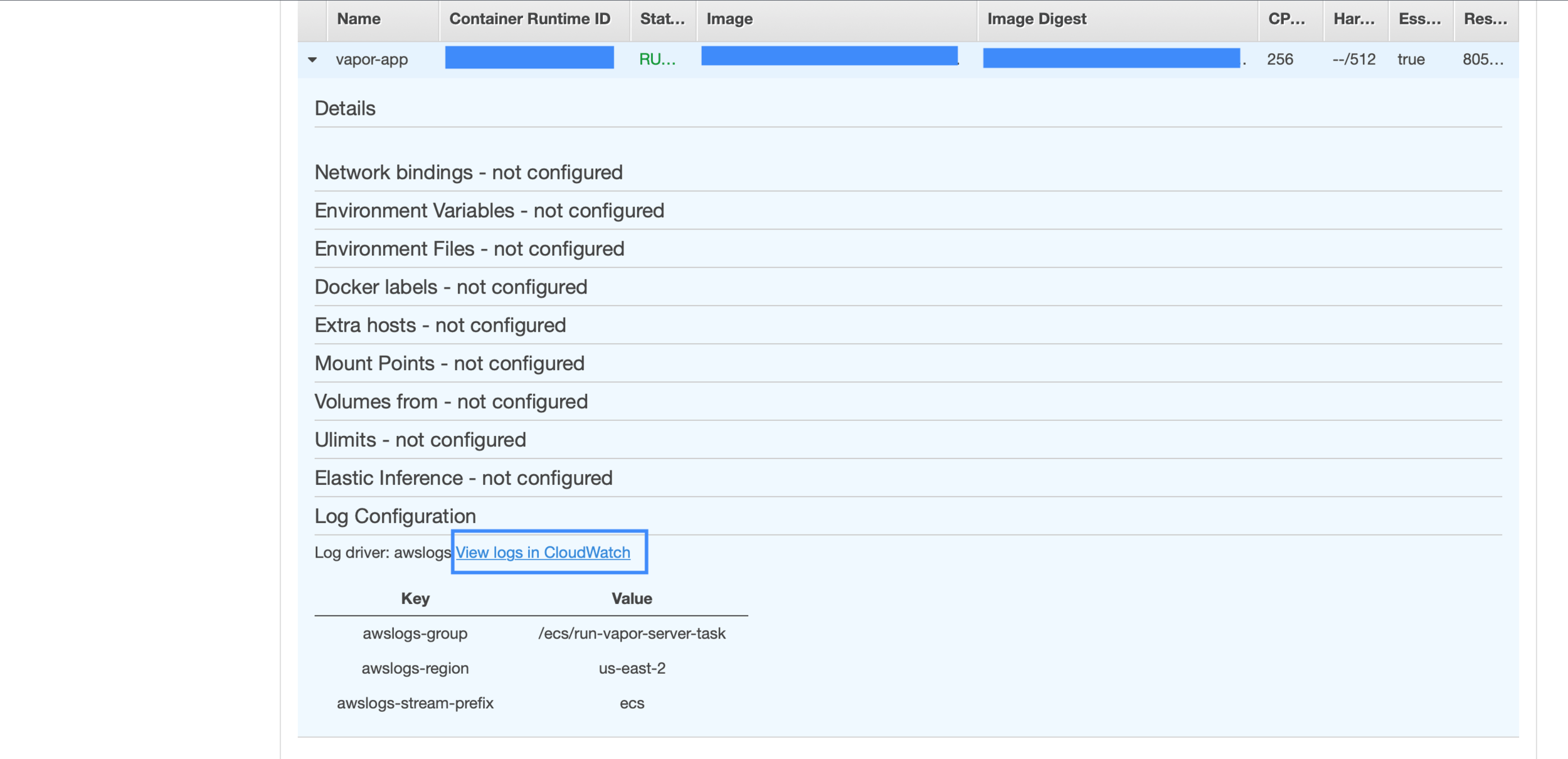

You can also check the log in the CloudWatch service. Your server is running now.
Try to access the Vapor app on Web Browser
Let’s check the public IP and access the Vapor app on the Web Browser.

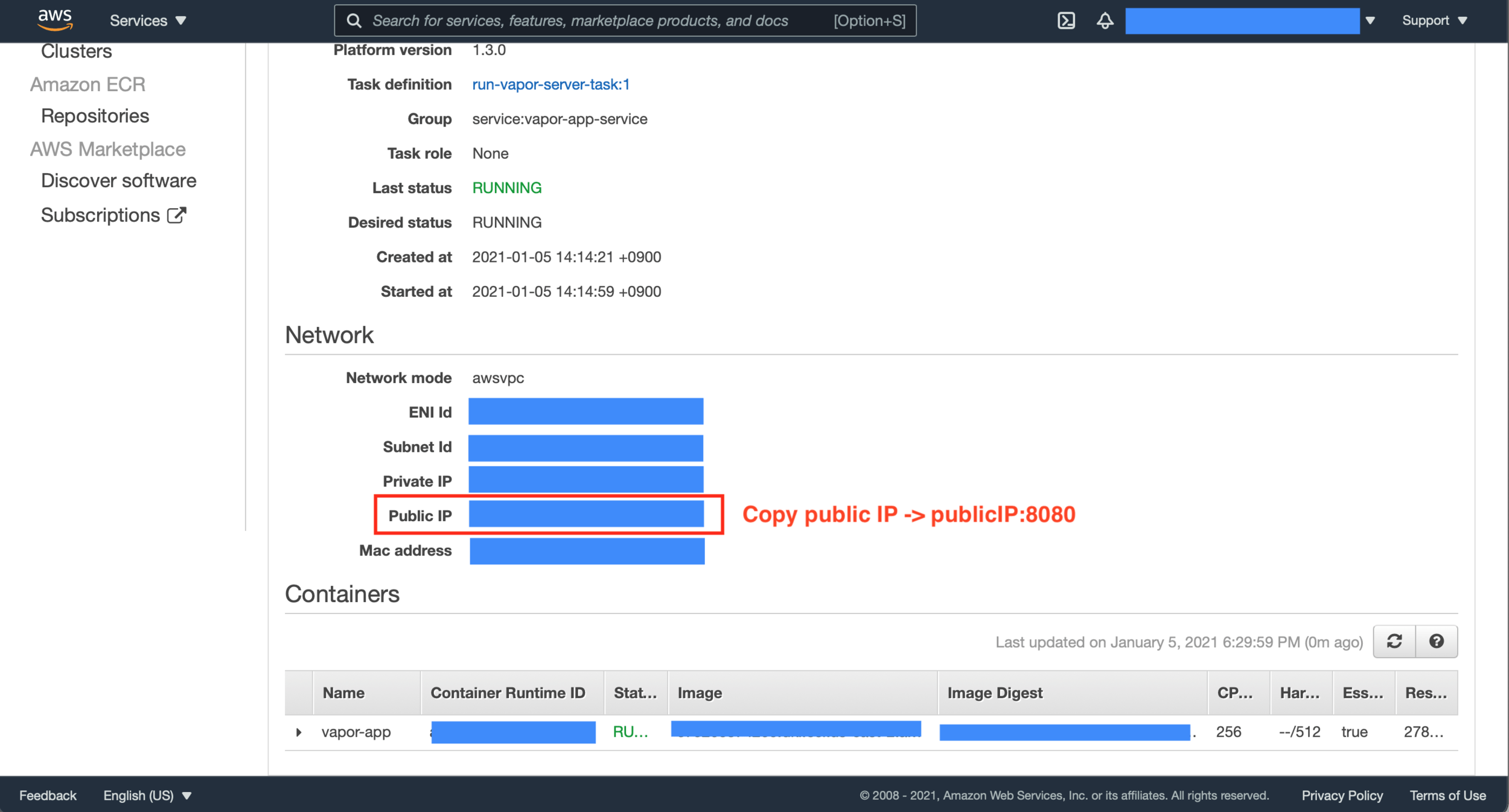

Hmm, You can’t access the server. The problem is that you didn’t allow the 8080 port in the Cluster’s security group.
Let’s resolve this issue.


That’s all. Now You can access the vapor app on Safari. Let’s recheck it.

You resolve the access problem!
Option 2. Github Action
You can also set the deploy Docker Image using Github Action. Let’s set up. Before reading this section, I have to say that the setting of Github Action has one issue. I have almost done it except building Docker Image. If you want to try my setup, let’s keep follow my instruction.

Click the New workflow on your GitHub repository.

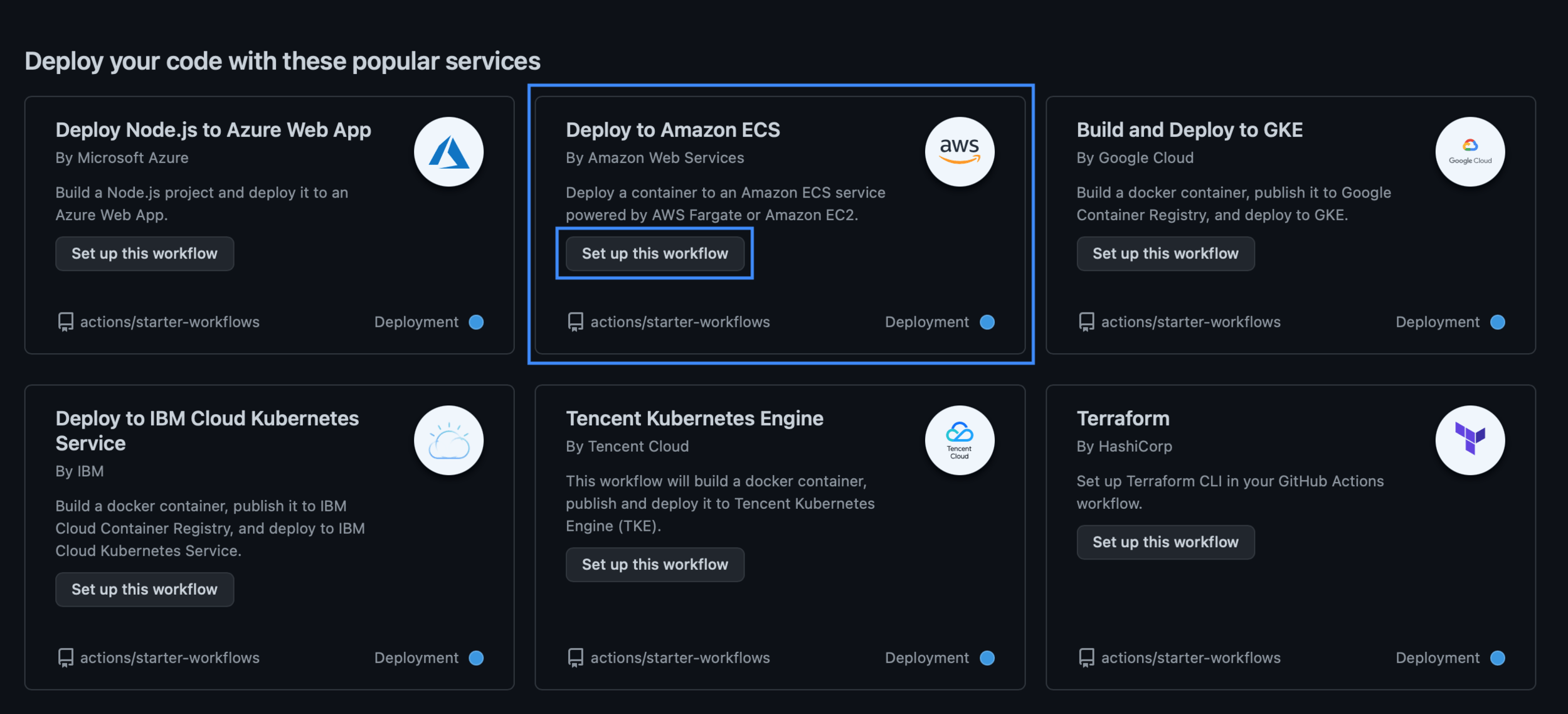
I’ll use the Deploy to Amazon ECS template.
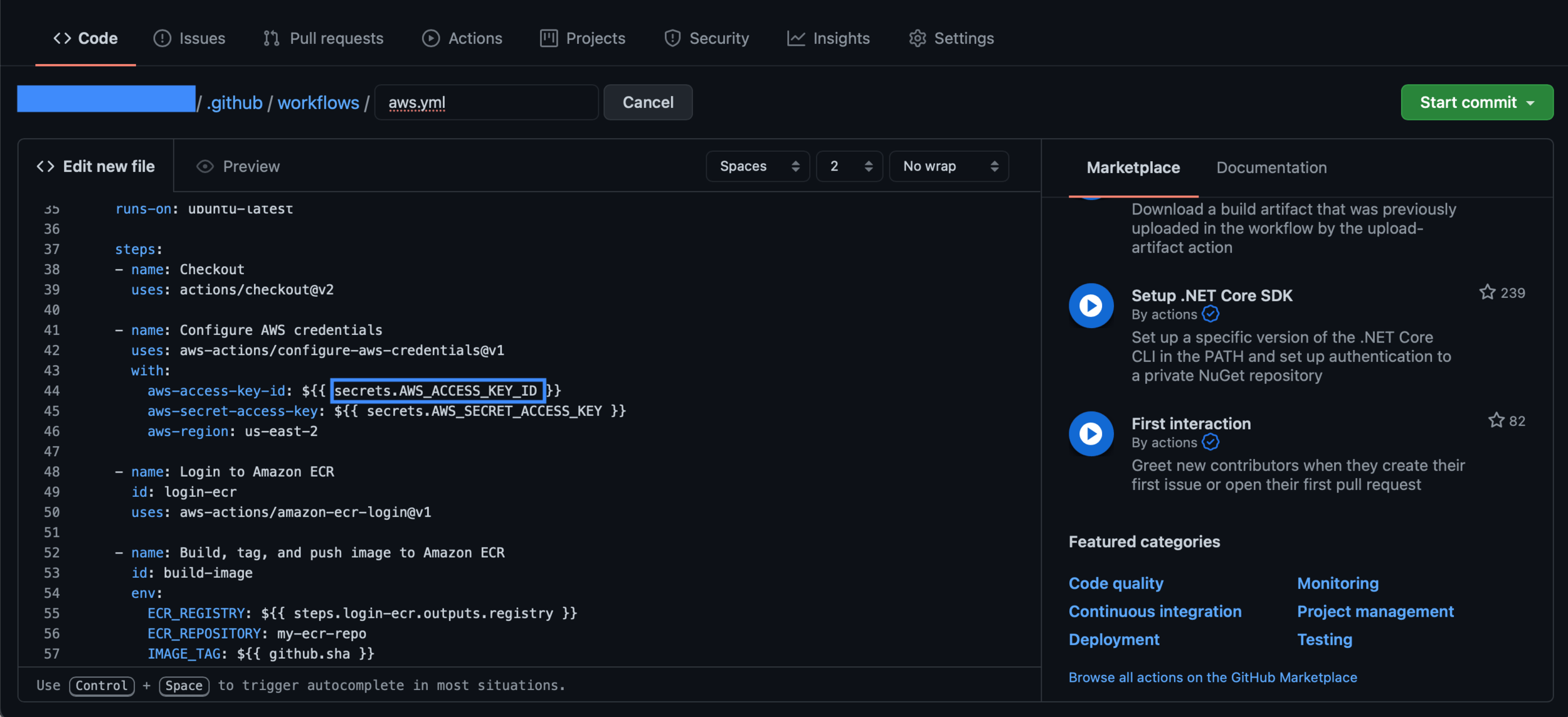
In the YML file, You can see the ${{ secrets.KEY }}. This KEY is Secret Environment Variables. You can set the values on your repository Settings tap.
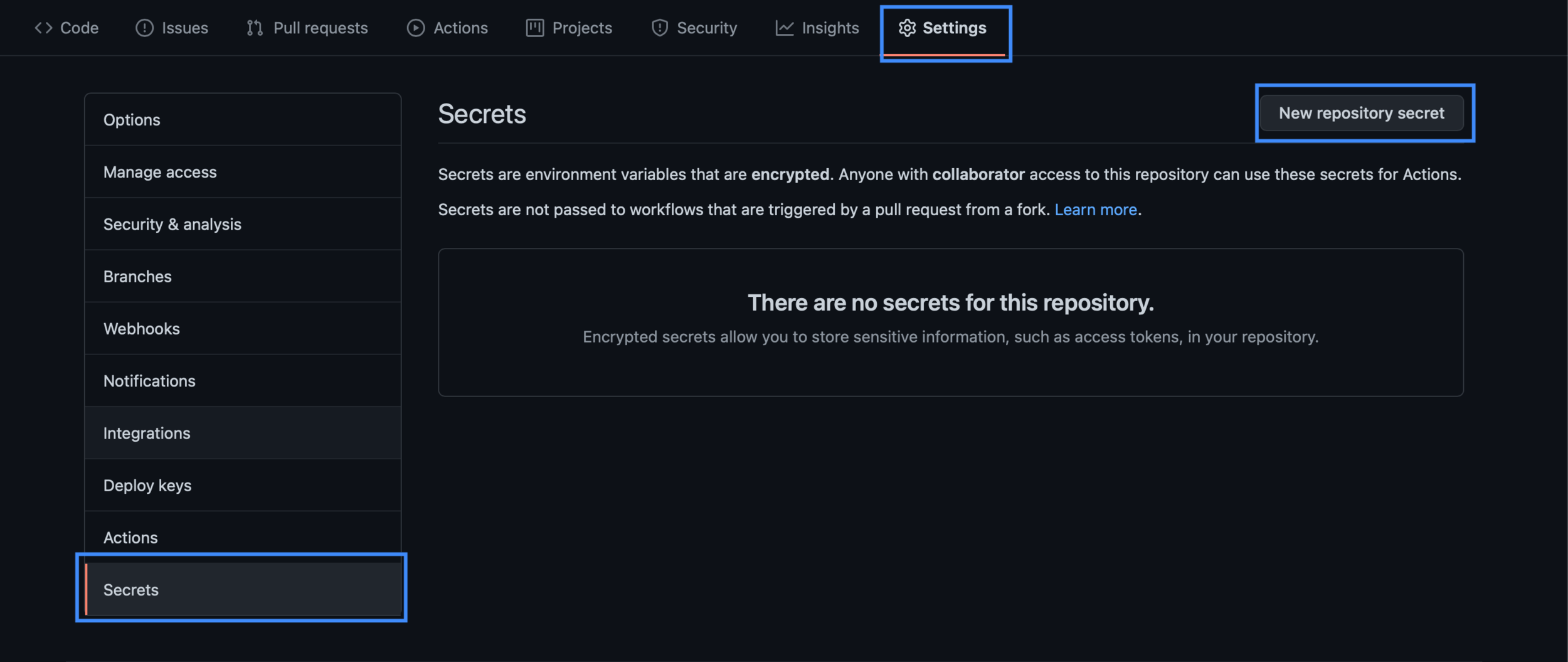

Set the Environment Variable Name and Value.

That’s it.
# This workflow will build and push a new container image to Amazon ECR,
# and then will deploy a new task definition to Amazon ECS, when a release is created
#
# To use this workflow, you will need to complete the following set-up steps:
#
# 1. Create an ECR repository to store your images.
#    For example: `aws ecr create-repository --repository-name my-ecr-repo --region us-east-2`.
#    Replace the value of `ECR_REPOSITORY` in the workflow below with your repository's name.
#    Replace the value of `aws-region` in the workflow below with your repository's region.
#
# 2. Create an ECS task definition, an ECS cluster, and an ECS service.
#    For example, follow the Getting Started guide on the ECS console:
#      https://us-east-2.console.aws.amazon.com/ecs/home?region=us-east-2#/firstRun
#    Replace the values for `service` and `cluster` in the workflow below with your service and cluster names.
#
# 3. Store your ECS task definition as a JSON file in your repository.
#    The format should follow the output of `aws ecs register-task-definition --generate-cli-skeleton`.
#    Replace the value of `task-definition` in the workflow below with your JSON file's name.
#    Replace the value of `container-name` in the workflow below with the name of the container
#    in the `containerDefinitions` section of the task definition.
#
# 4. Store an IAM user access key in GitHub Actions secrets named `AWS_ACCESS_KEY_ID` and `AWS_SECRET_ACCESS_KEY`.
#    See the documentation for each action used below for the recommended IAM policies for this IAM user,
#    and best practices on handling the access key credentials.

on:
  push:
     branches: [ master ]
name: Deploy to Amazon ECS

jobs:
  deploy:
    name: Deploy
    runs-on: ubuntu-latest

    steps:
    - name: Checkout
      uses: actions/checkout@v2

    - name: Configure AWS credentials
      uses: aws-actions/configure-aws-credentials@v1
      with:
        aws-access-key-id: ${{ secrets.AWS_ACCESS_KEY_ID }}
        aws-secret-access-key: ${{ secrets.AWS_SECRET_ACCESS_KEY }}
        aws-region: us-east-2

    - name: Login to Amazon ECR
      id: login-ecr
      uses: aws-actions/amazon-ecr-login@v1

    - name: Build, tag, and push image to Amazon ECR
      id: build-image
      env:
        ECR_REGISTRY: ${{ steps.login-ecr.outputs.registry }}
        ECR_CONTAINER_NAME: ${{ secrets.AWS_ECS_CONTAINER_NAME }}
        IMAGE_TAG: latest
      run: |
        # Build a docker container and
        # push it to ECR so that it can
        # be deployed to ECS.
        docker build \
          --build-arg SIWA_ID=${{ secrets.SIWA_ID }} \
          --build-arg SIWA_REDIRECT_URL=${{ secrets.SIWA_REDIRECT_URL }} \
          --build-arg SIWA_JWK_ID=${{ secrets.SIWA_JWK_ID }} \
          --build-arg SIWA_PRIVATE_KEY=${{ secrets.SIWA_PRIVATE_KEY }} \
          --build-arg SIWA_TEAM_ID=${{ secrets.SIWA_TEAM_ID }} \
          --build-arg SIWA_APP_BUNDLE_ID=${{ secrets.SIWA_APP_BUNDLE_ID }} \
          --build-arg AWS_RDS_HOST=${{ secrets.AWS_RDS_HOST }} \
          --build-arg AWS_RDS_PORT=${{ secrets.AWS_RDS_PORT }} \
          --build-arg AWS_RDS_USER=${{ secrets.AWS_RDS_USER }} \
          --build-arg AWS_RDS_PASS=${{ secrets.AWS_RDS_PASS }} \
          --build-arg AWS_RDS_DB=${{ secrets.AWS_RDS_DB }} \
        -t $ECR_REGISTRY/$ECR_CONTAINER_NAME:$IMAGE_TAG .
        docker push $ECR_REGISTRY/$ECR_CONTAINER_NAME:$IMAGE_TAG
        echo "::set-output name=image::$ECR_REGISTRY/$ECR_CONTAINER_NAME:$IMAGE_TAG"
I modified the YML file refer to our deploy.sh file. When you commit to the master branch, then Github Action is started. Let’s check the results.

Almost steps are done. But The Docker build step is failed.

In the build step, the docker command can’t find the Dockerfile. If you use the `uses: docker/build-push-action@v2` in YML, You can successfully build your Dockerfile. But `uses: docker/build-push-action@v2` is trying to push docker hub, not AWS ECR, even if I set the ECR URI. If you know to resolve this issue, please let me know. I’ll update the Github Action step soon!
Special Thanks
Thanks for advising me and review my post.
 Shawn
Shawn 