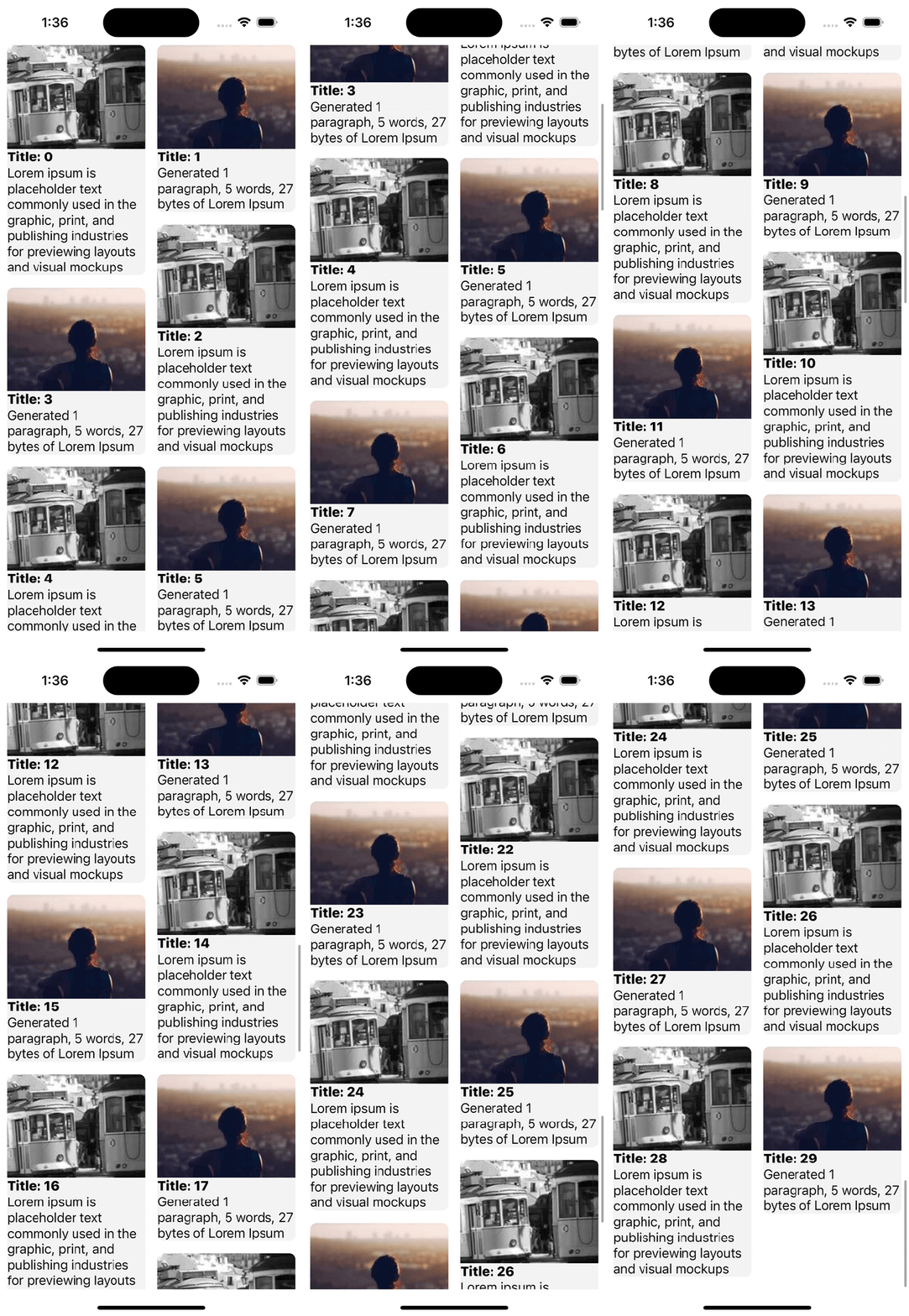
In this post, I’ll share sample code for implementing MasonryLayout using UICollectionViewCompositionalLayout.
UICollectionViewCell
I defined a very simple UICollectionViewCell. It consists of basic UI components such as Photo, Title and Description.

NSCollectionLayoutGroupCustomItem ( >= iOS 13)
This is important to implement masonryLayout. Unfortunately It doesn’t support NSCollectionLayoutSize. (It supports GCRect only)
It means we need to calculate the cell’s contents size.
So We need to write 2 main logics.
Step 1. Calculate Cell’s size
To calculate size, We need to know cell’s width first.
We knows collectionView’s width by accessing UICollectionViewCompositionalLayout’s layoutEnvironment.container.contentSize.
private func masonryLayout(contentInset: NSDirectionalEdgeInsets) -> UICollectionViewCompositionalLayout {
    let layout = UICollectionViewCompositionalLayout { [weak self] sectionIndex, layoutEnvironment in
    var items = [NSCollectionLayoutGroupCustomItem]()
    let snapshotItems = self?.dataSource.snapshot(for: .item).items
    let numberOfItems = snapshotItems?.count ?? 0
    let contentSize = layoutEnvironment.container.contentSize
            ...
}
Cell’s width
We have 2 columns. so Cell’s width is contentSize.width / columns.
If we set interItemSpacing and NSDirectionalEdgeInsets then logic is below
let horizontalSpacing = contentInsets.leading + contentInsets.trailing
        let spacing = (columns - 1) * interItemSpacing + horizontalSpacing
        return (contentSize.width - spacing) / columns
Cell’s Height
Calculate UIImageView’s size
In this example, I set image ratio as 4:3. So Image Height is cell’s width * 0.75.
Calculate UILabel’s size
To get the correct size, We need to provide the details such as Font, LineBreakMode and NumberOfLines.
Also to get the correct bounding size we set NSString.DrawingOptions.
If you want to know more details about drawing options visit Apple documents.
extension UILabel {
    var textHeight: CGFloat? {
    guard let labelText = text else {
        return nil
    }
    let attributes: [NSAttributedString.Key: UIFont] = [
            .font: font
]
    let labelTextSize = (labelText as NSString).boundingRect(
            with: CGSize(width: frame.size.width, height: .greatestFiniteMagnitude),
            options: .usesLineFragmentOrigin,
            attributes: attributes,
            context: nil
        ).size
        return ceil(labelTextSize.height)
    }
}

func height(text:String, font:UIFont, numberOfLines: CGFloat, lineBreakMode: NSLineBreakMode, width:CGFloat) -> CGFloat{
    let label:UILabel = UILabel(frame: CGRect(x: 0, y: 0, width: width, height: UILabel.noIntrinsicMetric))
    label.numberOfLines = numberOfLines
    label.lineBreakMode = lineBreakMode
    label.font = font
    label.text = text
    return label.textHeight ?? 0
}
Step 2. Calculate Cell’s Position in a Group
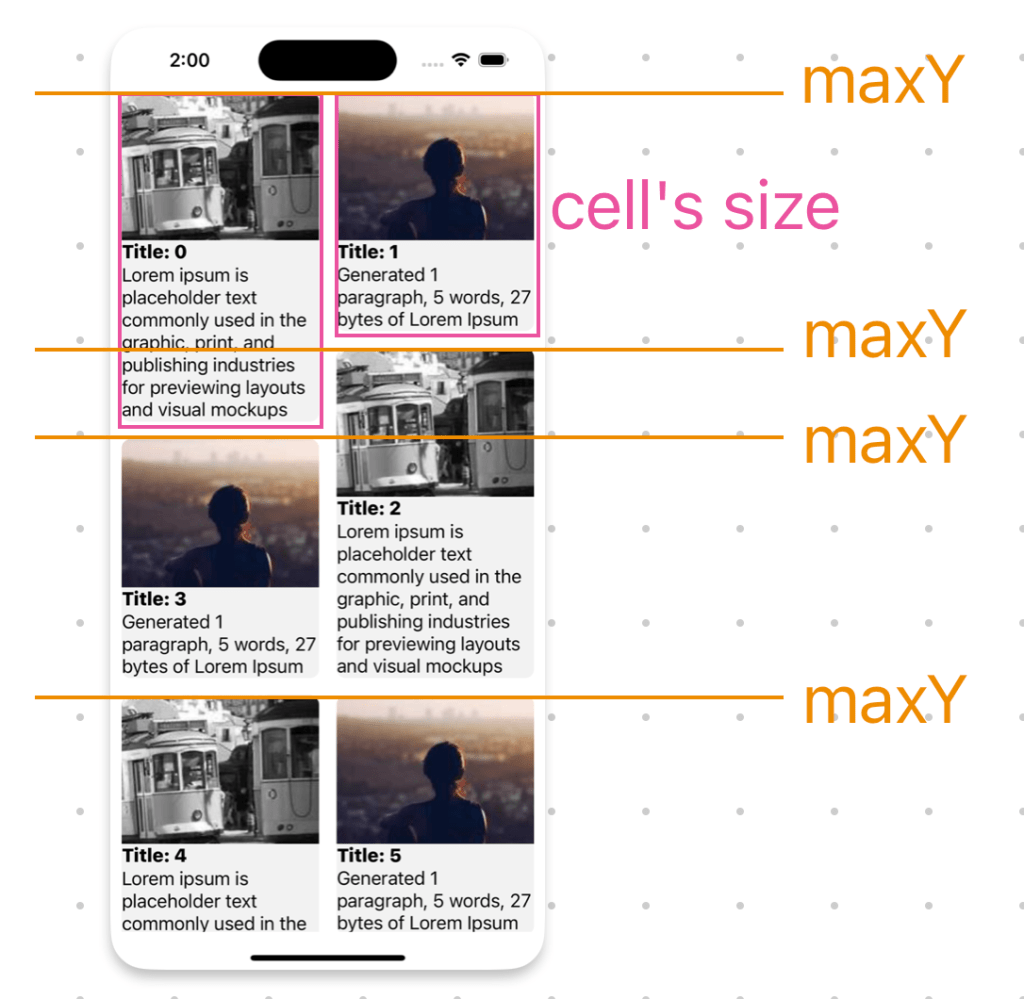
We need to layout cell’s position in a Group. CGRect has origin x, y and width, height. At step 1, We already calculated the cell’s width and height. In step 2, We need to calculate origins.
Calculate cell’s origin X and Y

Let’s take a look how to layout cells. (row is indicating item’s index)
First Item (row: 0, column: 0)
It’s origin is 0, 0
Second Item (row: 1, column: 1)
It’s origin y is 0. But x is first item’s width + interItemSpacing.
let originX = (cellWidth + interItemSpacing) * columnIndex
Third Item (row: 2, column: 0)
Its origin x is zero because columnIndex is zero. But origin y is calculated by maxY between First Item and Second Item. Second Item’s maxY is smaller than First Item. So We picked this to layout Third Item.
UICollectionViewCompositionalLayout for MasonryLayout (Pinterest Style)
Here is full source code.
cachedSize used for saving cell’s height. It will be called when you call a reloadData or applySnapshotUsingReloadData. (In this sample, I used dictionary but you can considering NSCache)
private func masonryLayout(contentInset: NSDirectionalEdgeInsets) -> UICollectionViewCompositionalLayout {
    let layout = UICollectionViewCompositionalLayout { [weak self] sectionIndex, layoutEnvironment in
    var items = [NSCollectionLayoutGroupCustomItem]()
    let snapshotItems = self?.dataSource.snapshot(for: .item).items
    let numberOfItems = snapshotItems?.count ?? 0
    let contentSize = layoutEnvironment.container.contentSize
    let itemProvider = MasonryLayoutProvider(
                columns: 2,
                interItemSpacing: 16,
                collectionWidth: contentSize.width,
                contentInsets: contentInset) { [weak self] row, cellWidth in
    //Use Cached Height
    if let cachedHeight = self?.cachedSize[row]?.height         {
        return cachedHeight
    }
    let height = snapshotItems?[row].estimatedHeight(width: cellWidth) ?? 0
    self?.cachedSize[row] = .init(width: cellWidth, height: height)
        return height
    }
    for i in 0..<numberOfItems {
        let item = itemProvider.makeLayoutItem(for: i)
        items.append(item)
    }
    let groupLayoutSize = NSCollectionLayoutSize(
                widthDimension: .fractionalWidth(1),
                heightDimension: .absolute(itemProvider.maxColumnHeight())
    )

    let group = NSCollectionLayoutGroup.custom(layoutSize: groupLayoutSize) { env in
        items
    }
    let section = NSCollectionLayoutSection(group: group)
    section.contentInsets = contentInset
    section.boundarySupplementaryItems = [
                .init(layoutSize: .init(widthDimension: .fractionalWidth(1.0), heightDimension: .estimated(10)), elementKind: UICollectionView.elementKindSectionHeader, alignment: .top)
    ]
        return section
    }
    return layout
}
For more details, You can checkout my repository
References
https://www.kodeco.com/4829472-uicollectionview-custom-layout-tutorial-pinterest
https://github.com/eeshishko/WaterfallTrueCompositionalLayout


 Shawn
Shawn 
Leave a reply to rkrupeshkumar Cancel reply