
✍️ Note
Some codes and contents are sourced from Apple’s official documentation. This post is for personal notes where I summarize the original contents to grasp the key concepts
When layoutSubViews has called?
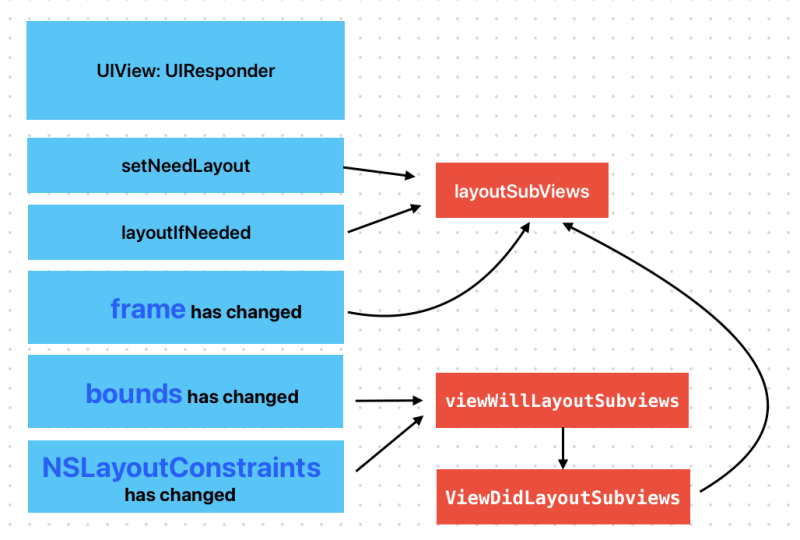
Subclasses can override this method as needed to perform more precise layout of their subviews. You should override this method only if the autoresizing and constraint-based behaviors of the subviews do not offer the behavior you want. You can use your implementation to set the frame rectangles of your subviews directly.
You should not call this method directly. If you want to force a layout update, call the
https://developer.apple.com/documentation/uikit/uiview/1622482-layoutsubviewssetNeedsLayout()method instead to do so prior to the next drawing update. If you want to update the layout of your views immediately, call thelayoutIfNeeded()method.
class CustomView: UIView {
    override func layoutSubviews() {
        super.layoutSubviews()
        print("layoutSubviews called")
    }
}

//In ViewController
override func viewDidAppear(_ animated: Bool) {
    super.viewDidAppear(animated)
    print("viewDidAppear")

    print("✅ setNeedsLayout called")
    customView.setNeedsLayout()
}

//Prints
✅ setNeedsLayout called
layoutSubviews called
Test it your self. When you call a setNeedsLayout a layoutSubviews in CustomView will be called.
viewWillLayoutSubviews and viewDidLayoutSubviews
When a view’s bounds change, the view adjusts the position of its subviews. Your view controller can override this method to make changes before the view lays out its subviews. The default implementation of this method does nothing.
https://developer.apple.com/documentation/uikit/uiviewcontroller/1621437-viewwilllayoutsubviews
override func viewDidAppear(_ animated: Bool) {
        super.viewDidAppear(animated)
        print("viewDidAppear")

        print("✅ setNeedsLayout called")
        customView.setNeedsLayout()

        //Change subview's bounds!
        var customBounds = customView.bounds
        customView.bounds = CGRect(x: 10, y: 10, width: customBounds.width, height: customBounds.height)
    }

When you changed a subview’s bounds, viewWillLayoutSubviews and viewDidLayoutSubviews are called. And then subview’s layoutSubviews is also called

When use Autolayout and changes NSLayoutConstraints, It also calls viewWillLayoutSubviews and viewDidLayoutSubviews
What is intrinsicContentSize?
The natural size for the receiving view, considering only properties of the view itself.
Custom views typically have content that they display of which the layout system is unaware. Setting this property allows a custom view to communicate to the layout system what size it would like to be based on its content. This intrinsic size must be independent of the content frame, because there’s no way to dynamically communicate a changed width to the layout system based on a changed height, for example.
If a custom view has no intrinsic size for a given dimension, it can use
https://developer.apple.com/documentation/uikit/uiview/1622600-intrinsiccontentsizenoIntrinsicMetricfor that dimension.
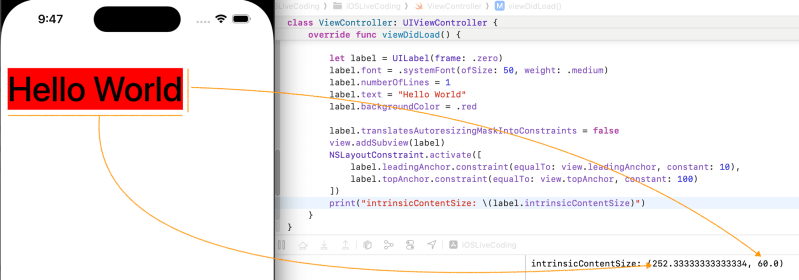
Let’s test. UILabel has 2 constraints which are leading and top. I set font and text. As you can see It’s intrinsicContentSize is based on it’s content.

I added trailingAnchor. As you can see frame width is bigger than first one. But intrinsicSize doesn’t changed. Because It’s based on contents. Now we know that It is independent from frame
UIImageView
An image view uses its
contentModeproperty and the configuration of the image itself to determine how to display the image. It’s best to specify images whose dimensions match the dimensions of the image view exactly, but image views can scale your images to fit all or some of the available space. If the size of the image view itself changes, it automatically scales the image as needed.You can create a resizable image that stretches using the
resizableImage(withCapInsets:resizingMode:)method ofUIImage. When using an image of this type, you typically set the image view’s content mode toUIView.ContentMode.scaleToFillso that the image stretches in the appropriate places and fills the image view’s bounds.Image scaling and alpha blending are two relatively expensive operations that can impact your app’s performance. To maximize performance of your image view code, consider the following tips:
https://developer.apple.com/documentation/uikit/uiimageview
- Cache scaled versions of frequently used images. If you expect certain large images to be displayed frequently in a scaled-down thumbnail view, consider creating the scaled-down images in advance and storing them in a thumbnail cache. Doing so alleviates the need for each image view to scale them separately.
- Use images whose size is close to the size of the image view. Rather than assigning a large image to an image view, created a scaled version that matches the current size of the image view. You can also create a resizable image object using the
UIImage.ResizingMode.tileoption, which tiles the image instead of scaling it.- Make your image view opaque whenever possible. Unless you’re intentionally working with images that contain transparency (drawing UI elements, for example), make sure the
isOpaqueproperty of your image view is set totrue. For more information about how transparency is determined, see Determine the final transparency of the image.
 Shawn
Shawn 
Leave a comment