
In this tutorial, you’ll learn how to separate logics from view and to deal with user input on UITextField by making the calculator app. In this project, users can input the bill and tip, and it automatically displays the result of the total amount and tip amount when entering the bill or tip. You can also learn how to view the number of human-friendly formats.
In the process, you’ll learn:
-
Designing the calculator app using storyboard and xib
-
Rendering the xib in storyboard by using IBDesignable and IBInspectable
-
Dealing with input using the UITextFieldDelegate and NumberFormatter
-
Reflect the result of the total amount and tip amount using the protocol.
Key Topics
-
Storyboard
-
IBOutlet / IBAction
-
Delegate Pattern
-
NumberFormatter
Designing the calculator app using storyboard and xib
This calculator app has four components, which are two input fields and two result views. As you can see, the elements look similar. Isn’t it? It consists of UILabel, UITextField, and UIStepper. Ok, making the CustomView for a component using xib is the right choice rather than layout the all separated UILable, UITextField, and UIStepper 4 times into the Storyboard.

Let’s create our InputView.

⌘ + N -> Source -> Swift File
⌘ + N -> User Interface -> View
We created the Swift and Xib File. Let’s set up xib.

We use the StackView to layout the item horizontally. The UILabel is set by width constraint relative to SuperView’s width and multiply the 0.15, which means UILabel’s width will place 15% of SuperView’s width.

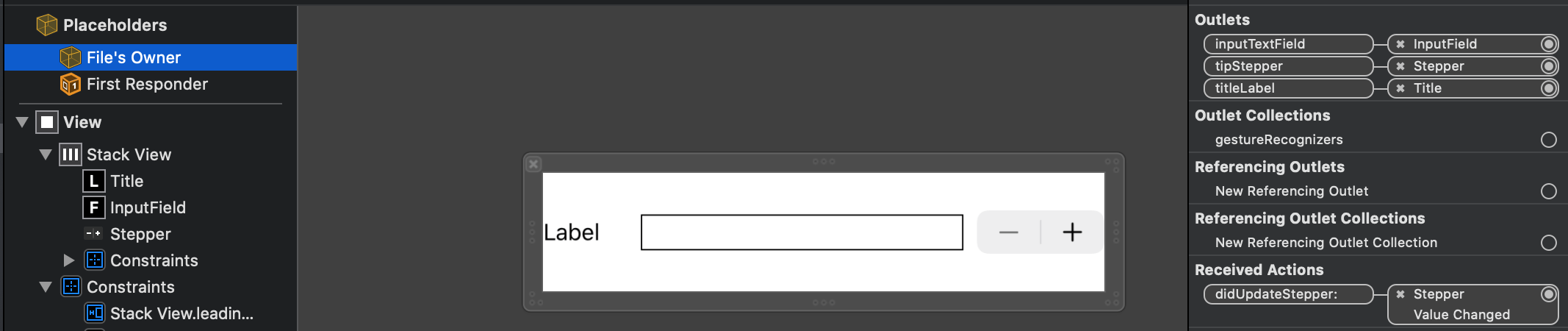
Look at Placeholders. The File’s Owner is pointing to InputView. The IBOutlet and IBAction are also linked to the InputView class.
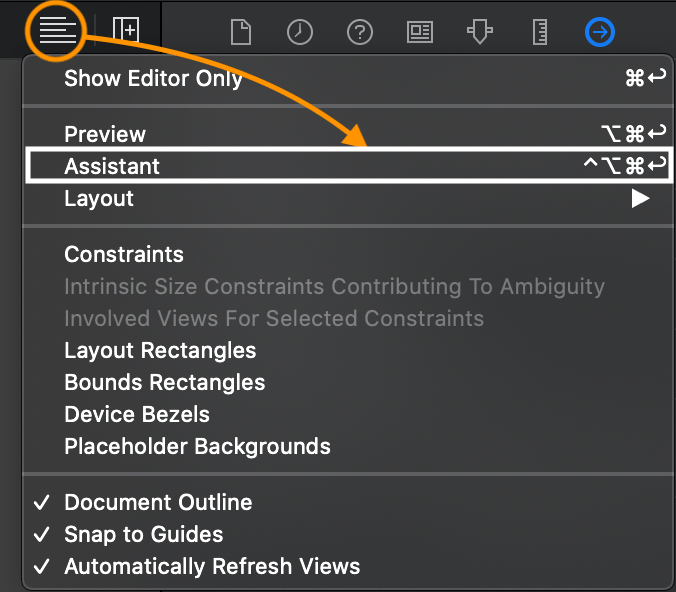
In the InputView.xib, open the Assistant for linking IBOutlet and the IBAction. When you link between xib component and InputView.swift, you will see the result like the image below.
We almost did for setting InputView. Let’s write the code.
import UIKit

@IBDesignable
final class InputView: UIView {
    @IBOutlet weak var titleLabel: UILabel!
    @IBOutlet weak var inputTextField: UITextField!
    @IBOutlet weak var tipStepper: UIStepper!

    override func prepareForInterfaceBuilder() {
        super.prepareForInterfaceBuilder()
    }

//It called when you are using the xib for creating it.
    required init?(coder: NSCoder) {
        super.init(coder: coder)
        setupView()
    }

//It called when you create view programmatically.
    override init(frame: CGRect) {
        super.init(frame: frame)
        setupView()
    }

    private func setupView() {
        guard let nib = loadNib() else {
            return
        }
        nib.translatesAutoresizingMaskIntoConstraints = false
        addSubview(nib)
        NSLayoutConstraint.activate([
            nib.leadingAnchor.constraint(equalTo: self.leadingAnchor),
            nib.trailingAnchor.constraint(equalTo: self.trailingAnchor),
            nib.topAnchor.constraint(equalTo: self.topAnchor),
            nib.bottomAnchor.constraint(equalTo: self.bottomAnchor)
        ])
    }

    private func loadNib() -> UIView? {
        let bundle = Bundle(for: Self.self)
        return bundle.loadNibNamed(String(describing: Self.self), owner: self, options: nil)?.first as? UIView
    }

    @IBAction func didUpdateStepper(_ sender: UIStepper) {
        inputTextField.becomeFirstResponder()
        inputFormatter?.updateTipValue(inputTextField, value: sender.value)
    }
}
In the InputView.swift, We have two init function which is mandatory for making subView. To set subViews, we should load xib from Bundle, which organizes the code and resources in the Bundle directory. Then add subView into the InputView using autolayout.
We use the @IBDesignable to load view on Storyboard. If not, the Storyboard can’t load our view. The @IBAction is aiming for handling the event like a tap, touchdown, and user actions. We linked the action from UIStepper to handle value changed event.
Rendering the xib in storyboard by using IBDesignable and IBInspectable
As we already set @IBDesignable in InputView for displaying the view on the Storyboard. Let’s open the Storyboard to set the views.

You can see our custom UIView called InputView is rendered on the Storyboard. Now I’ll explain the @IBInspectable for setting details on the Storyboard.
Open the InputView.swift and add the @IBInspectable.
@IBInspectable var title: String? = nil {
        didSet {
            titleLabel.text = title
        }
    }

    @IBInspectable var placeHolder: String? = nil {
        didSet {
            inputTextField.placeholder = placeHolder
        }
    }

    @IBInspectable var editable: Bool = true {
        didSet {
            inputTextField.isEnabled = editable
        }
    }

    @IBInspectable var tipInput: Bool = false {
        didSet {
            if tipInput {
                tipStepper.isHidden = false
            }
        }
    }
After adding the @IBInspectable var in InputView.swift, then open the Storyboard and check the InputView component.

We added the four @IBInspectable, and you can set the values on the Storyboard. When you set the value, then It will reflect the value and rendering again.
Dealing with input using the UITextFieldDelegate and NumberFormatter
We will create the InputFormatter class to handle input from the keypad. To separating the logic from View, It handles the InputView’s UITextField event bypassing the delegate.
class InputFormatter: NSObject {
    enum InputType {
        case tip
        case bill
    }

    private var inputType: InputType = .bill

    private lazy var formatter: NumberFormatter = {
        let formatter = NumberFormatter()
        formatter.maximumFractionDigits = 0
        if self.inputType == .bill {
            formatter.numberStyle = .currency
            formatter.currencyCode = Locale(identifier: "en-US").currencyCode
        }
        else if self.inputType == .tip {
            formatter.numberStyle = .percent
            formatter.multiplier = 1
        }
        return formatter
    }()

    override init() {
        super.init()
    }

    convenience init(type: InputType) {
        self.init()
        inputType = type
    }

    private func setupKeyboardType(_ textField: UITextField) {
        textField.keyboardType = .numberPad
    }
}

extension InputFormatter: UITextFieldDelegate {
    func textFieldShouldBeginEditing(_ textField: UITextField) -> Bool {
        if textField.keyboardType == .default {
            setupKeyboardType(textField)
        }
        return true
    }

    func textField(
        _ textField: UITextField,
        shouldChangeCharactersIn range: NSRange,
        replacementString string: String
    ) -> Bool {
        guard let text = textField.text else {
            return true
        }
        if let formattedString = convertFormattedString(text, replacementString: string) {
            textField.text = formattedString
        }
        return false
    }
}
}
This class has convenience init to handle inputType, whether tip or bill. For the tip, the NumberFormatter’s number style is percent to display the number with percentage symbol. For the bill, It will display the number with a currency symbol.
Look at the UITextFieldDelegate functions. I handle the input stream from the number keypad and convert it for a human-readable format using the convertFormattedString function, which uses the NumberFormatter. (I attached full source code in this article. You can check it the function)
func textField(
        _ textField: UITextField,
        shouldChangeCharactersIn range: NSRange,
        replacementString string: String
    ) -> Bool
Let’s take a look above function. In this function, we can check the input string from the ‘replacementString’ parameter. It will be number because we set the keyboard type as numberPad. To use NumberFormatter to convert all input, we should return false to set the textField.text.
class ViewController: UIViewController {
    @IBOutlet weak var resultStackView: UIStackView!
    @IBOutlet weak var resultTitleLabel: UILabel!
    @IBOutlet weak var tipResultView: InputView!
    @IBOutlet weak var totalResultView: InputView!

    @IBOutlet weak var inputStackView: UIStackView!
    @IBOutlet weak var inputTitleLabel: UILabel!
    @IBOutlet weak var billInputView: InputView!
    @IBOutlet weak var tipInputView: InputView!

    override func viewDidLoad() {
        super.viewDidLoad()
        resultStackView.setCustomSpacing(40, after: resultTitleLabel)
        inputStackView.setCustomSpacing(40, after: inputTitleLabel)
        billInputView.delegate = InputFormatter(type: .bill)
        tipInputView.delegate = InputFormatter(type: .tip)
    }
}
The ViewController code is pretty simple. You can just set the delegate in viewDidLoad.
Reflect the result of the total amount and tip amount using the protocol
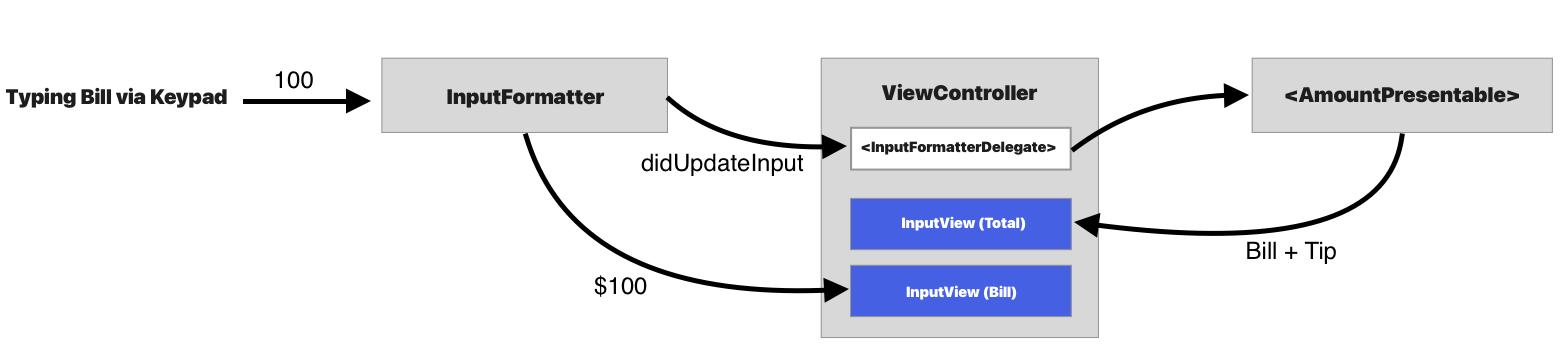
We are almost done. The final step reflects the result of an amount when entered bill or tip automatically. To do that, let’s create an AmountPresentable protocol and InputFormatterDelegate.
protocol InputFormatterDelegate: AnyObject {
    func didUpdateInput(_ type: InputFormatter.InputType, number: NSNumber)
}

class InputFormatter: NSObject {
    private weak var delegate: InputFormatterDelegate?

}
We added the InputFormatterDelegate in InputFormatter and then conformed it in ViewController. It will let ViewController when detecting a typing event.
To calculate the total amount and tip amount, We add AmountPresentable protocol.
protocol AmountPresentable {
    var billValue: NSNumber { get }
    var tipValue: NSNumber { get }
    var tipPercentage: NSNumber { get }
    var formatter: NumberFormatter { get }

    func updateTipAmount(assign to: InputView)
    func updateTotalAmount(assign to: InputView)
    func updateStepperValue(assign to: InputView)
}

extension AmountPresentable {
    func updateTipAmount(assign to: InputView) {
        let tipAmount = formatter.string(from: self.tipValue)
        to.inputTextField.text = tipAmount
    }

    func updateStepperValue(assign to: InputView) {
        to.tipStepper.value = tipPercentage.doubleValue
    }

    func updateTotalAmount(assign to: InputView) {
        let totalValue = billValue.doubleValue + tipValue.doubleValue
        let totalAmount = formatter.string(from: NSNumber(value: totalValue))
        to.inputTextField.text = totalAmount
    }
}
This protocol binds to InputView to display the amount. It is called in the ViewController in the didUpdateAmount function. Let’s conform to the AmountPresentable on ViewController.
class ViewController: UIViewController, AmountPresentable {
    var billValue: NSNumber = 0
    var tipValue: NSNumber = 0
    var tipPercentage: NSNumber = 0
    //…

    override func viewDidLoad() {
        super.viewDidLoad()
    //…
        billInputView.delegate = InputFormatter(type: .bill, delegate: self)
        tipInputView.delegate = InputFormatter(type: .tip, delegate: self)
    }
}

extension ViewController: InputFormatterDelegate {
    func didUpdateInput(_ type: InputFormatter.InputType, number: NSNumber) {
        if type == .tip {
            tipValue = NSNumber(value: billValue.doubleValue * (number.doubleValue * 0.01))
            tipPercentage = number
        }
        else if type == .bill {
            billValue = number
            tipValue = NSNumber(value: billValue.doubleValue * (tipPercentage.doubleValue * 0.01))
        }
        updateTipAmount(assign: tipResultView)
        updateTotalAmount(assign: totalResultView)
        updateStepperValue(assign: tipInputView)
    }
} 
That’s all. When received the didUpdateInput function, then update the amount by using AmountPresentable. It enables us to reflect the amount during the enter the bill or tip.
Conclusion
We learned how to use Storyboard and Xib, UITextField, and Delegate patterns. We can improve our code logic if we use the combine framework, but It only supports iOS 13.0. If you understand this project and how delegation and protocol works, you can also quickly adapt the combined framework. I hope you enjoy this post. Thank you!
 Shawn
Shawn 