Blog

  • Struct vs. Class: Deciding between Structs and Classes

    Struct vs. Class: Deciding between Structs and Classes

    I was asked What is Struct and Class? Could you explain it?

    It’s the most common interview question.

    I summarized the differences between classes and structure when to use it.


    Struct versus Class

    Structure and Enum are value types.

    • It is copied when it’s assigned to a variable or constant, or it’s passed to a function.

    Classes are reference types.

    • Reference types are not copied when they’re assigned to a variable or constant or when they’re passed to a function. Rather than a copy, a reference to the same existing instance is used.

    Structure and Class both can

    • define properties to store values

    • define methods to provide functionality

    • define subscripts to provide access to their values using subscript syntax

    • define initializers to set up their initial state

    • be extended to expand their functionality beyond a default implementation

    • conform to protocols to provide standard functionality of a certain kind

    • Include computed properties.

    Classes have additional capabilities that structures don’t have.

    • Inheritance enables one Class to inherit the characteristics of another.

    • Typecasting enables you to check and interpret the type of a class instance at runtime.

    • Deinitializers enable an instance of a class to free up any resources it has assigned.

    • Reference counting allows more than one reference to a class instance.

    • Identity operators to check whether two constants or variables refer to the same single instance.

      • Identical to (===)

      • Not identical to (!==)

    The structure has additional capabilities that classes don’t have.

    • Memberwise initializers

      • You can use it to initialize the member properties of the new structure instance.


    Choosing between Structures and Classes

    Decide how to store data and model behavior.

    When designing a type, we have to think about whether ownership of a particular instance of this type “has to be shared among different parts of our program, or if multiple instances can be used interchangeably as long as they represent the same value. To share ownership of a particular instance, we have to use a class. Otherwise, we can use a struct.

    Chris Eidhof. “Advanced Swift.”

    Apple’s guide

    • Use structures by default

    • Use structures along with protocols to adopt behavior by sharing implementations.

    • Use classes when you need Objective-C interoperability

    • Use classes when you need to control the identity of the data you’re modeling

    Choose Structures

    • It makes it easier to reason about a portion of your code without needing to consider the whole state of your app. Because structures are valued types-unlike classes-local changes to a structure aren’t visible to the rest of your app unless you intentionally communicate those changes as part of the flow of your app.

    • when you don’t control identity

      • Use structure when you’re modeling data that contains information about an entity with an identity that you don’t control.

      • Local changes to model types like PenPalRecord are useful. For example, an app might recommend multiple different penpals in response to user feedback. Because the PenPalRecord structure doesn’t control the identity of the underlying database records, there’s no risk that the changes made to local PenPalRecord instances accidentally change values in the database.

      • If another part of the app changes my nickname and submits a change request back to the server, the most recently rejected change won’t mistakenly pick up penpal recommendation. Because the myId property is declared as a constant, it can’t change locally. As a result, requests to the database won’t accidentally change the wrong record.

    struct PenPalRecord {
        let myID: Int
        var myNickname: String
        var recommendedPenPalID: Int
    }
    
    var myRecord = try JSONDecoder().decode(PenPalRecord.self, from: jsonResponse)
    • Use structures and protocols to model inheritance and share behavior.

      • Structure can’t inherit from classes. However, the kinds of inheritance hierarchies you can build with class inheritance can also be modeled using protocol inheritance and structures.

      • Protocols permit classes, structures, and enumerations to participate in inheritance, while class inheritance is only compatible with other classes. When you are choosing how to model your data, try building the hierarchy of data types using protocol inheritance first, then adopt those protocols in your structures.

    Choose Classes

    • when you need to control identity (===)

      • Common use cases are file handles, network connections, and shared hardware intermediaries like CBCentralManager.

      • If you share a class instance across your app, changes you make to that instance are visible to every part of your code that holds a reference to that instance.

        • local database connection.


  • 제주도 마노카페 하우스

    제주도 마노카페 하우스

    커피가 정말 맛있었던 제주도 카페, 마노카페 하우스

    이 카페는 제주도 작은 동네에 위치한 카페라서 바다를 바라볼 수 있는 멋진 뷰는 없지만 바리스타님이 정성스럽게 내려주신 아주 맛있는 커피 한잔을 할 수 있는 곳이다.

    커피를 좋아하는 사람이라면 강추. 주차 공간도 아주 넉넉하고 사람이 엄청나게 붐비지도 않는 그런 카페다.

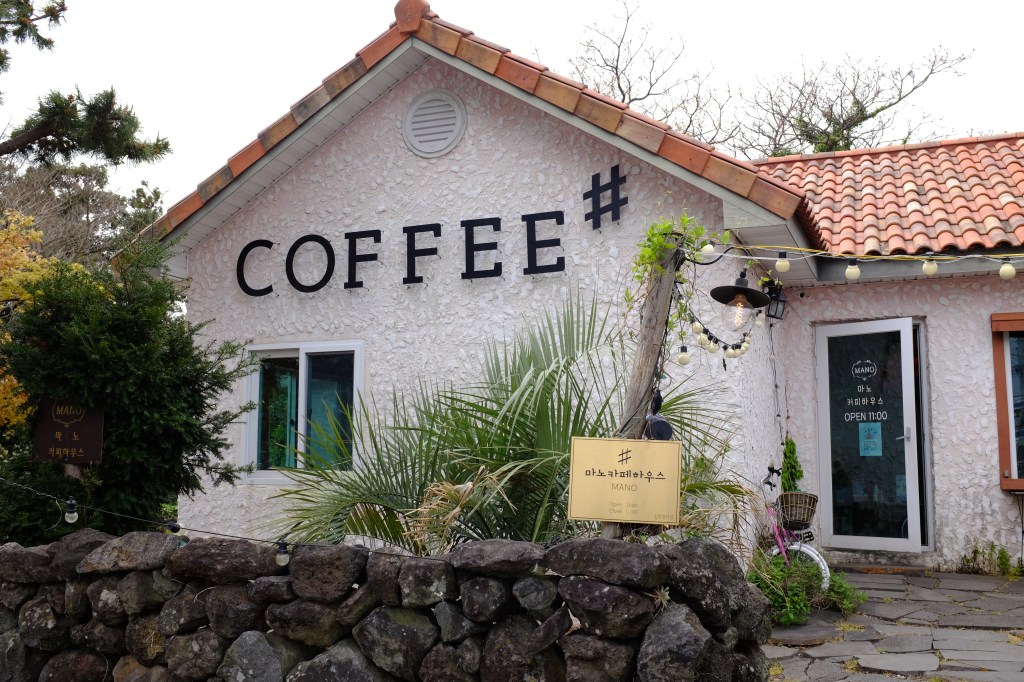
    카페 외부 모습

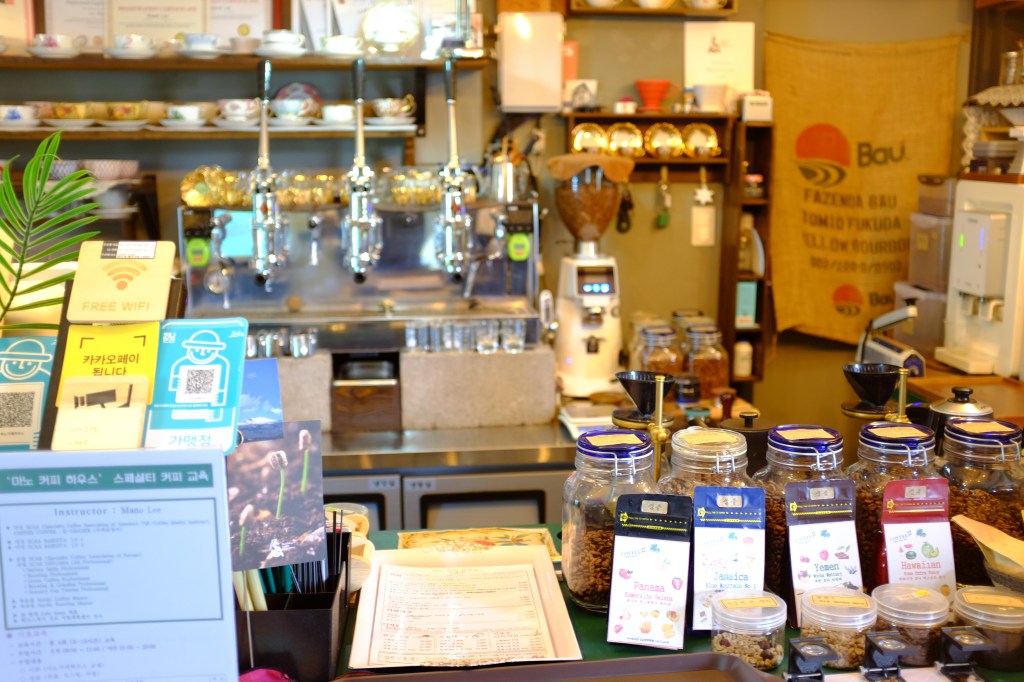
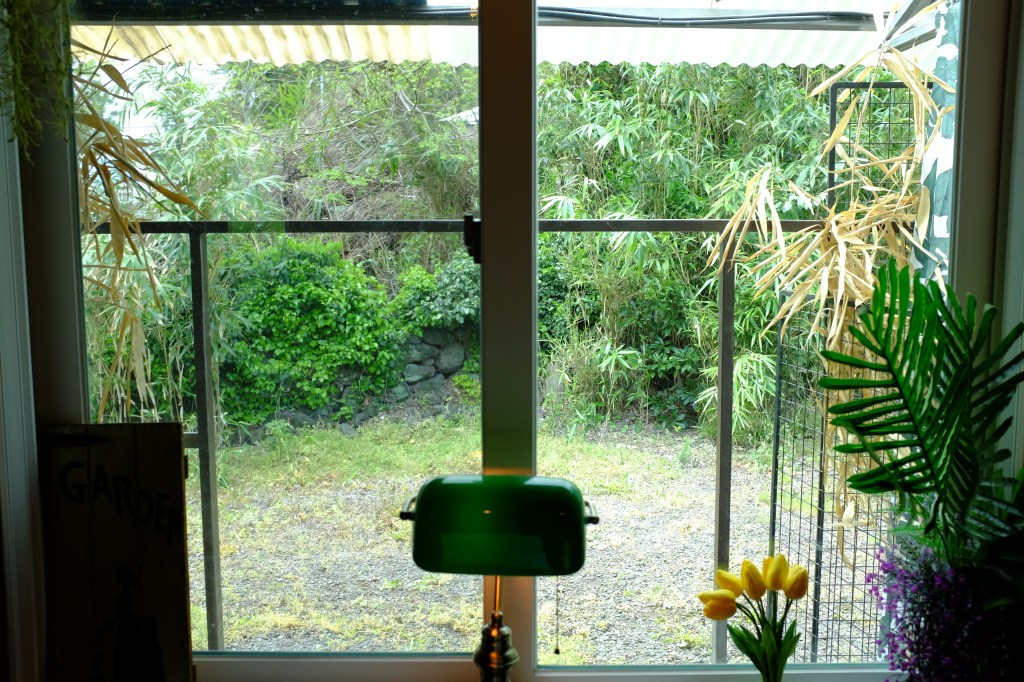
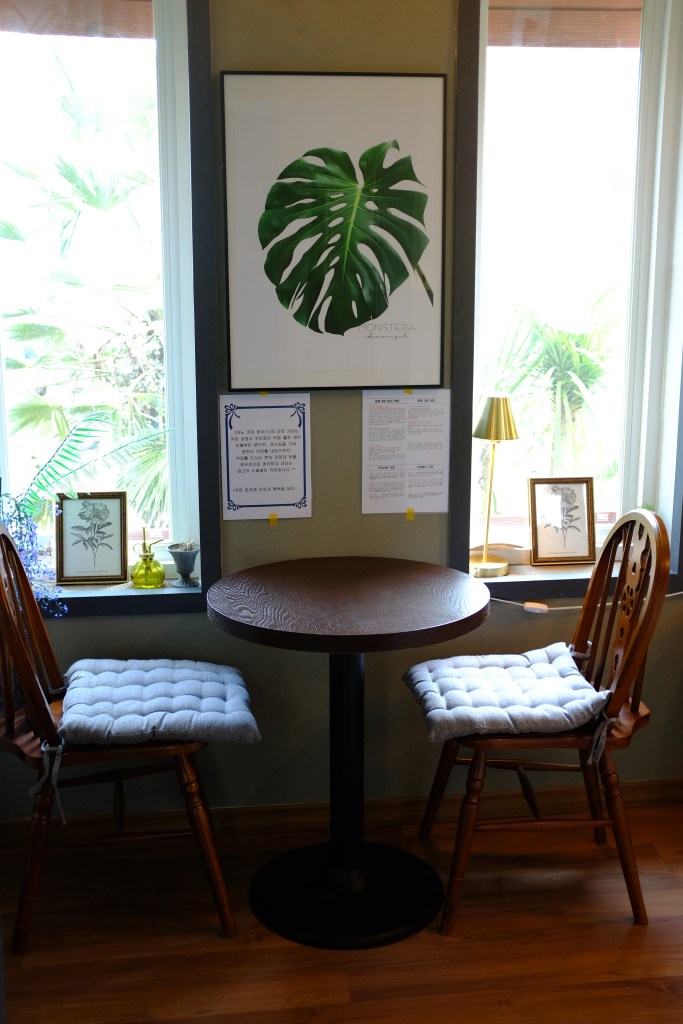
    카페 내부

    메뉴

    프리미엄 원두부터 정말 다양한 커피가 준비되어 있다. 나는 세계 3대 커피 중에 하나인 게이샤를 주문했다. 가격은 거의 밥 한끼 넘는 금액이었지만 이왕 제주도 온 김에… 주문해봤다. 다른 원두커피인 케냐 혹은 에티오피아 같은 커피들은 일반적인 카페랑 금액이 비슷했다.

    화려한 커피 잔
    커피를 여러잔 주문하면 샘플로 마셔보라고 작은 잔에 커피를 담아주신다. 센스 굿!
    이건 라떼
    이게 바로 게이샤 커피다. 마셔본 느낌은 굉장히 과일맛이 나는 그런 커피였다. 너무 맛있게 잘 마셨다. 아주 깔끔한 차를 한잔 마신 느낌이었다. 물론 커피 맛도 아주 잘 어울어진 그런 맛이다.
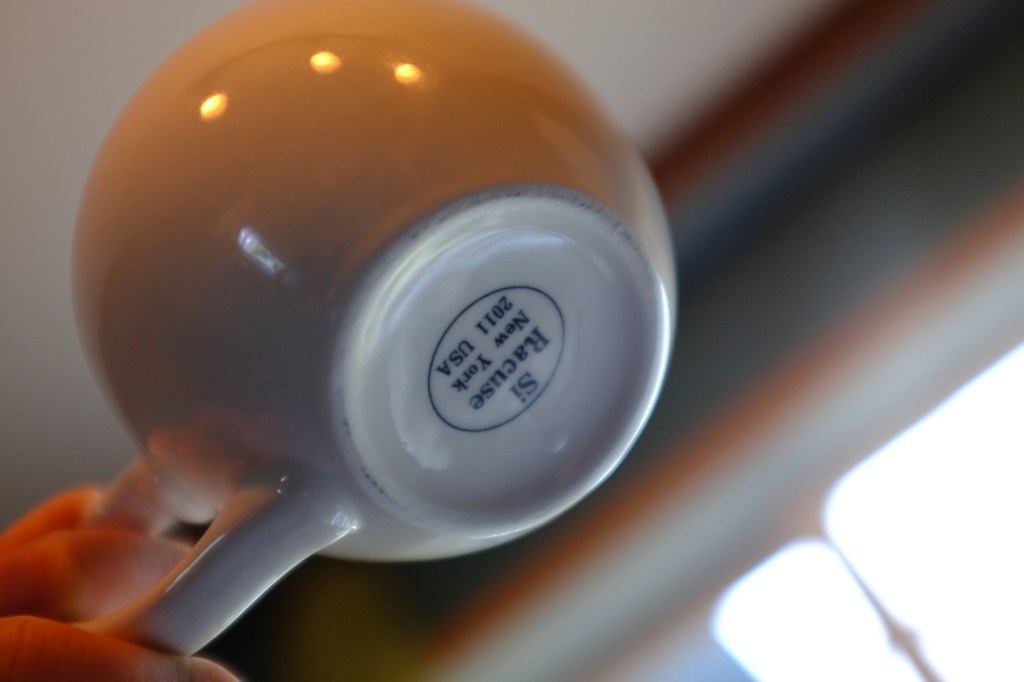
    커피잔이 너무 이뻐서 어느 브랜드인지 확인해봄

    주차공간

    주차공간은 아주 넉넉하다. 단독 건물을 개조한 카페라서 앞에 넉넉한 주차 공간이 있다. 그리고 여기는 관광지가 아닌 정말 조용한 제주도의 동네안에 위치하고 있어서 사람들이 많이 붐비지도 않았다.

    위치

    https://goo.gl/maps/bUicaUJuPmd6otSJ8

    주소

    제주특별자치도 서귀포시 특별자치도, 중문동 1700-1

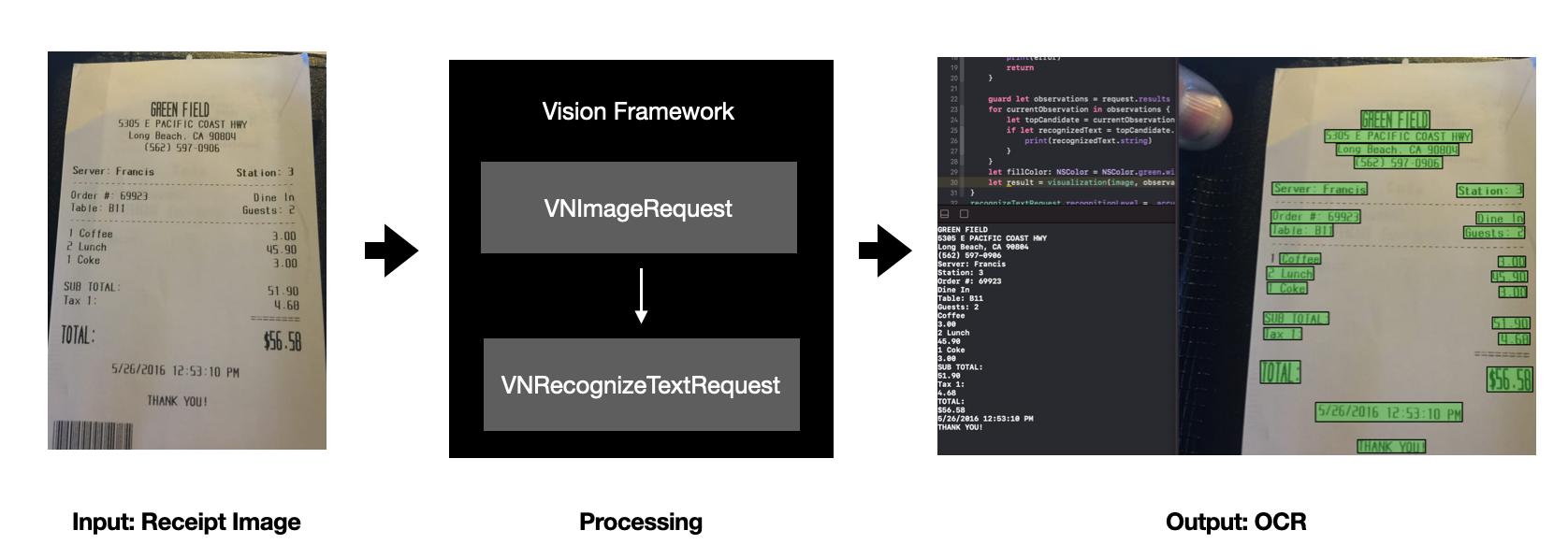
  • Let’s make a receipt text recognizer with the Apple Vision framework.

    Let’s make a receipt text recognizer with the Apple Vision framework.

    Overview

    overview.png

    There are only three steps. I tested these steps using the playground app.


    Sample Code

    Download


    Prepare the receipt images.

    I found a bunch of receipt images on Github. Almost 200 receipts are there.

    You can download the receipt images below


    Let’s coding.

    A few lines of code are needed. I used the playground app. Let’s follow the steps.

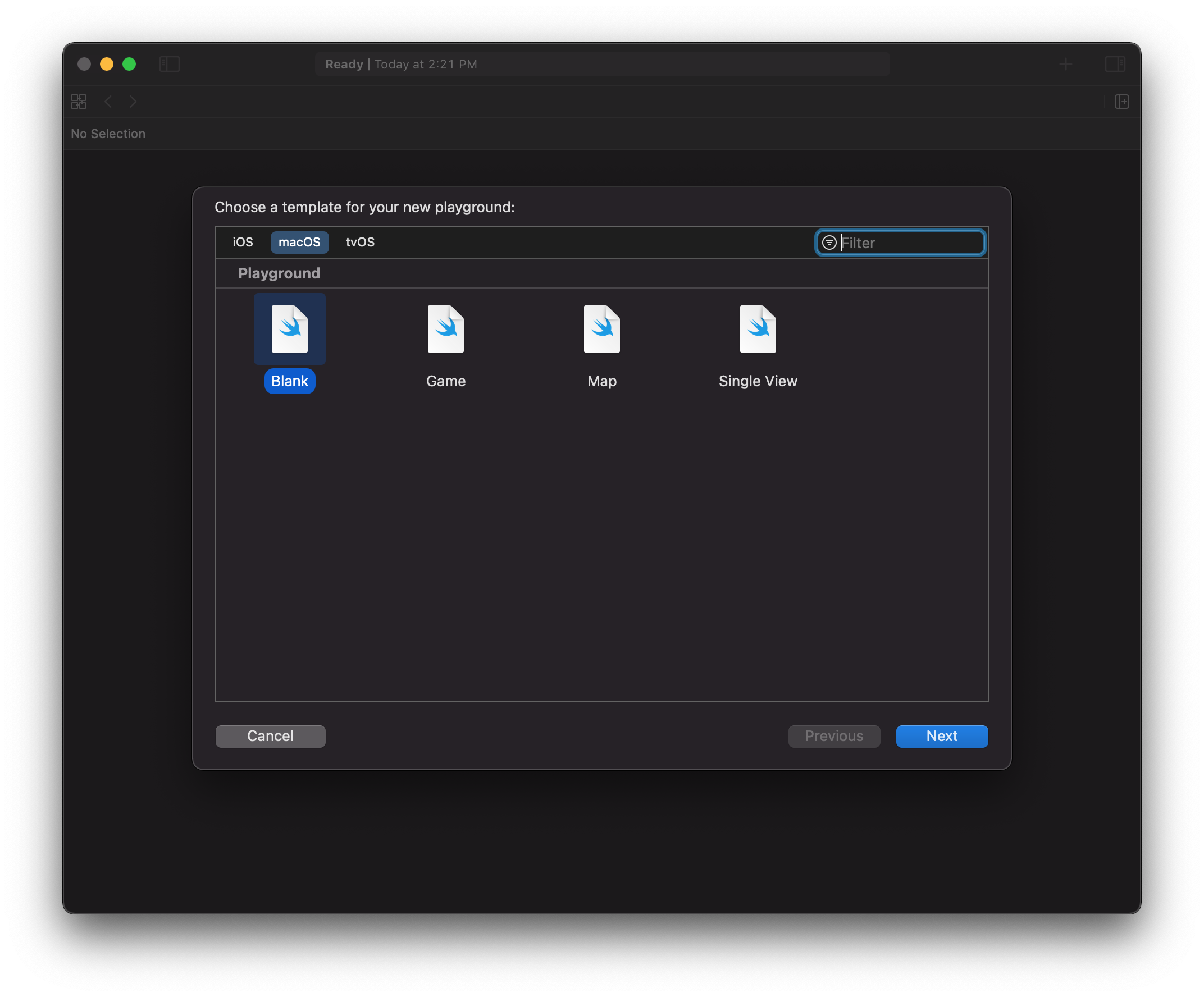
    Create a playground file in Xcode(File -> New -> Playground). Choose the iOS or macOS platform.

    Create a playground file in Xcode(File -> New -> Playground). Choose the iOS or macOS platform.

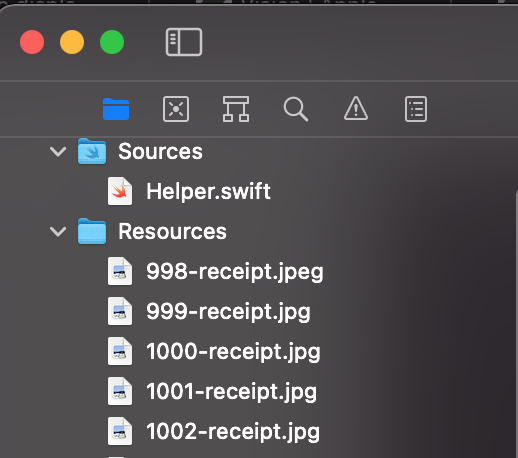
    Drag receipt images into the resource folder. And then click the source file and add a new Helper.swift file.

    Drag receipt images into the resource folder. And then click the source file and add a new Helper.swift file.


    Helper.swift

    I add the functions to load receipt image files and draw the bounds which are detected text area.

    Helper.swift file for macOS

    import Cocoa
    import Vision
    
    public func getTestReceiptImageName(_ number: Int) -> String {
        String.init(format: "%d-receipt", number)
    }
    
    //https://www.swiftbysundell.com/tips/making-uiimage-macos-compatible/
    public extension NSImage {
        var cgImage: CGImage? {
            var proposedRect = CGRect(origin: .zero, size: size)
            return cgImage(forProposedRect: &proposedRect,
                           context: nil,
                           hints: nil)
        }
    }
    
    //https://www.udemy.com/course/machine-learning-with-core-ml-2-and-swift
    public func visualization(
        _ image: NSImage,
        observations: [VNDetectedObjectObservation],
        boundingBoxColor: NSColor
    ) -> NSImage {
        var transform = CGAffineTransform.identity
        transform = transform.scaledBy(x: image.size.width, y: image.size.height)
    
        image.lockFocus()
        let context = NSGraphicsContext.current?.cgContext
        context?.saveGState()
    
        context?.setLineWidth(2)
        context?.setLineJoin(CGLineJoin.round)
        context?.setStrokeColor(.black)
        context?.setFillColor(boundingBoxColor.cgColor)
    
        observations.forEach { observation in
            let bounds = observation.boundingBox.applying(transform)
            context?.addRect(bounds)
        }
    
        context?.drawPath(using: CGPathDrawingMode.fillStroke)
        context?.restoreGState()
        image.unlockFocus()
        return image
    }

    Helper.swift file for iOS

    import Foundation
    import UIKit
    import Vision
    
    public func getTestReceiptImageName(_ number: Int) -> String {
        String.init(format: "%d-receipt.jpg", number)
    }
    
    //https://www.udemy.com/course/machine-learning-with-core-ml-2-and-swift
    public func visualization(_ image: UIImage, observations: [VNDetectedObjectObservation]) -> UIImage {
        var transform = CGAffineTransform.identity
            .scaledBy(x: 1, y: -1)
            .translatedBy(x: 1, y: -image.size.height)
        transform = transform.scaledBy(x: image.size.width, y: image.size.height)
    
        UIGraphicsBeginImageContextWithOptions(image.size, true, 0.0)
        let context = UIGraphicsGetCurrentContext()
    
        image.draw(in: CGRect(origin: .zero, size: image.size))
        context?.saveGState()
    
        context?.setLineWidth(2)
        context?.setLineJoin(CGLineJoin.round)
        context?.setStrokeColor(UIColor.black.cgColor)
        context?.setFillColor(red: 0, green: 1, blue: 0, alpha: 0.3)
    
        observations.forEach { observation in
            let bounds = observation.boundingBox.applying(transform)
            context?.addRect(bounds)
        }
    
        context?.drawPath(using: CGPathDrawingMode.fillStroke)
        context?.restoreGState()
        let resultImage = UIGraphicsGetImageFromCurrentImageContext()
        UIGraphicsEndImageContext()
        return resultImage!
    }


    Vision Framework

    A Vision framework enables me to detect text in the receipt image. Also, I can get strings after processing the OCR.

    Step 1. Load a receipt image from Resource folder

    //Step 1. Load a receipt image from Resource folder
    import Vision
    import Cocoa
    
    let image = NSImage(imageLiteralResourceName: getTestReceiptImageName(1000))


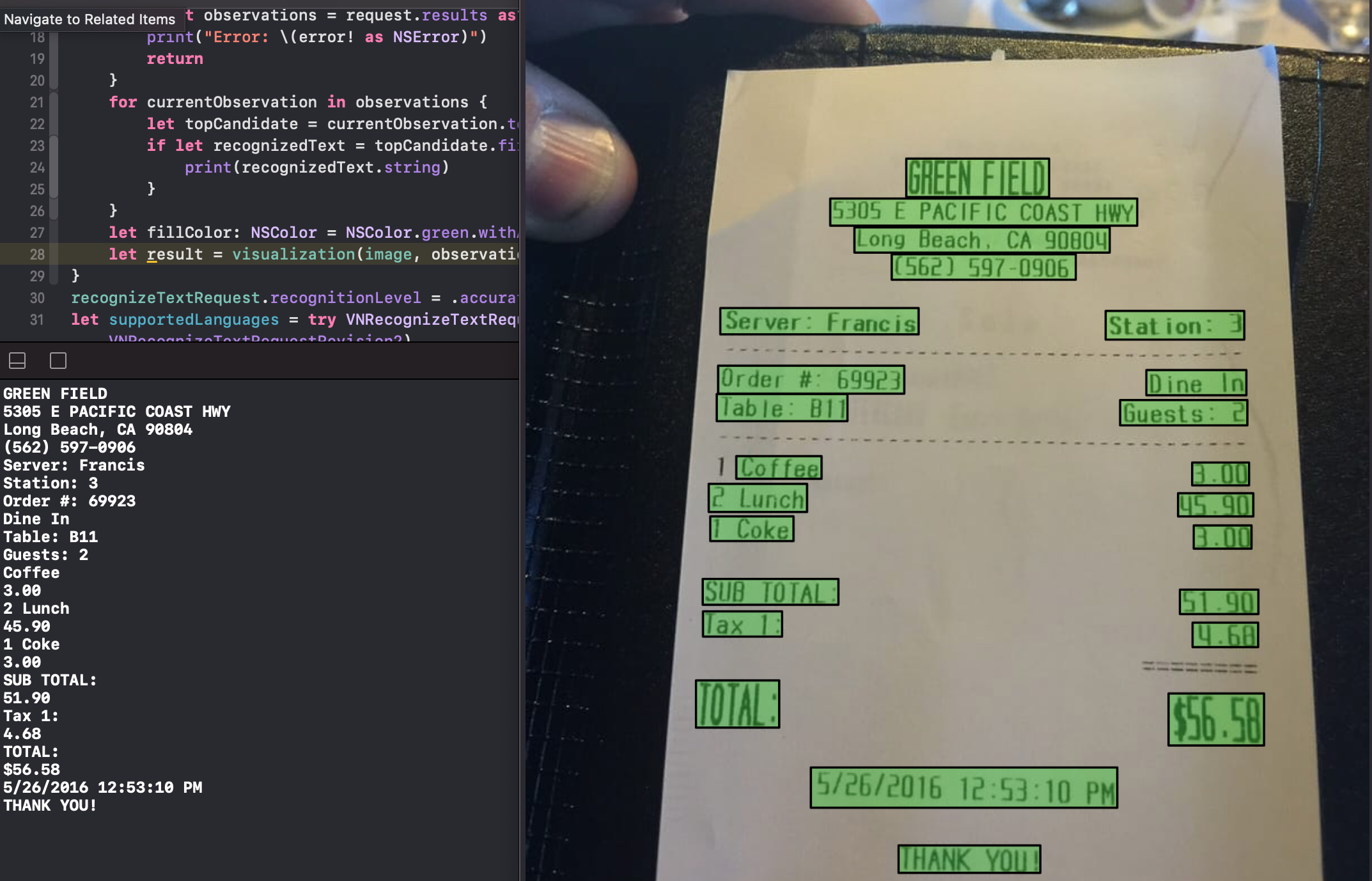
    Step 2. Declare a VNRecognizeTextRequest to detect text in the receipt image

    let recognizeTextRequest = VNRecognizeTextRequest  { (request, error) in
        guard let observations = request.results as? [VNRecognizedTextObservation] else {
            print("Error: \(error! as NSError)")
            return
        }
        for currentObservation in observations {
            let topCandidate = currentObservation.topCandidates(1)
            if let recognizedText = topCandidate.first {
                //OCR Results
                print(recognizedText.string)
            }
        }
        let fillColor: NSColor = NSColor.green.withAlphaComponent(0.3)
        let result = visualization(image, observations: observations, boundingBoxColor: fillColor)
    }
    recognizeTextRequest.recognitionLevel = .accurate


    Step 3. Processing the receipt image using VNImageRequestHandler.

    func request(_ image: NSImage) {
        guard let cgImage = image.cgImage else {
            return
        }
        let handler = VNImageRequestHandler(cgImage: cgImage, options: [:])
        DispatchQueue.global(qos: .userInitiated).async {
            do {
                try handler.perform([recognizeTextRequest])
            }
            catch let error as NSError {
                print("Failed: \(error)")
            }
        }
    }
    request(image)


    Step 4. Check the result

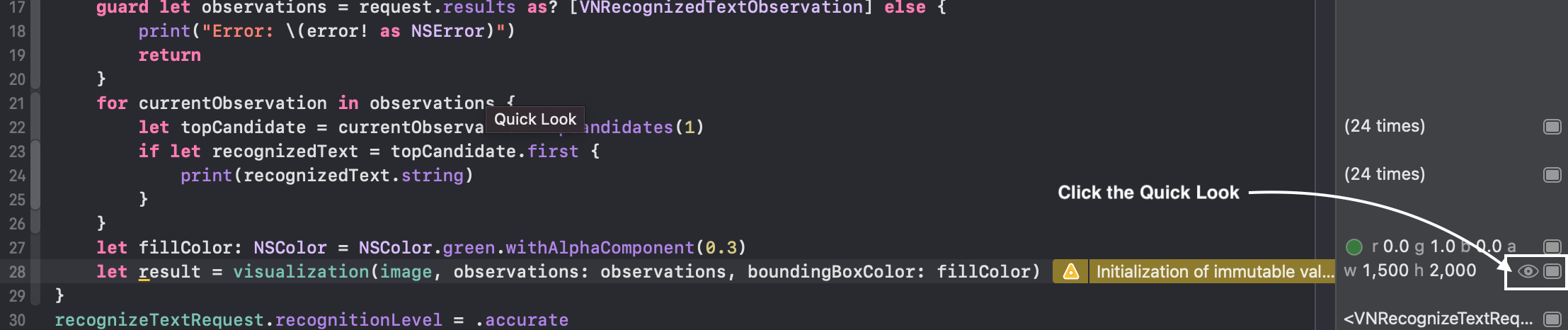
    To open the result image, click the QuickLook.

    To open the result image, click the QuickLook.

    Results.png


    Can Vision Framework detect other languages?

    Yes, But It supports a few languages. Take a look at the supported languages.

    let supportedLanguages = try VNRecognizeTextRequest.supportedRecognitionLanguages(for: .accurate, revision: VNRecognizeTextRequestRevision2)
    print("\(supportedLanguages.count) Languages are available. -> \(supportedLanguages)")
    
    //8 Languages are available. -> ["en-US", "fr-FR", "it-IT", "de-DE", "es-ES", "pt-BR", "zh-Hans", "zh-Hant"]


    NaturalLanguage framework

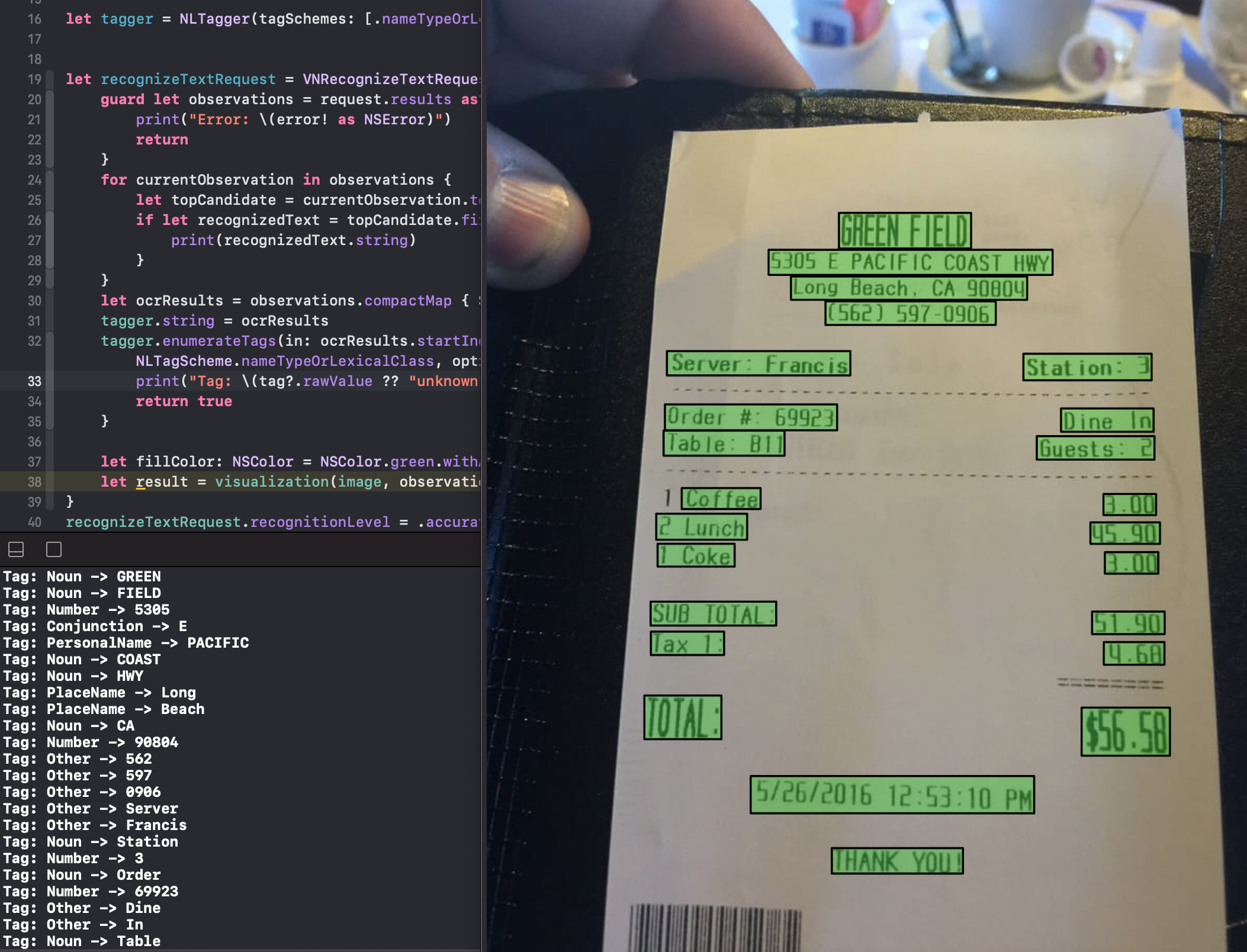
    You can detect the lexical class of string using the NaturalLanguage framework. I modified step2 codes to print out the tag of string.

    import NaturalLanguage
    let tagger = NLTagger(tagSchemes: [.nameTypeOrLexicalClass])
    let recognizeTextRequest = VNRecognizeTextRequest  { (request, error) in
        guard let observations = request.results as? [VNRecognizedTextObservation] else {
            print("Error: \(error! as NSError)")
            return
        }
        let ocrResults = observations.compactMap { $0.topCandidates(1).first?.string }.joined(separator: "\n")
        tagger.string = ocrResults
        tagger.enumerateTags(in: ocrResults.startIndex..<ocrResults.endIndex, unit: NLTokenUnit.word, scheme: NLTagScheme.nameTypeOrLexicalClass, options: [.omitPunctuation, .omitWhitespace]) { tag, range in
            print("Tag: \(tag?.rawValue ?? "unknown") -> \(ocrResults[range])")
            return true
        }
    
        let fillColor: NSColor = NSColor.green.withAlphaComponent(0.3)
        let result = visualization(image, observations: observations, boundingBoxColor: fillColor)
    }
    recognizeTextRequest.recognitionLevel = .accurate

    It gives me more information about Noun, Number, PlaceName, PersonalName, and more.

    It gives me more information about Noun, Number, PlaceName, PersonalName, and more.


    Conclusion

    I’m very impressed with the Vision framework. I can implement the OCR features in just a few lines of code. Also, It works on the device. (We don’t need to connect to the internet)

    I hope Apple supports more languages like Korean, Japanese, Thailand, and more.

  • 오스트리아 비엔나 커피, 쿤스트 히스토리쉐스 뮤지움(빈 미술사 박물관) 커피

    오스트리아 비엔나 커피, 쿤스트 히스토리쉐스 뮤지움(빈 미술사 박물관) 커피

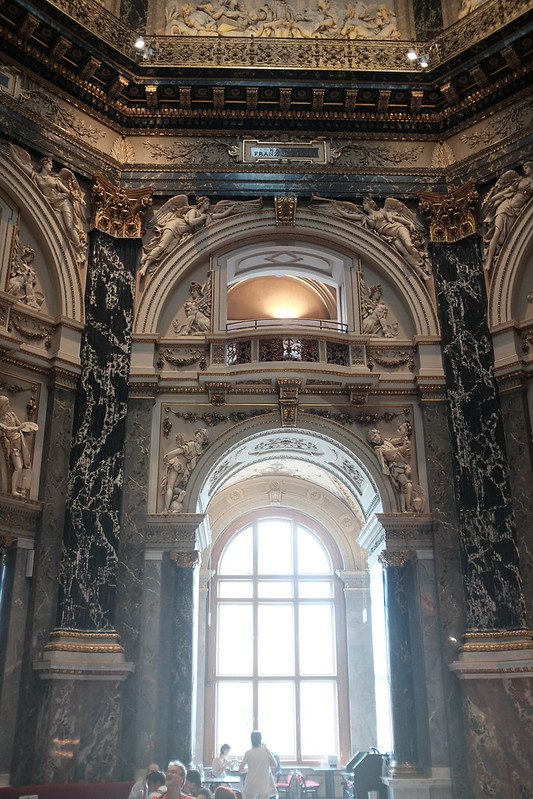
    비엔나 커피의 본고장 오스트리아에서 아주 멋진 카페를 발견했다. 쿤스트 히스토리쉐스 뮤지움 안에 있는 커피숍인데 시내에도 유명한 카페가 있지만 개인적으로 여기 카페가 훨씬 더 좋았다.

    카페에서 바라본 박물관 모습
    천장을 올려다보니 너무 고풍스러운 분위기에 커피 맛이 더 좋게 느껴졌다.
    비엔나 커피
    아이스 비엔나 커피

    위치


  • 오스트리아 비엔나 에어비앤비 후기

    오스트리아 비엔나 에어비앤비 후기

    2017년, 오스트리아를 다녀왔다. 차를 렌트해서 유럽을 돌아다녔는데 주차 가능한 에어비앤비 숙소를 찾아서 예약하고 들린 곳이다.

    에어비앤비로 예약할 때 내가 항상 체크하는 옵션이 있다. 바로 슈퍼호스트 옵션.

    슈퍼호스트로 예약하면 가격은 조금 더 비싸지만 어느정도 퀄리티를 보장해주었던 것 같다. 에어비엔비 숙소 여러군데를 들려봤지만 오스트리아 비엔나 숙소는 특히 기억에 남을 정도로 참 좋았다.

    아래의 사진은 퍼온 사진이 아니라 내가 직접 촬영한 사진이다.

    집안 내부


    식물이 인테리어에서 큰 역할을 해주고 있다.
    넓은 식탁
    유럽의 숙소는 왠만하면 식기세척기가 있어서 가끔 요리 해먹고 치울 때 참 편하다.
    방이 4개였나? 그 정도 있었다.
    갤러리 아니고 집입니다. 2층 복도에 전시된 그림.
    2층에서 1층을 내려다 본 풍경. 집 전체를 통으로 빌렸었다.
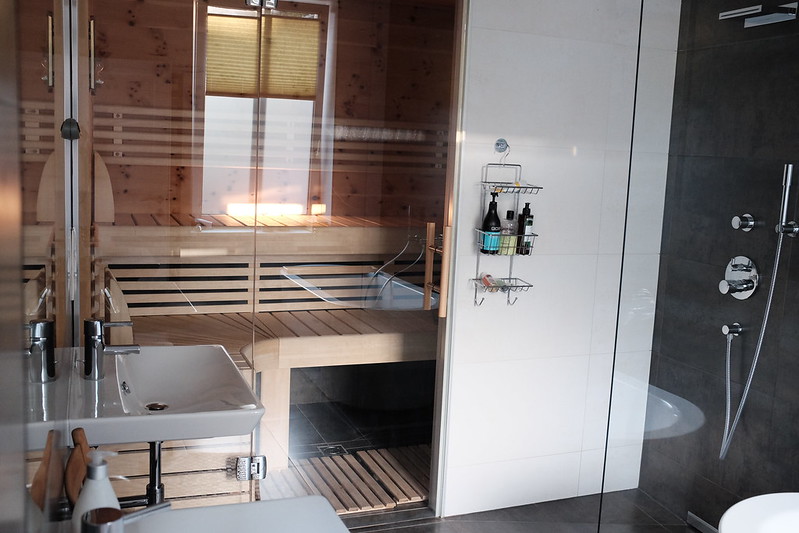
    화장실이 넓은 것은 많이 봤었는데 사우나가 갖춰진 화장실은 첨이었다.
    2층은 위와 같이 작은 테라스 정원으로 연결된다. 아침에 커피 한잔 마시며 동네를 바라보면 굿!

    위치


  • 런던, 출장의 추억

    런던, 출장의 추억

    전 직장에서 2017년 12월에 런던으로 출장을 갔었다. 보통 여행과는 달리 출장은 오전, 오후에는 업무 관련을 보고 저녁시간이나 주말에 돌아다닐 수 있기 때문에 일정이 넉넉하지는 않다.

    그때 당시 런던 방문이 3번째였나? 그래서 내가 못가봤었던 장소 위주로 스케쥴을 잡았었다.

    인천공항 -> 런던 히드로 공항


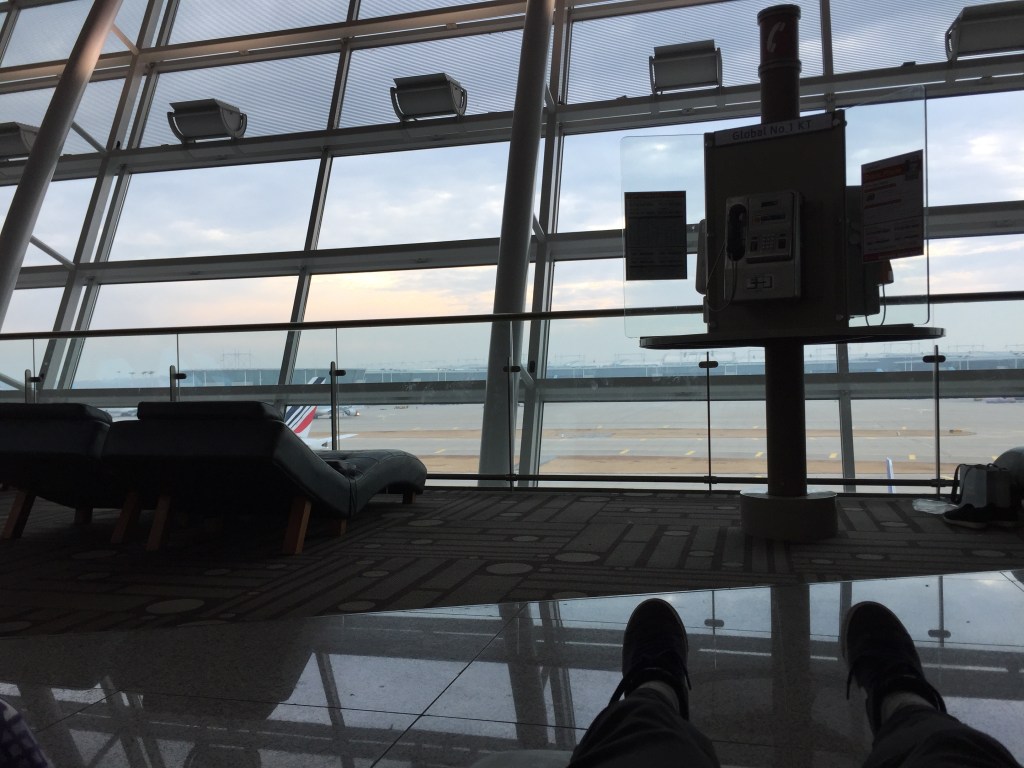
    인천 공항은 쉴 공간이 많아서 참 좋다
    먹고 자고 일어나다보니 히드로 공항 도착.

    오후 늦게 런던에 도착했다. 차를 렌트해서 바로 켄싱턴에 있는 호텔로 가서 체크인을 했다.

    Balans Soho Society


    호텔 체크인하자마자 배가 너무 고팠다. 켄싱턴 근처에서 가장 가깝고 평점이 괜찮은 음식점을 트립어드바이저로 검색했더니 파스타 집이 하나 나왔다.

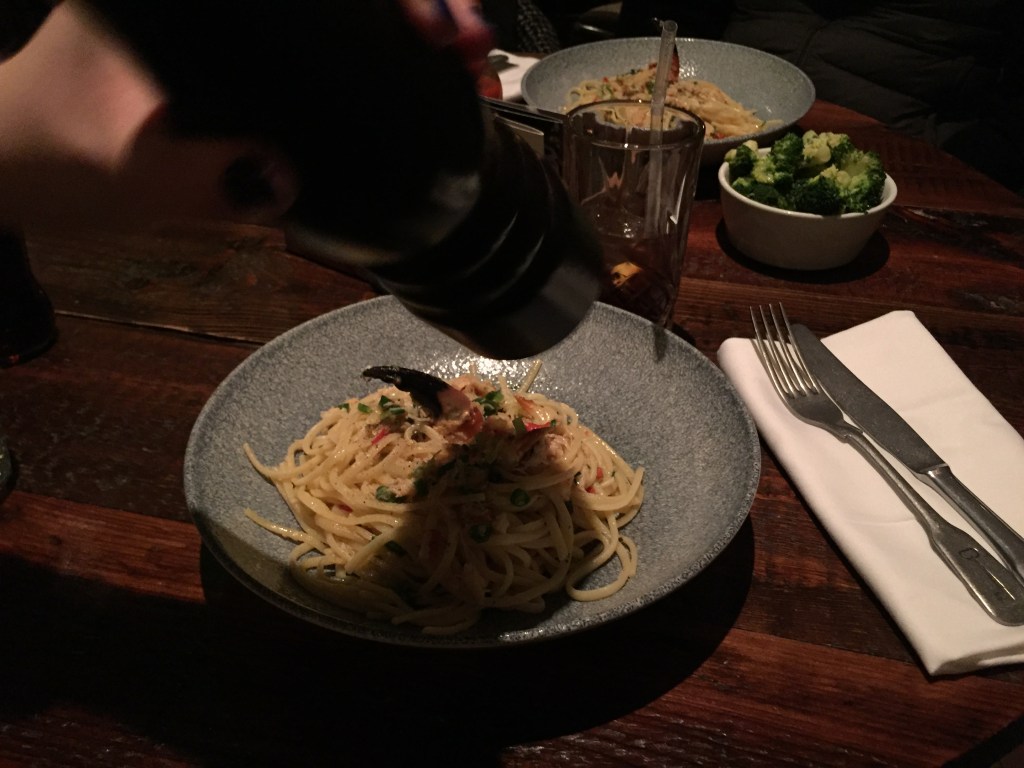
    큰 기대를 하지 않았는데 너무 맛있게 잘 먹었다. 가게는 조금하지만 분위기가 괜찮았다.

    다음날 출장 업무 시작


    간단하게 호텔 조식을 먹고 런던 시내 한복판에 있는 삼성전자 런던 디자인 오피스를 방문했다.

    삼성전자, 런던 디자인 오피스에서 바라본 풍경
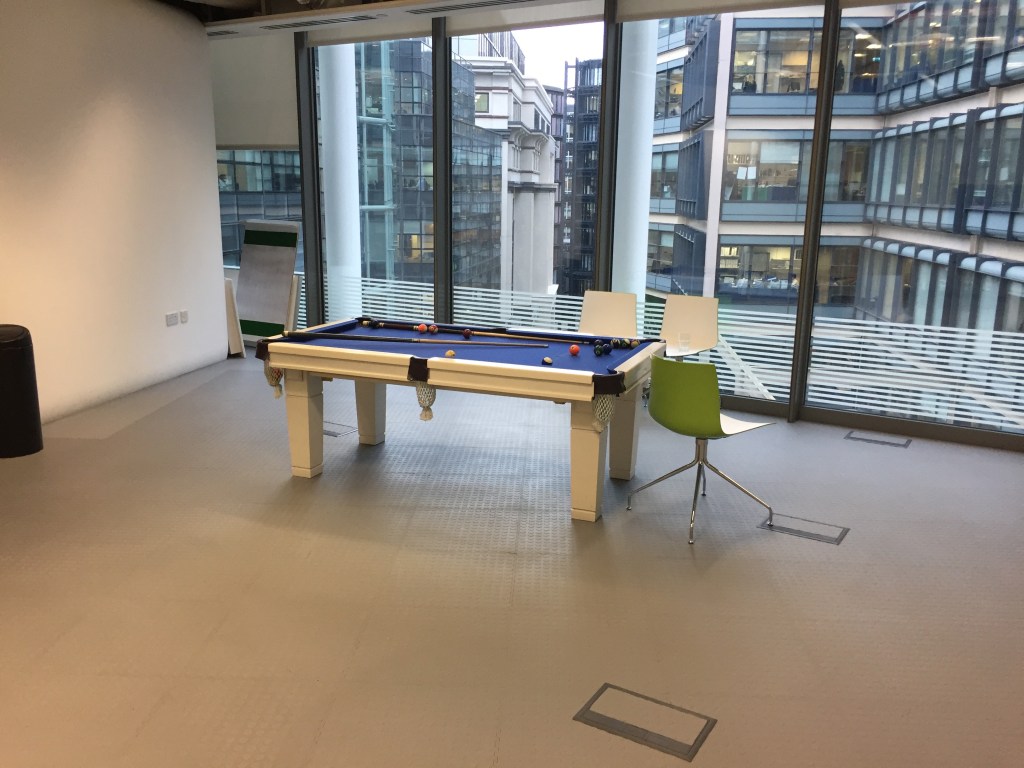
    여긴 휴게실 공간인데 포켓볼이랑 플스 같은거 등등이 있다.

    런던 한복판에서 일해보고 싶다는 생각을 하며 오전에 여기서 업무를 보고 점심 먹으러 나갔다.

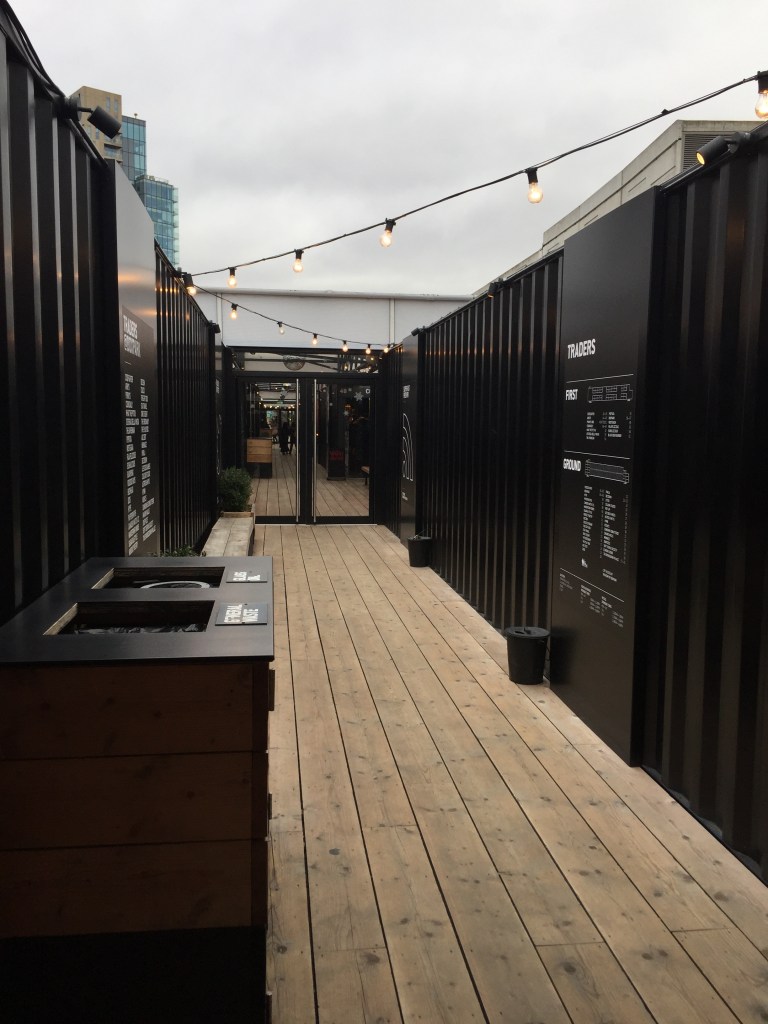
    점심은 힙한 BoxPark에서!


    런던에서 일하는 직장 동료(?)가 한국에서 출장온다니까 현지 맛집 및 볼거리등을 준비해서 알려줬다. 그 중 하나가 BoxPark. 한국에도 BoxPark에 영감을 받아서 만든 장소가 성수동에 있다고 들었다.

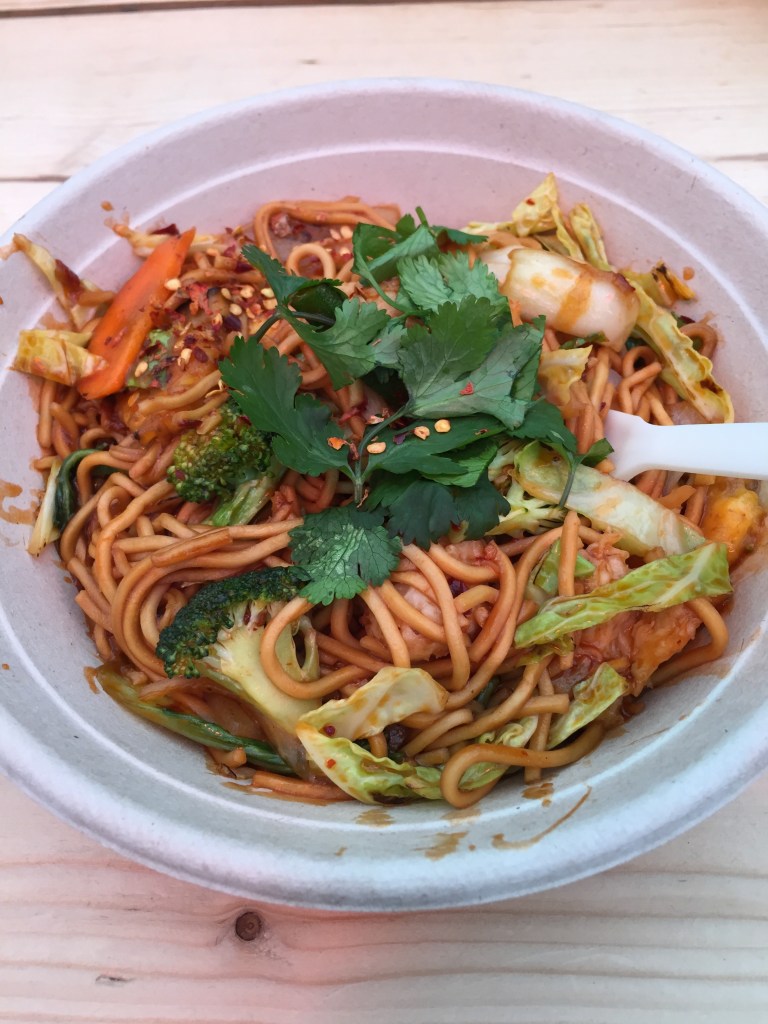
    The Noodle Bar


    BoxPark 너무 대낮에 가서 그랬는지는 몰라도 사람이 아주 많지는 않았다. The Noodle Bar라는 곳은 유명해서 그런지 점심을 먹으려는 사람들로 가득했었다. 맛있었음!

    여긴 메뉴가 정말 많다. 토핑 같은 거 원하는 걸로 추가해서 주문할 수 있어서 취향대로 재료를 섞어 먹으면 맛있다.

    서점투어


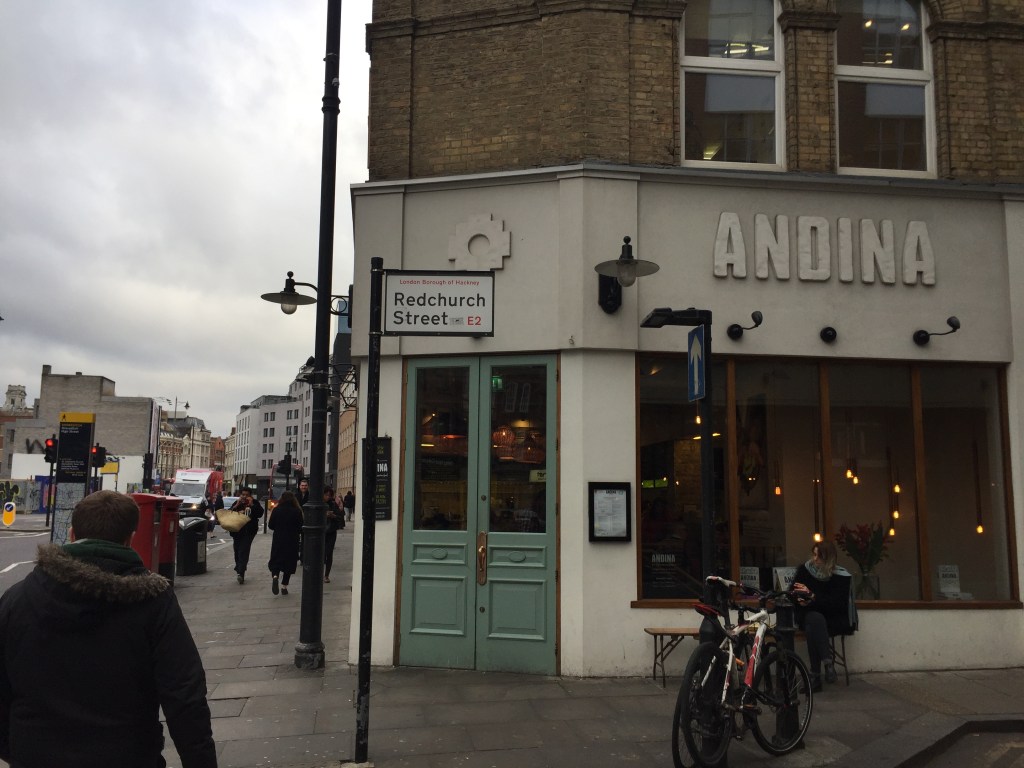
    ANDINA는 서점은 아니고 레스토랑이다. 이 근처에 이것저것 편집숍도 많고 볼 거리가 많다.

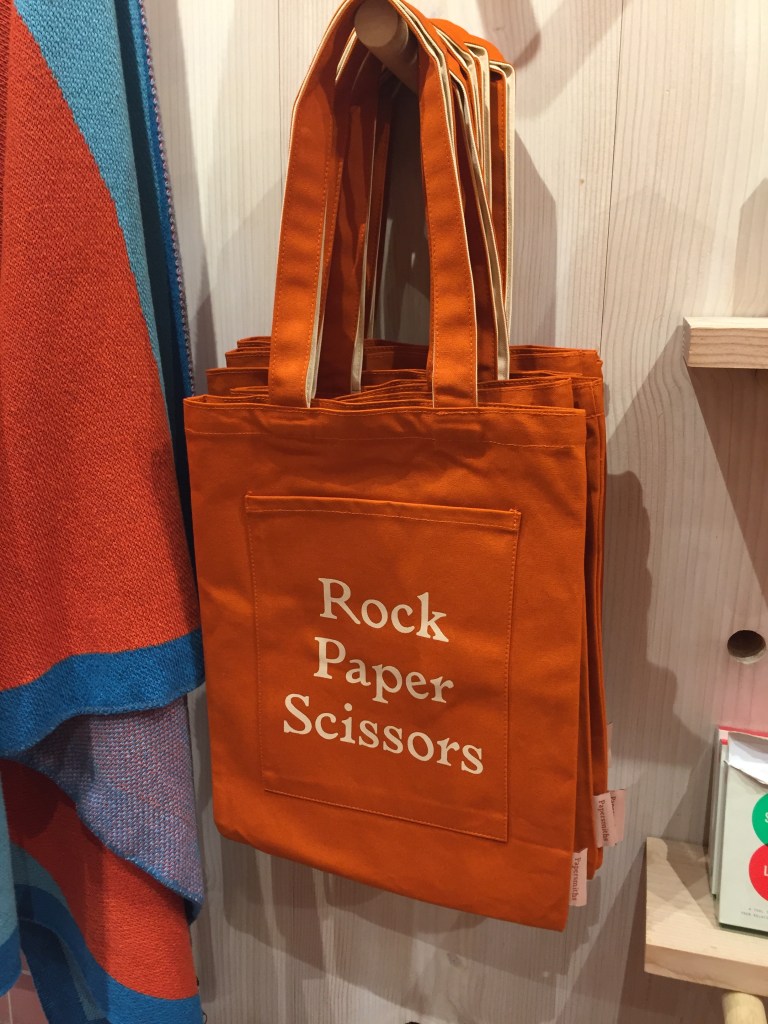
    Papersmiths 상점인데 꽤 유명한 곳이다.

    Daunt Books도 런던에서 오래되고 유명한 서점

    굉장히 고풍스러운 서점이고 저 에코백도 한국에서 꽤 유명하다.

    magma 서점은 디자인 서적으로 유명한 곳이다.

    런던의 빌딩


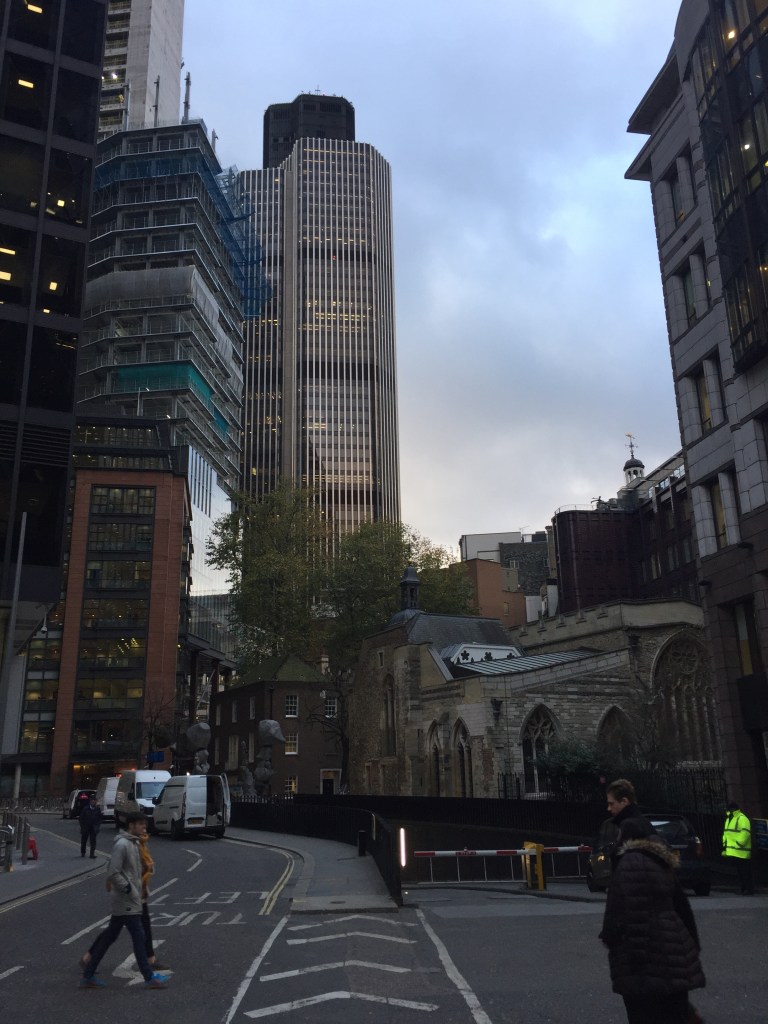
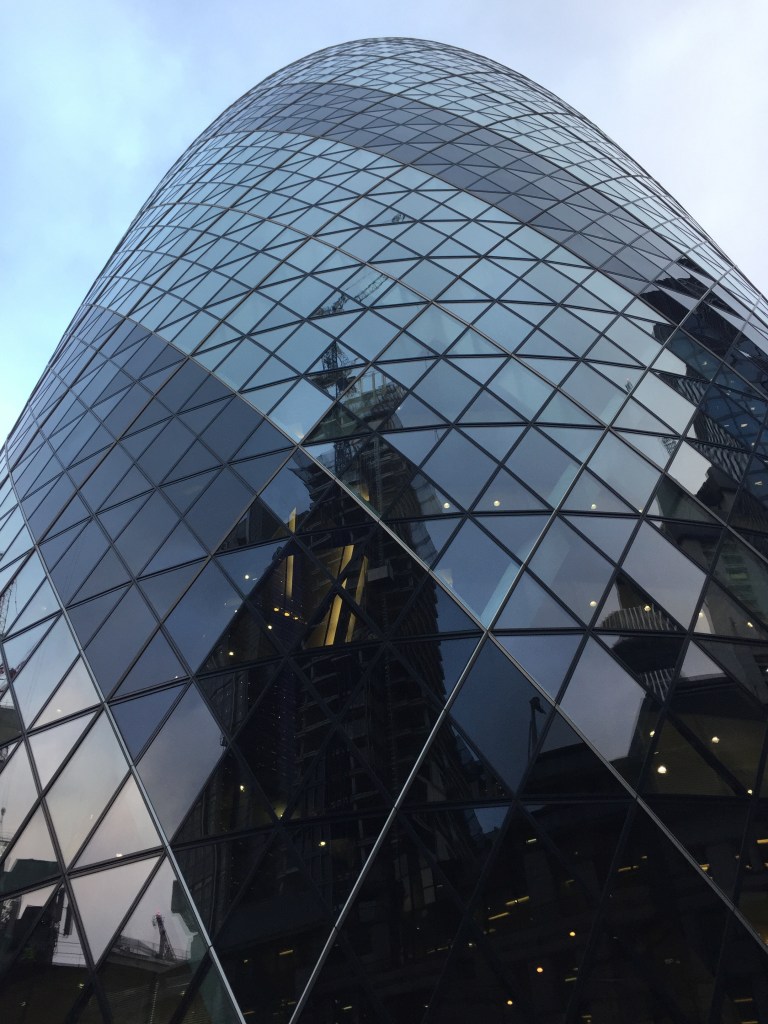
    런던의 쇼디치 (Shoreditch) 지역으로 넘어가면 크고 높은 빌딩이 즐비해 있다. 여행으로 갔을 때는 주로 박물관 위주로 구경했었는 데 출장가서는 상업지구를 돌아다녔다.

    The Gherkin 빌딩
    Lloyd’s 빌딩, 인사이드 아웃 빌딩으로 불린다. 벌써 4년전 (2017년)에 찍은 사진이니 지금은 완공되었을 것 같다.

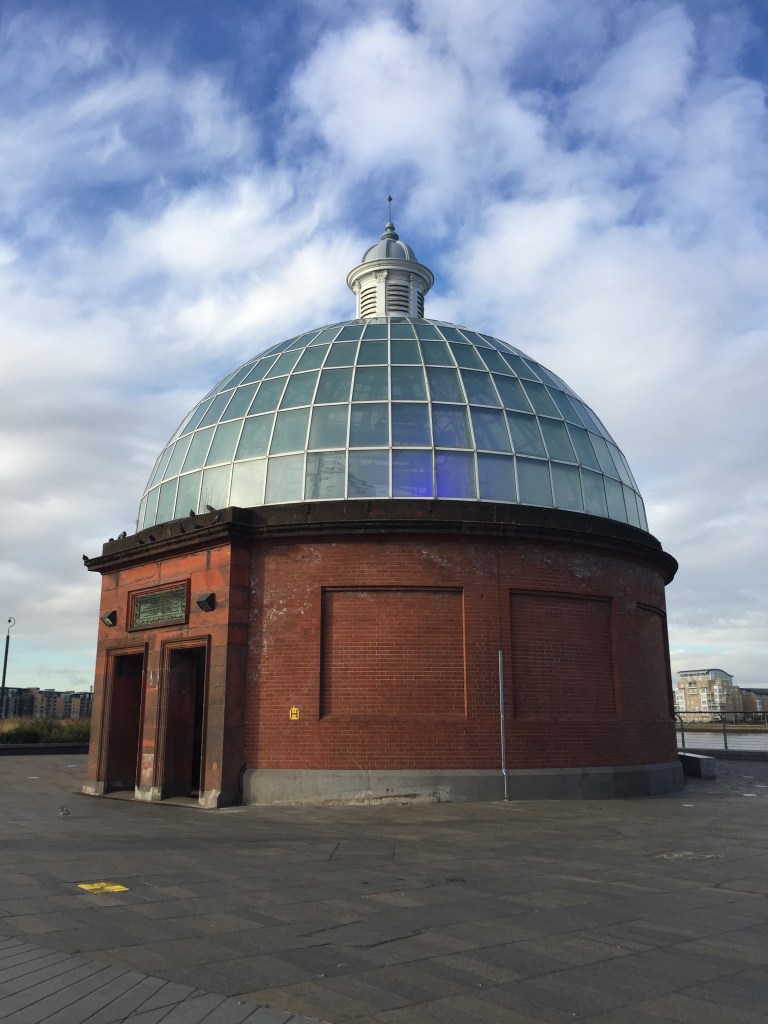
    그리니치 천문대


    그리니치 천문대를 가는 방법은 여러가지가 있는데 이때 나는 유람선을 타고 갔다. 빅벤 근처에서 유람선을 탔다.

    유람선을 타고 쭈욱 가다보면 그리니치 천문대에 도착한다.

    유람선에서 내렸다.
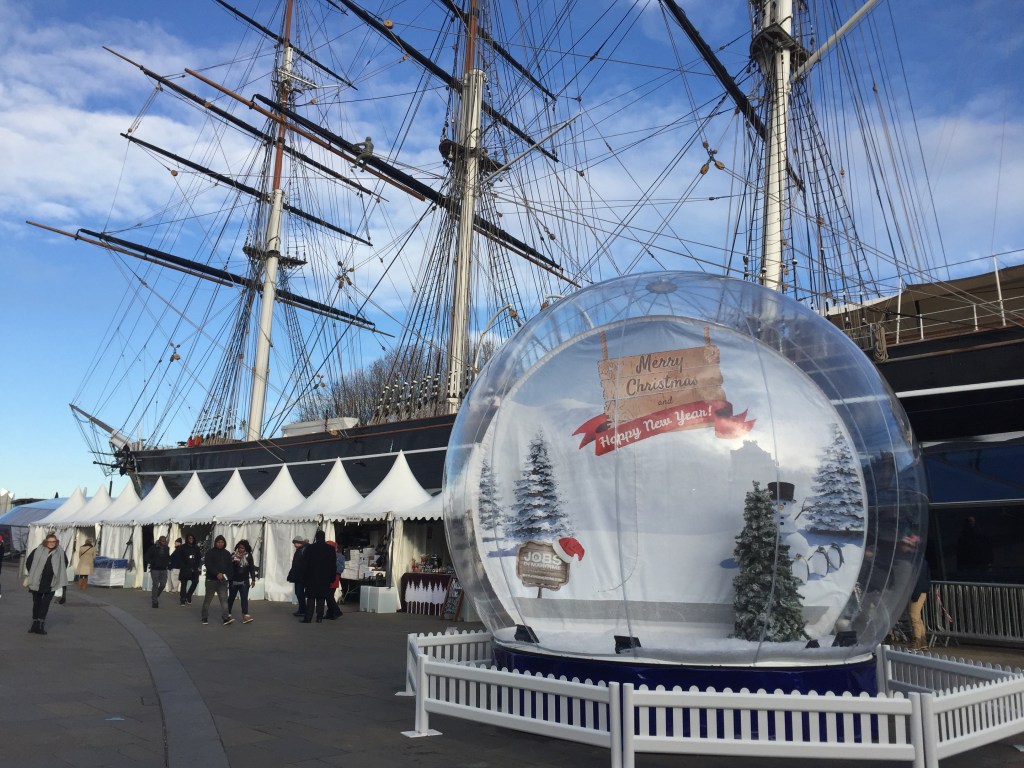
    그리니치 천문대가 위치한 곳은 왕립해군사관학교가 있는 곳이다. 저 배는 해군관련된 배다. 1998년도에 그리니치 해군사관학교는 문을 닫았다.

    그리니치 천문대에서 바라본 런던의 모습. 12월이었는데도 날씨가 가을 같고 너무너무 좋았다.

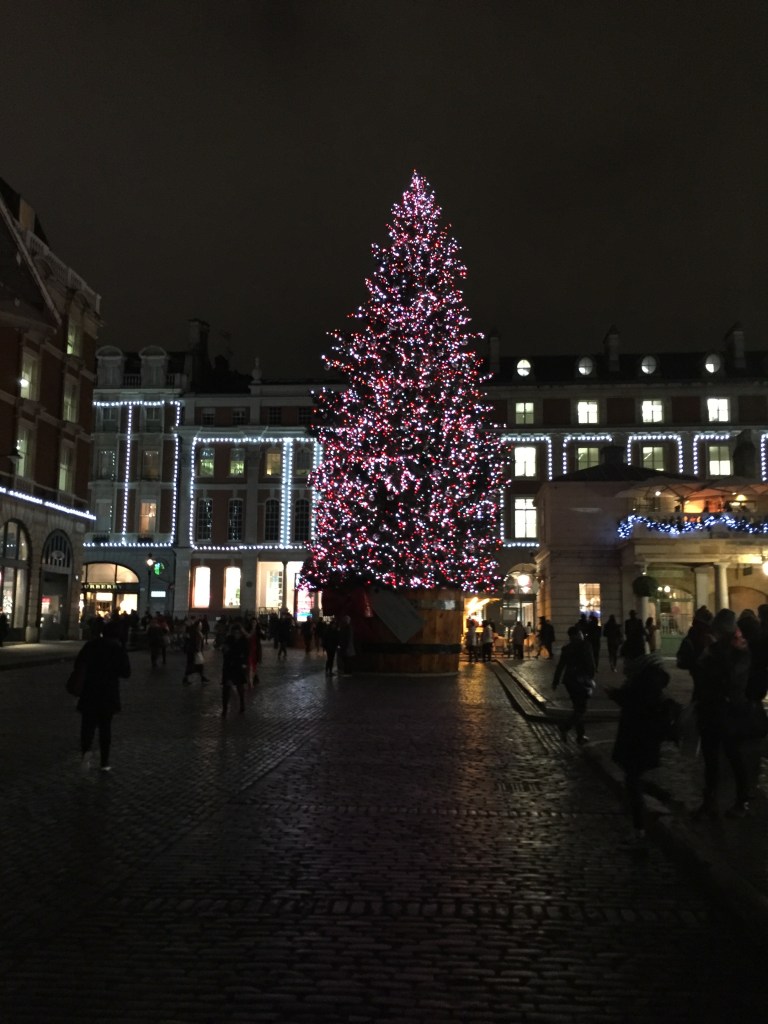
    크리스마스 분위기, 런던 시내


    코벤트가든 근처에 있는 애플 스토어. 이날 나는 애플 워치 시리즈 3를 구매했다.
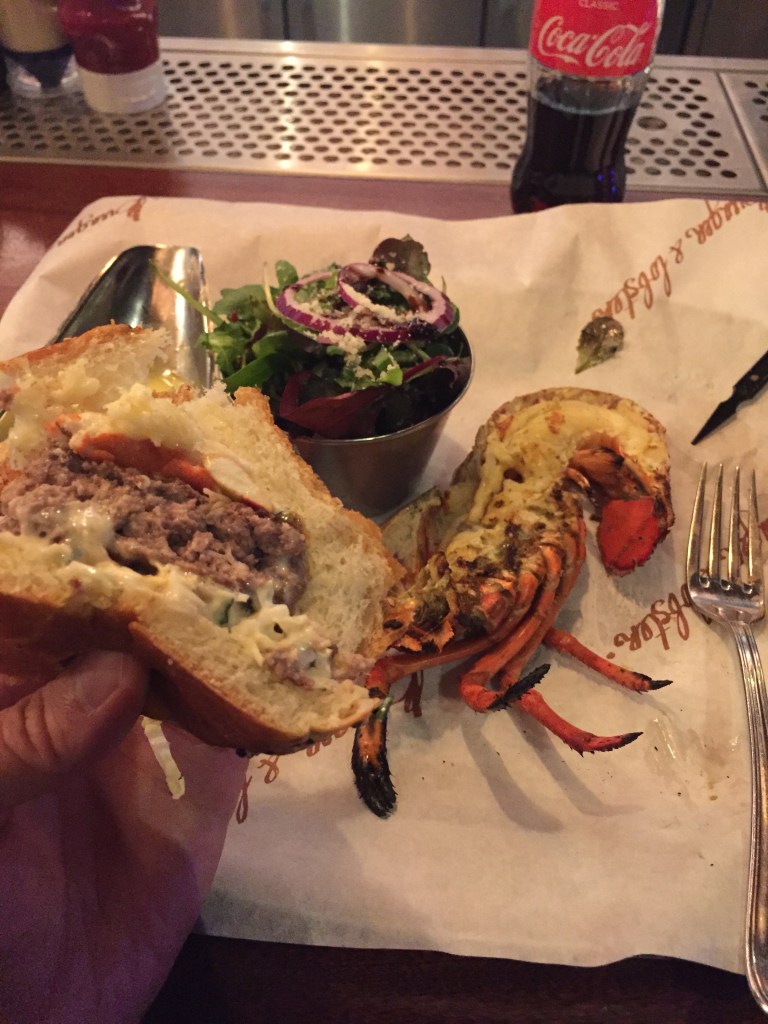
    저녁은 버거 앤 랍스터에 가서 푸짐하게 먹었다.
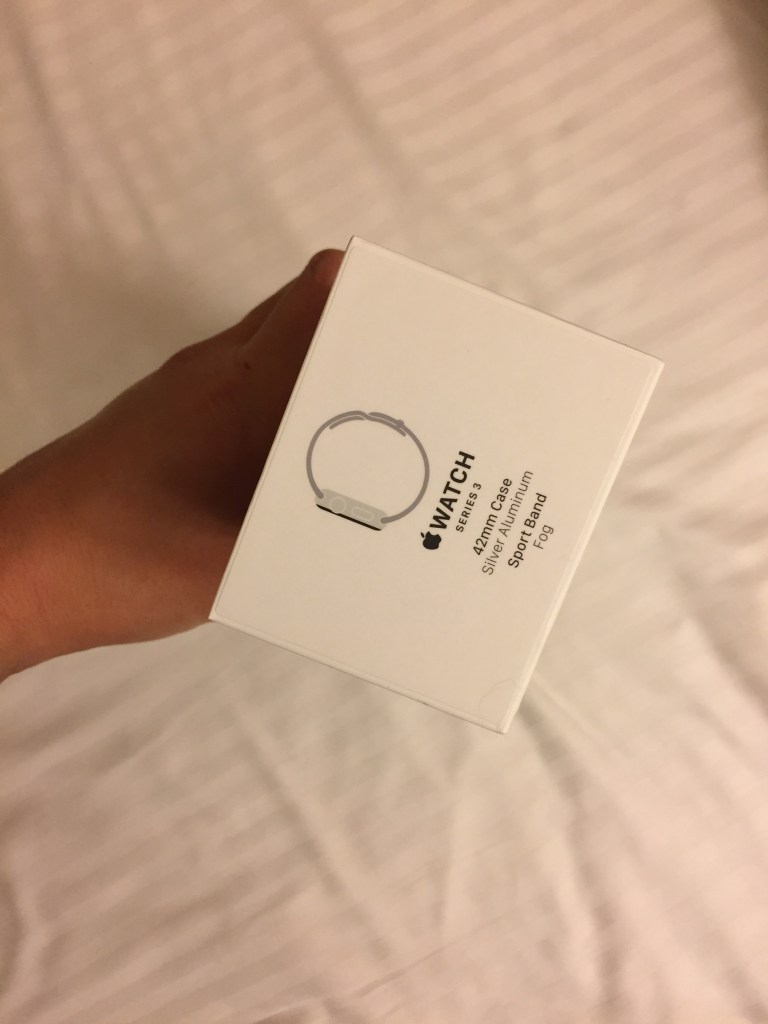
    애플와치 시리즈3를 사와서 기쁜 맘에 호텔 오자마자 언박싱 했던 기억이 난다.

    주말 여행, 브라이튼 세븐 시스터즈에 가다.


    드디어 주말이 왔다. 차를 타고 약 2-3시간 거리에 있는 브라이튼으로 갔다. 여긴 그 유명한 세븐 시스터즈 절벽이 있는 곳이다.

    드디서 세븐 시스터지에 도착했다.
    세븐 시스터즈 입구에 보면 절벽이 무너져 내리는 영상을 보여준다. 그래서 그런지 저게 언제 무너질 지 모르겠다는 생각을 하니 사실 저렇게 사진 찍는게 쉽지가 않다.
    세븐시스터즈 실 컷 구경하고 브라이튼 도시로 넘어가서 같이 출장온 사람과 함께 저녁을 먹었다. 브라이튼도 참 좋은 도시였는데 사진 찍은게 많지 않아서 아쉽다.

    마치며

    2017년 출장갔던 사진을 정리하며 영국 런던에 대한 추억을 다시 상기시킬 수 있어서 좋았다. 이때 고프로로 여러 영상을 찍었었는 데 시간 날때 한번 편집해서 정리해봐야겠다.

  • 맥북에서 알씨나 꿀뷰처럼 사진 모아서 보기

    맥북에서 알씨나 꿀뷰처럼 사진 모아서 보기

    윈도우를 사용하다가 맥북을 사용하면 사진을 모아볼 수 있는 알씨나 꿀뷰같은 프로그램은 없을까? 란 생각을 하게 된다.

    왜 폴더에 있는 사진을 한장씩 클릭해서 봐야되는지 현타가 온 적도 있다.

    결론은 내가 맥북을 제대로 사용할 줄 몰라서 헤메였던 것.

    맥북에서 별도의 앱 설치 없이 사진 모아보는 방법


    먼저 모아서 보고 싶은 사진들을 선택 -> Command + O (영문) 단축키를 실행.
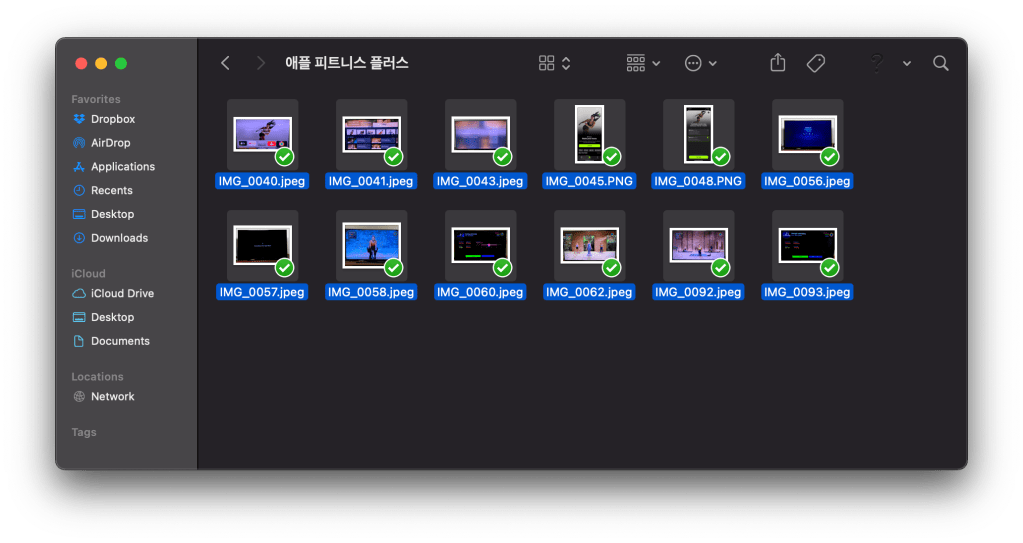
    마치 키노트처럼 왼쪽에는 사진 목록이 나오고 우측에는 선택된 사진이 보인다.

    마치며


    맥북을 사용한지가 거의 7-8년이 넘어가는 데… 이걸 모르고 있었다니 😱

  • 태안 안면도 꽃지꽃게집, 게국지 맛집

    태안 안면도 꽃지꽃게집, 게국지 맛집

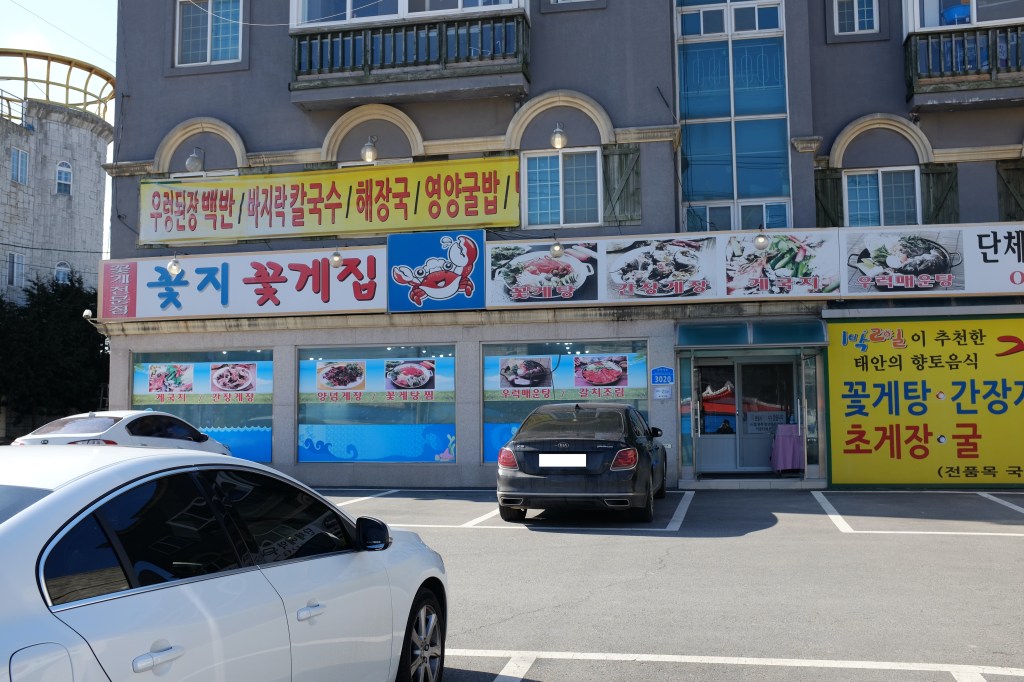
    안면도의 대표 메뉴인 게국지를 먹고 왔다. 열심히 네이버 블로그와 구글을 검색해서 찾은 곳. 꽃지꽃게집이라는 곳이다.

    주차장은 널널했다.

    메뉴


    메뉴판을 보고 잠시 고민했으나 사장님 추천으로 게국지 세트를 주문했다. 그나저나 게국지라는 단어가 생소해서 찾아봤다. 김치의 한 종류였고 이걸 이용해서 야채등과 함께 끓인 탕이 게국지라고 사장님이 알려주셨다. 꽃게탕도 비슷하긴 한데 그건 야채가 안들어간다고 하셨던 것 같다.

    게국지란?

    게장의 간장과 갖은양념으로 버무린 배추에 청둥호박과 꽃게를 잘라 넣어 담근 김치. 국물을 약간 붓고 끓여서 먹는다. 

    출처: 네이버 사전

    게국지 세트


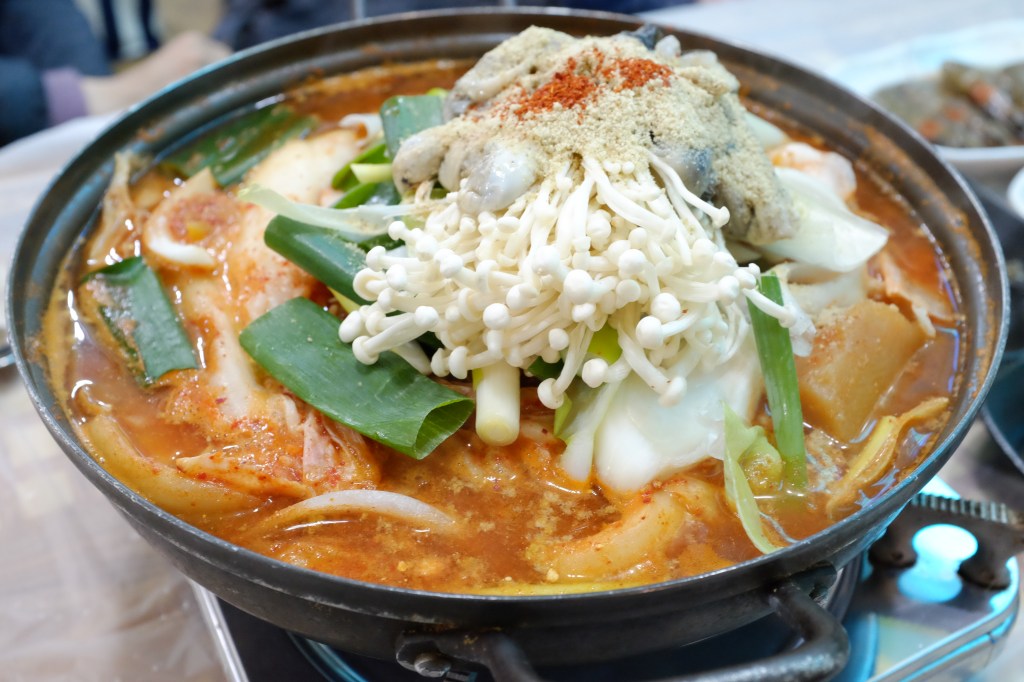
    야채, 게국지, 굴 등이 들어가 있다.

    태어나서 처음 먹어 본 게국지. 진짜 너무 맛있었다. 뭔가 아주 시원한 맛이라고 표현하는 것이 맞을 것 같다. 국물이 시원하고 맵지도 않고 맛있었다.

    첨에 1박 2일에 소개되었을 때 엄청 먹고 싶었던 메뉴였는데 기대 이상이었다.

    + 방문 팁

    네이버 예약으로 방문하면 음료수 + 라면 사리를 제공해주신다. (세트 메뉴는 기본적으로 공기밥 포함)

    위치


    주소는 충청남도 태안군 안면읍 승언리 339-358

  • 안면도 아일랜드 리솜 오션 빌라스 G70

    안면도 아일랜드 리솜 오션 빌라스 G70

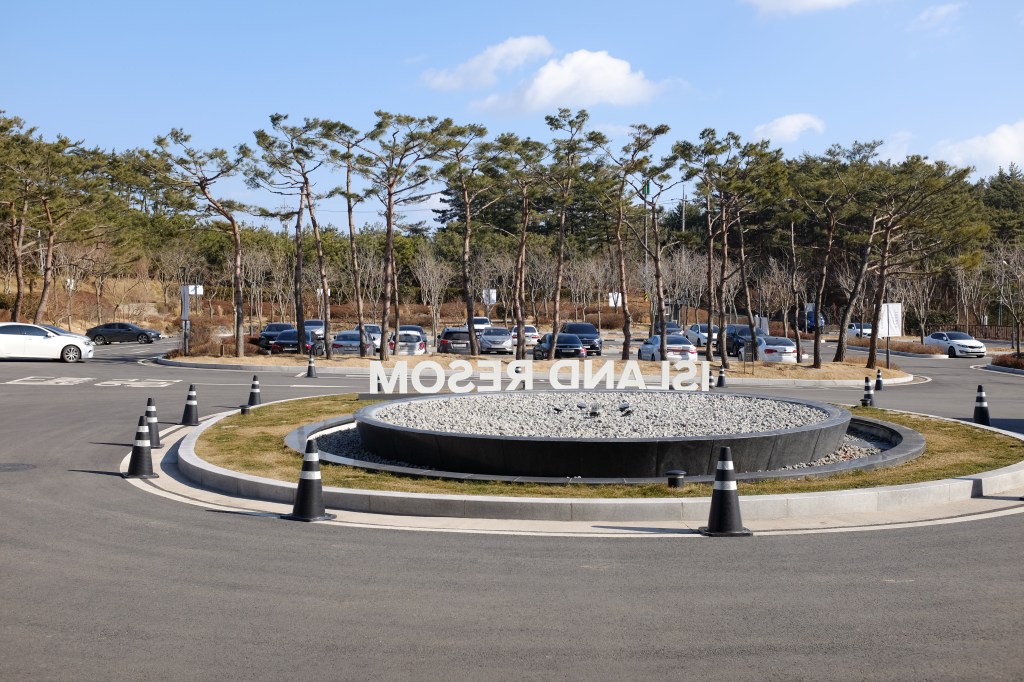
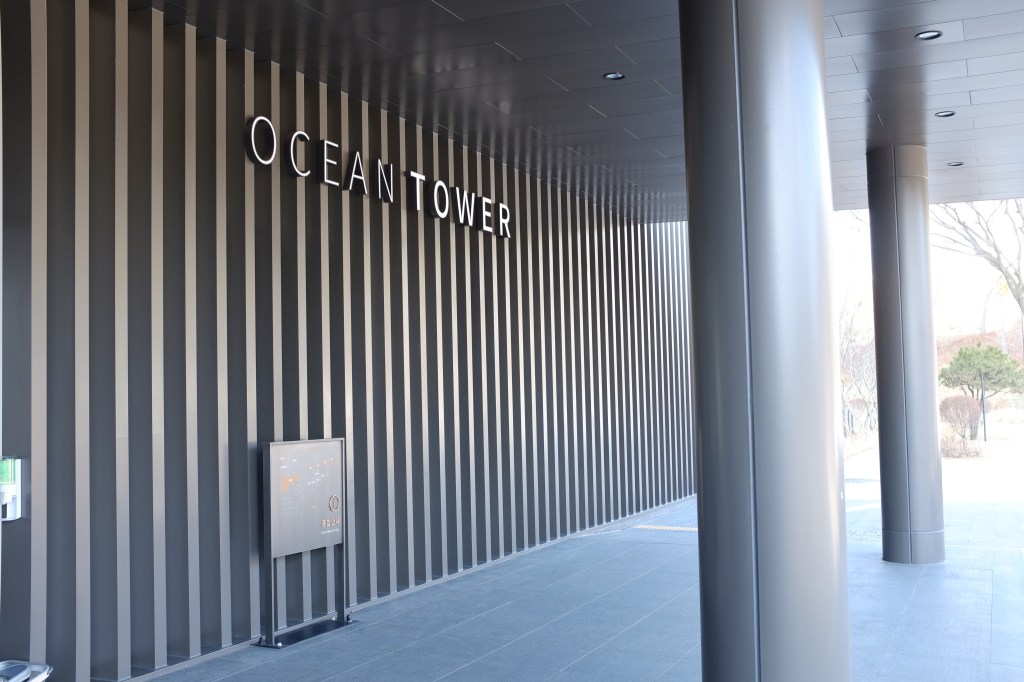
    태안에 위치한 아일랜드 리솜을 다녀왔다. 오션 빌라스 G70에서 1박 2일을 보내고 왔는데 전용면적이 150 제곱미터라 그런지 크고 좋았다.

    로비, 체크인


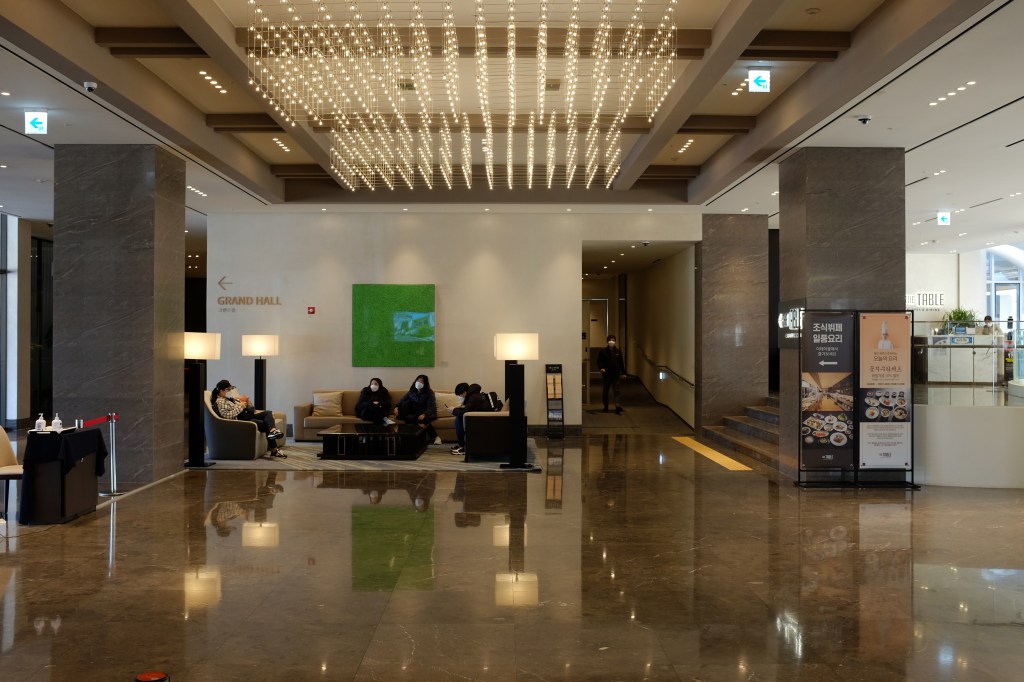
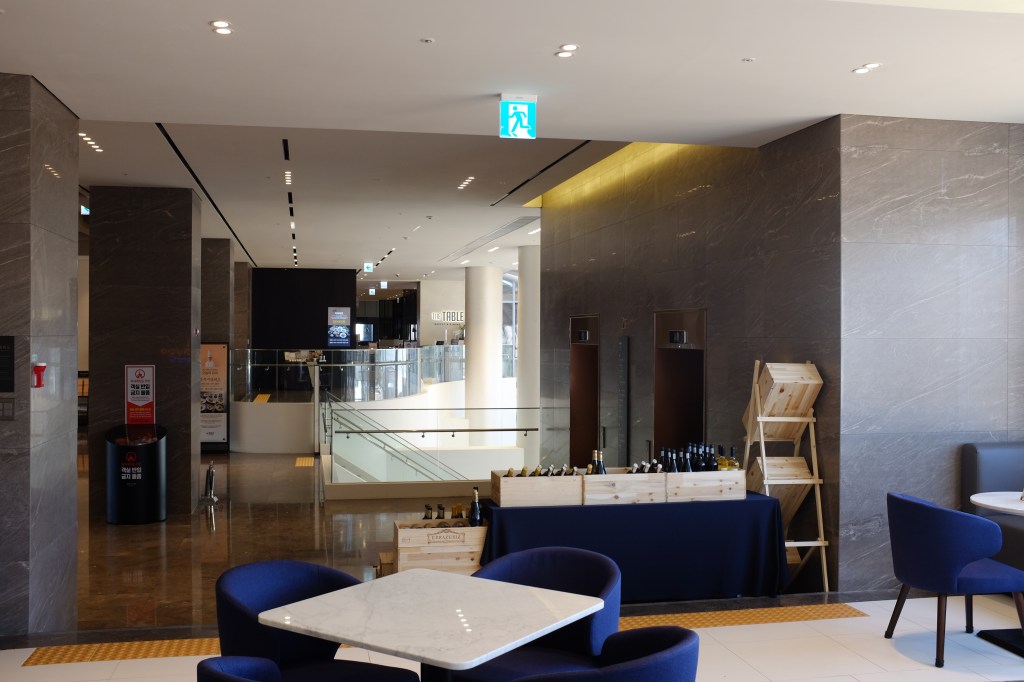
    로비는 엄청 크지는 않았지만 리모델링한지 얼마 되지 않아서 깔끔했다.
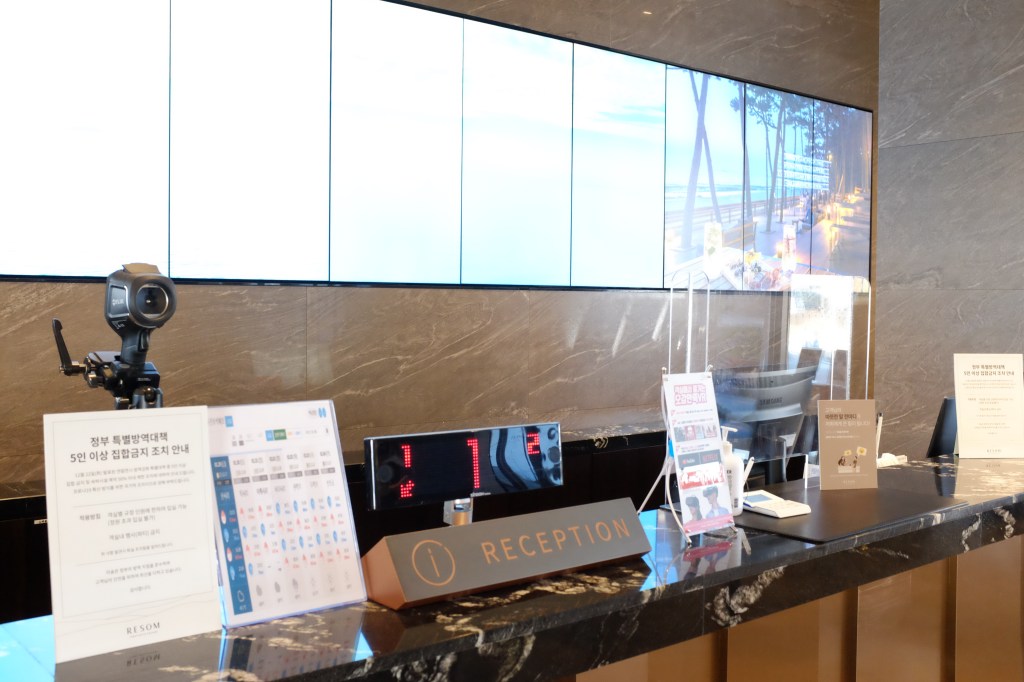
    5인 이상 집합 금지 안내문
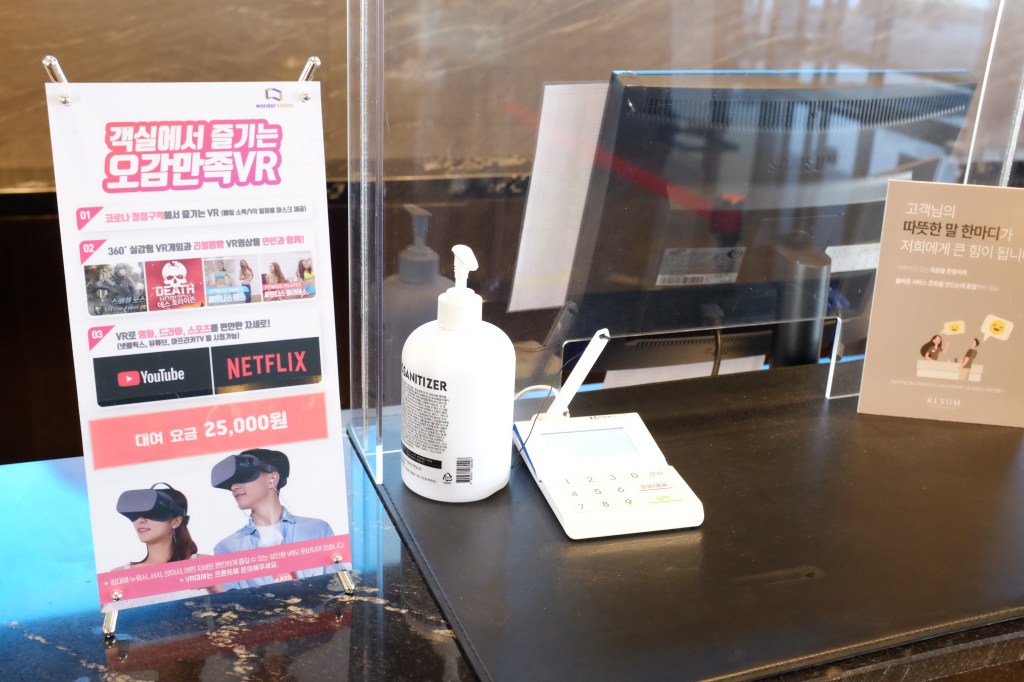
    객실안에 VR 등을 할 수 있다는 안내가 있다. 나는 사용하지 않았지만 네틀릭스는 로그인 되어있어서 잘 봤다. (누군가 로그인해놓고 그냥 간듯..)

    웰컴 드링크


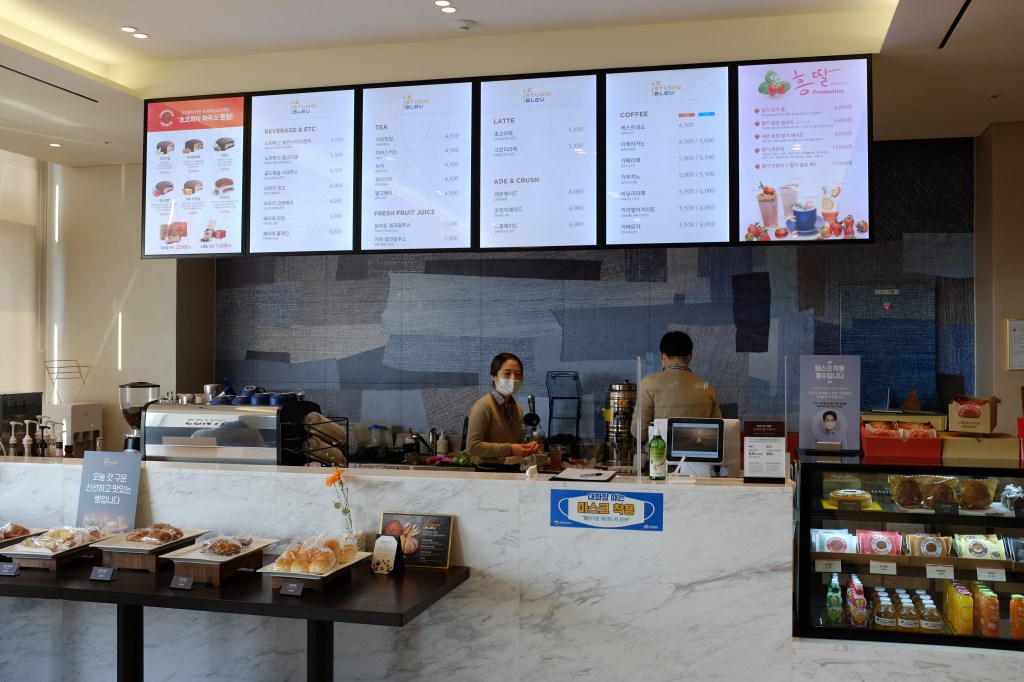
    호텔 체크인을 하면 객실 당 2잔 웰컴 드링크를 제공한다. 로비 바로 옆에 있는 카페에서 받을 수 있는 데 음료는 차 메뉴로 고정되어있다. (커피나 이런것도 선택 가능하면 좋을 것 같다)

    오션 빌라스


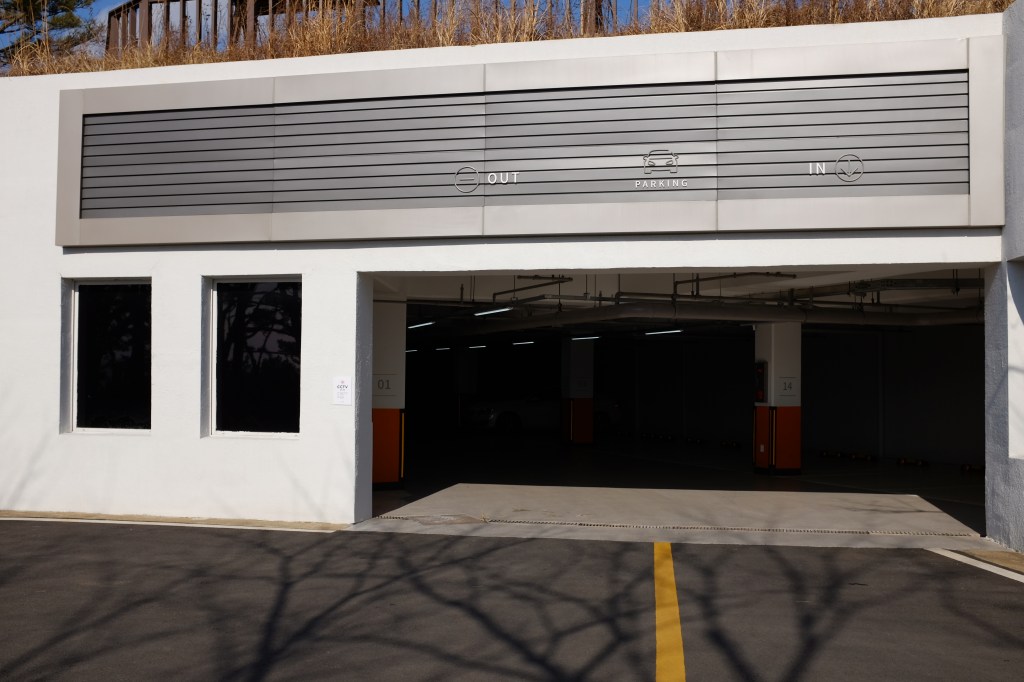
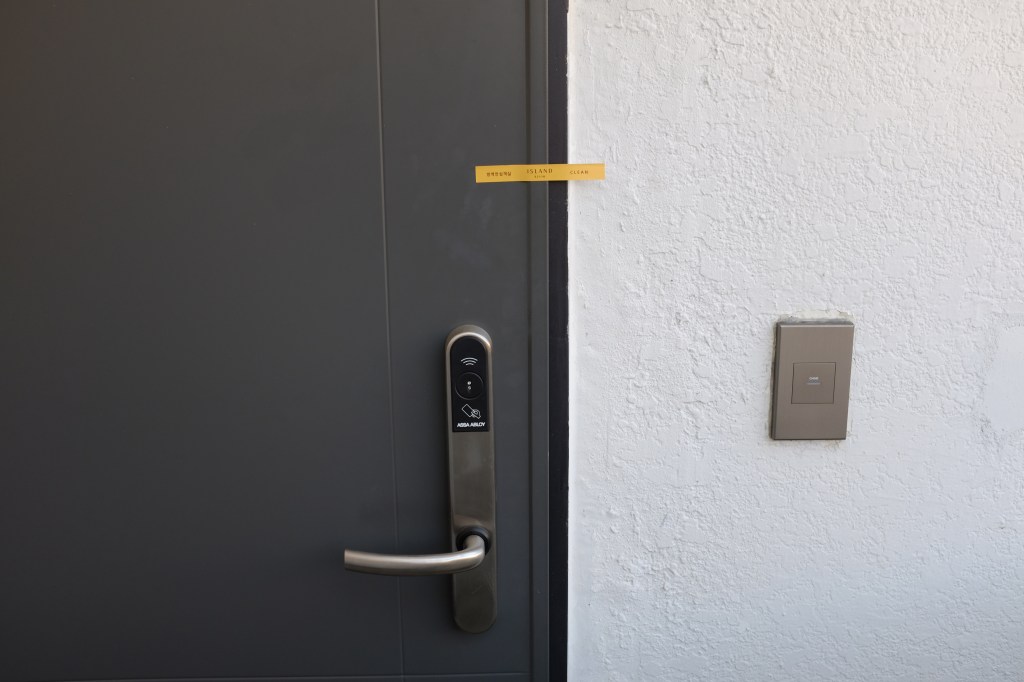
    빌라동 전용 주차장이 있어서 편리했다. 주차장과 객실과의 거리가 엄청 가까움.
    빌라는 1, 2층으로 나뉘어져 있다. 2층이 G70이고 아랫 층이 G50인 것 같았다.

    내부 구조


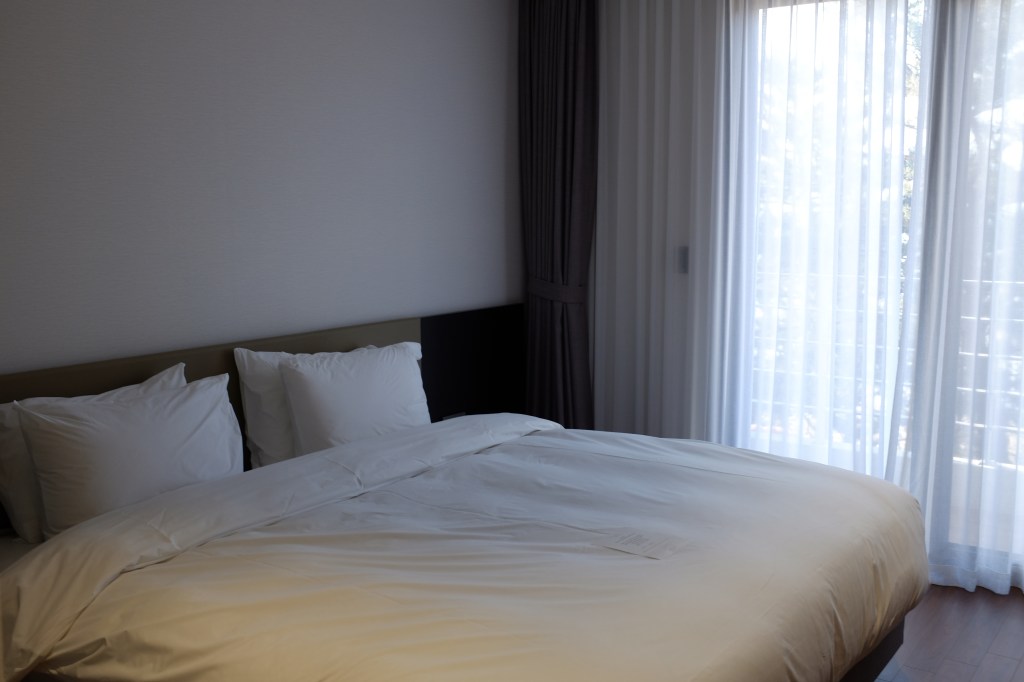
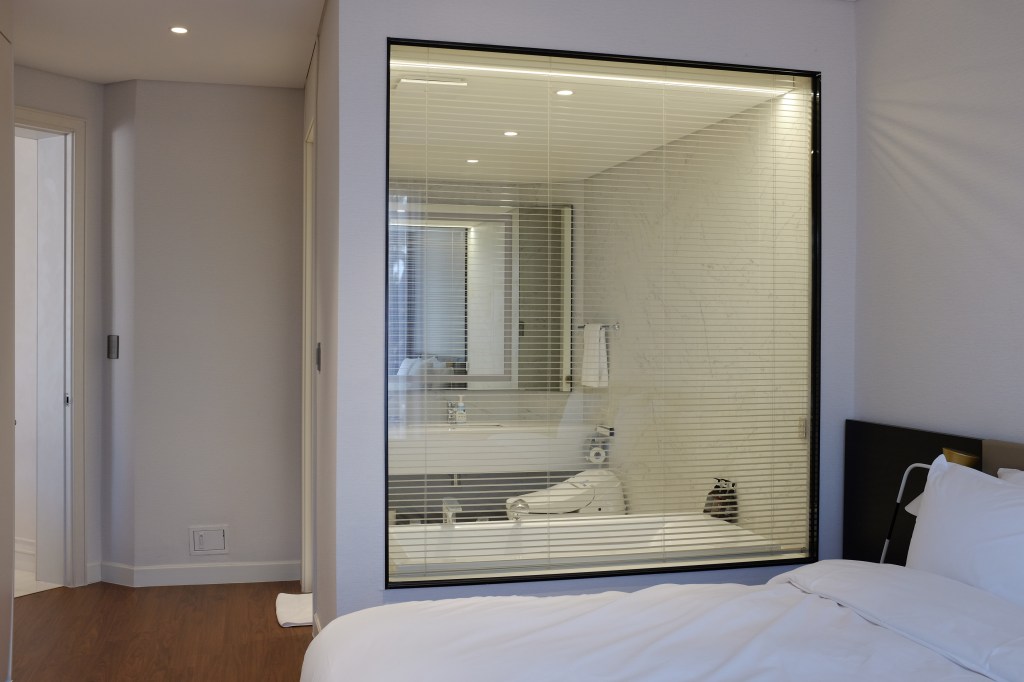
    내부 구조는 크게 방 3개, 화장실 3개, 거실, 부엌으로 각각의 공간이 분리되어 있었고 테라스가 생각보다 컸다. 테라스에서는 바다가 내려다 보인다.

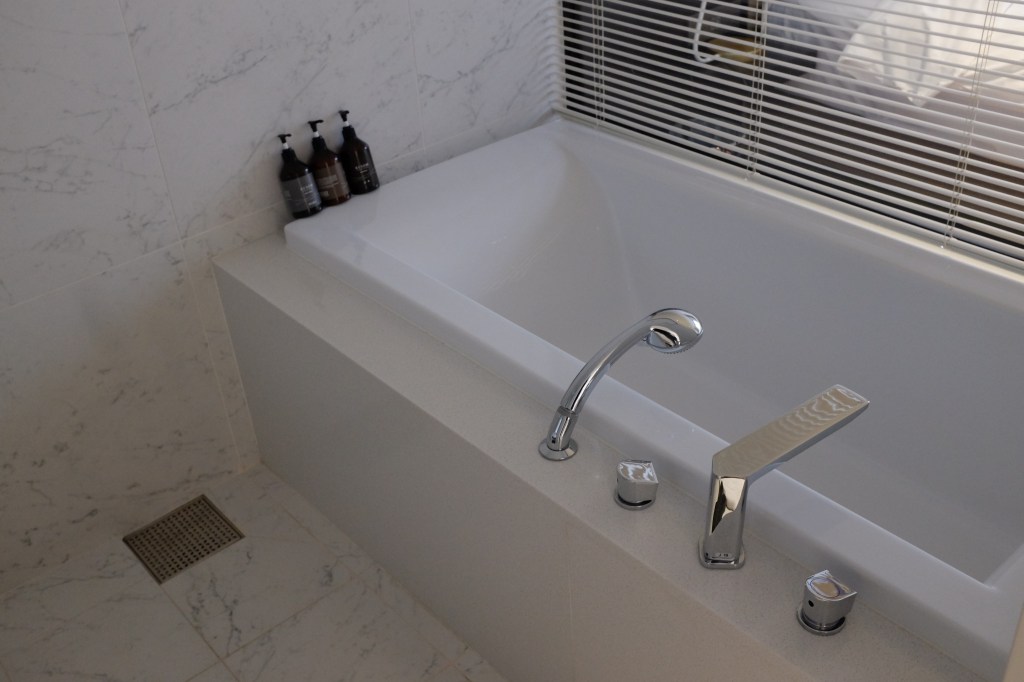
    화장실 3개 중 욕조는 큰 방에 위치한 화장실에만 있다.
    여기는 온돌 방인데 사실 거의 쓸 일이 없었다. 그냥 짐 넣는 방으로 사용함.
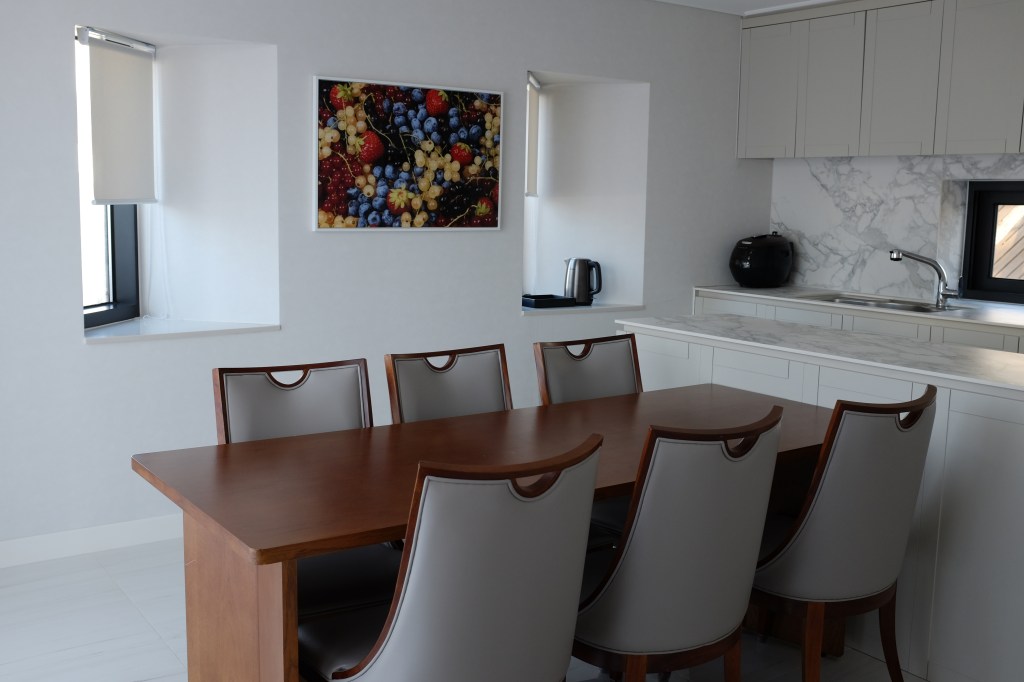
    부엌이 따로 분리되어 있어서 좋았다. 한 가지 불편했던 건 콘센트가 바닥에만 있어서 뭔가 전기를 연결하려면 밥통 같은 것 등등 다 바닥에 내려놓고 사용해야 된다.
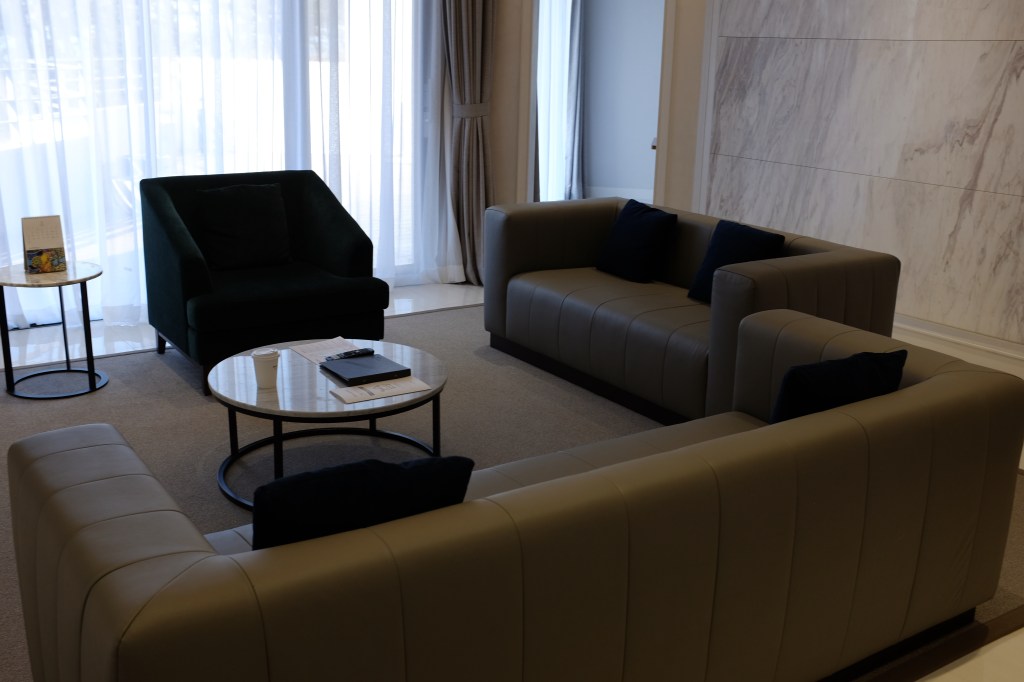
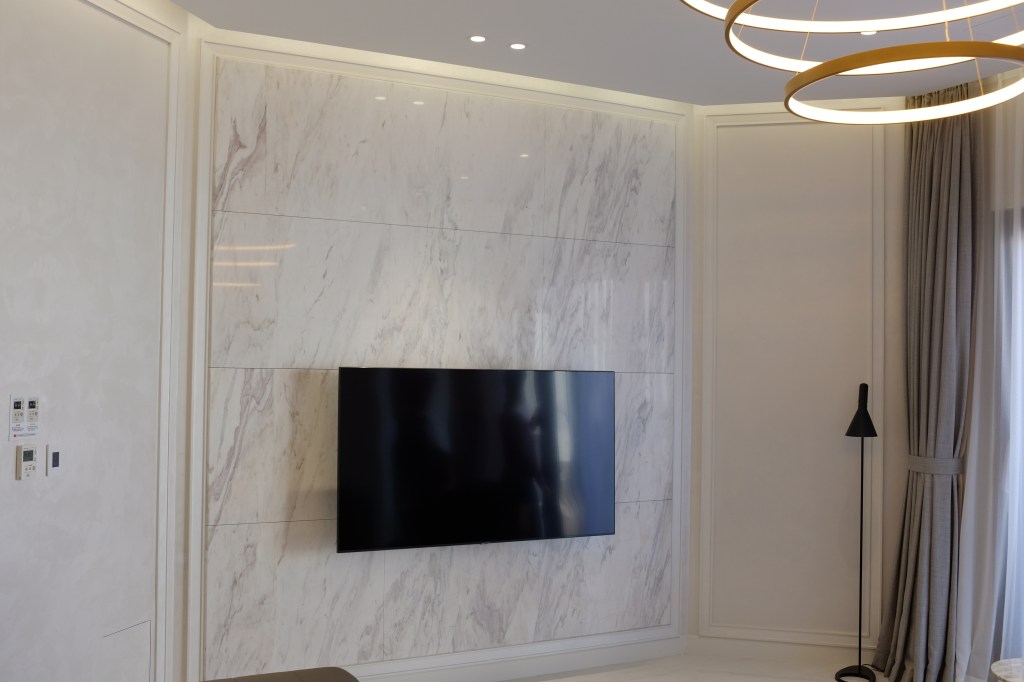
    티비도 최신식이라 좋았고 거실이 넓어서 쾌적햇다.
    밖에 테라스로 바로 나갈 수 있고 바다가 보이는 전망대로 시원했다.

    부대시설


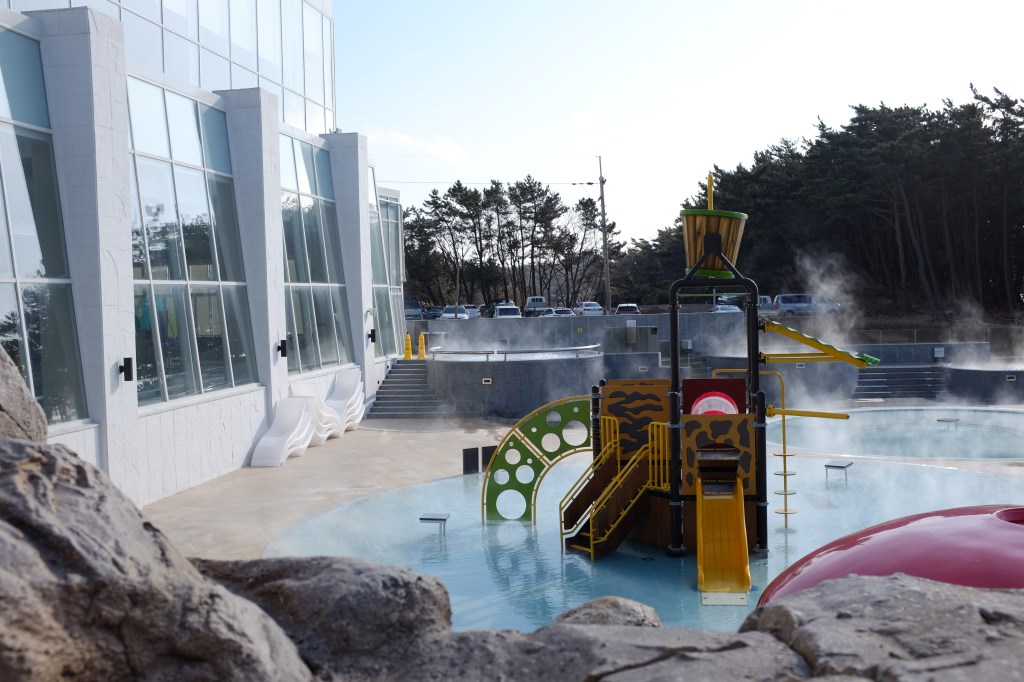
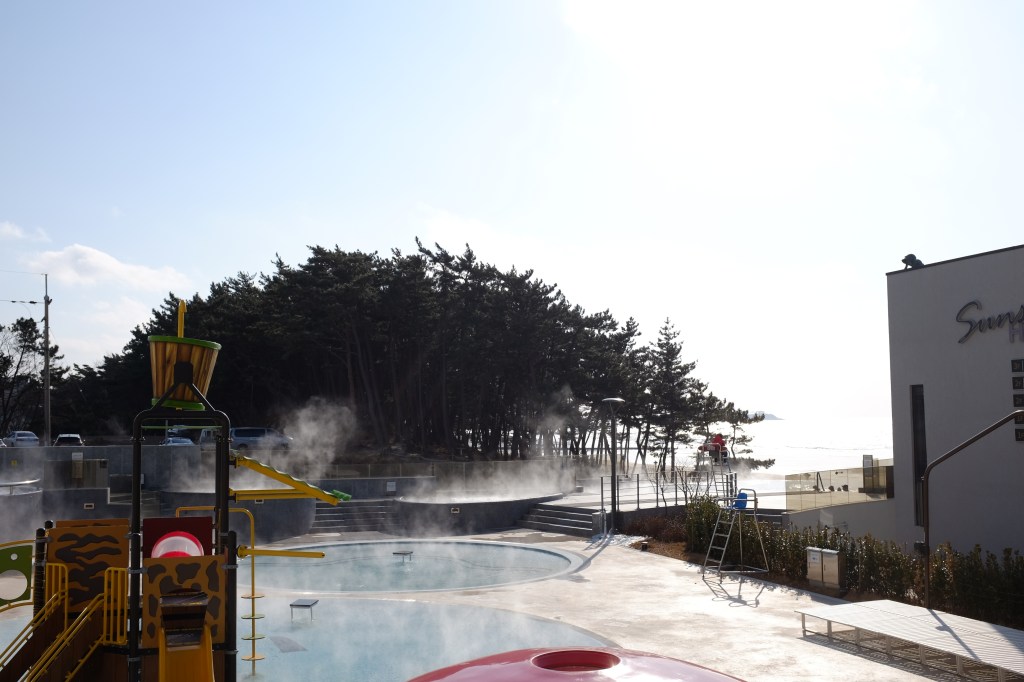
    겨울에도 야외 온천을 운영하고 있고 약간 인피니티 풀처럼 바다를 바라보며 사진을 찍을 수 있게 되어있다. 
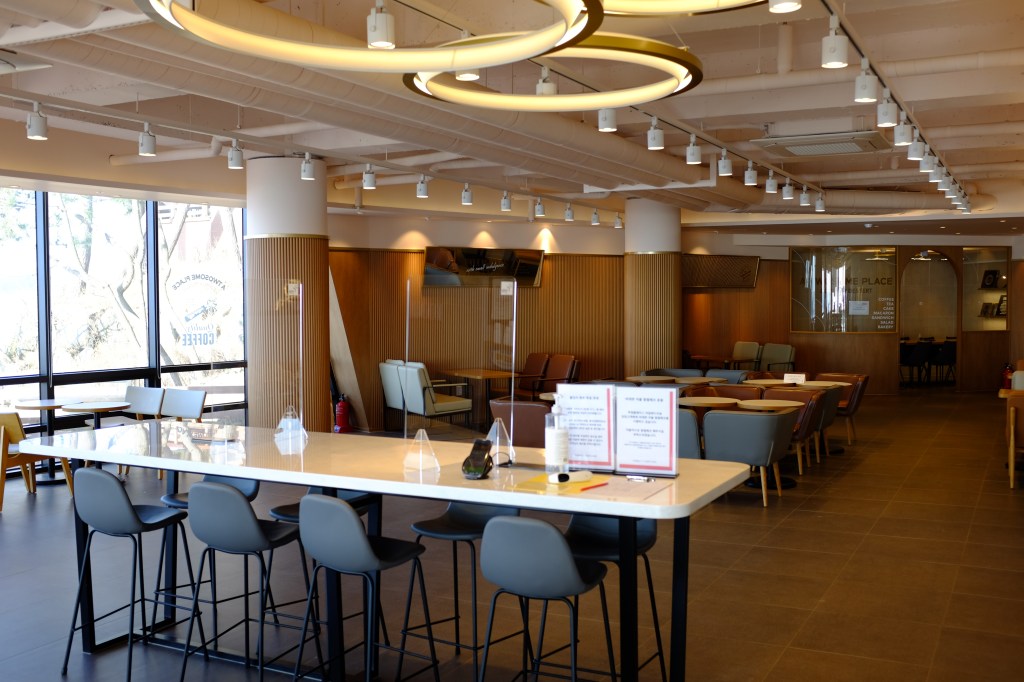
    1층에는 투썸 플레이스가 있고 2층에는 돈스파이크가 운영하는 로우앤슬로우 체인점이 있다. (내가 간 화요일은 운영하지 않는 날이라서 맛보지 못했다)
    카페에서 바라본 안면도 바닷가 풍경. 다 좋았는데 현수막 광고가 붙어 있어서 멋진 경관 촬영에 방해가 조금 되었다 ㅜ (현수막을 피해서 찍은 사진)
    일몰이 멋진 안면도

    위치


    마치며


    오랜만에 국내여행을 다녀온 것 같다. 에어비앤비의 슈퍼호스트 숙박 경험이랑 비교했을 때는 아주 약간 부엌의 조리기구 (예를 들어 요리용 집게, 전자레인지)등이 구비되어 있지 않았던 점이 살짝 아쉽기는 했지만 직원들도 너무 친절하고 전체적으로 아주 만족스러웠다.

    또한 리조트내에 왠만한 부대시설, 레스토랑, 카페 등등을 다 갖추고 있어서 밖으로 나갈일이 별로 없었다.

    리솜이 아일랜드리솜도 있고 포레스트리솜도 있다. 다음에는 포레스트리솜을 방문 해볼 예정이다.

  • 애플 피트니스 플러스(Apple Fitness+) 체험기

    애플 피트니스 플러스(Apple Fitness+) 체험기

    애플티비와 애플워치를 이용해서 피트니스를 할 수 있는 서비스가 출시되었다. 이름은 애플 피트니스 플러스. 아쉽게도 한국에서는 서비스를 하지 않는다.

    일단 한국에서 이 서비스를 이용하려면 미국계정이 있어야 되는데 https://appleid.apple.com 에 들어가서 지역을 미국으로 선택하고 계정을 하나 만들면 이용할 수 있다. (가입 시 핸드폰 번호라든가 카드번호 등은 한국에서 사용하는 걸로 등록하면 된다.)

    피트니스 플러스 가입하기

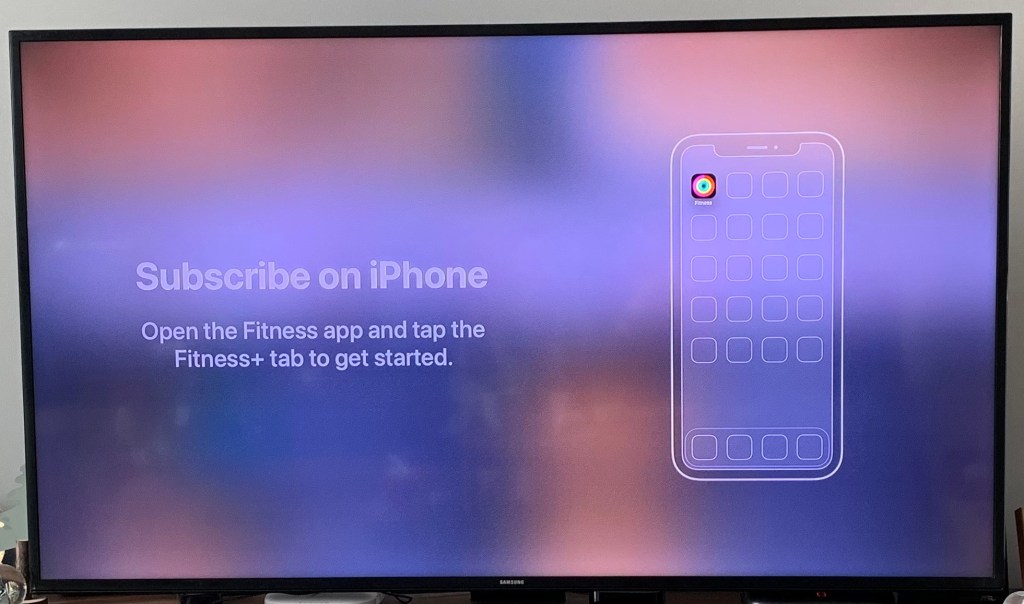
    Apple TV를 미국계정으로 로그인하면 피트니스 앱이 보인다.
    정말 다양한 종류의 운동들이 이미 수십개 올라와있다

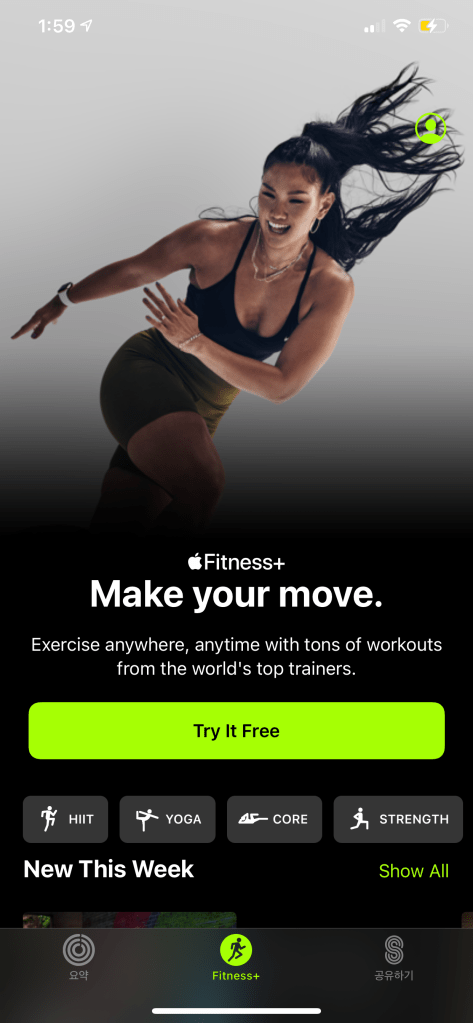
    운동 시작하기를 누르니 피트니스 플러스를 가입하라고 나온다. 아이폰도 미국계정으로 로그인을 하고 피트니스 앱을 열면 한국계정에서는 없었던 피트니스 플러스 메뉴가 보인다.

    1달간 무료 체험 선택!
    1달은 무료고 그 다음부터는 월 9.99불이다. 일단 가입을 진행하자

    애플 워치와 연동하기

    이 부분은 정말 할말이 많다. 연동하는데 엄청 애를 먹었다. 인터넷을 찾아보니 나랑 비슷한 문제를 겪는 사람들이 많았는데 결론은 애플 워치 재부팅, 아이폰 재부팅 후 다시 연결 시도 등으로 해결했다.

    애플워치가 연결되면 PIN 코드를 입력하라고 나온다. 여기까지 왔으면 연결 거의 성공이다.
    제발 연결 되어라… 되었다!

    자 이제 운동 시작!

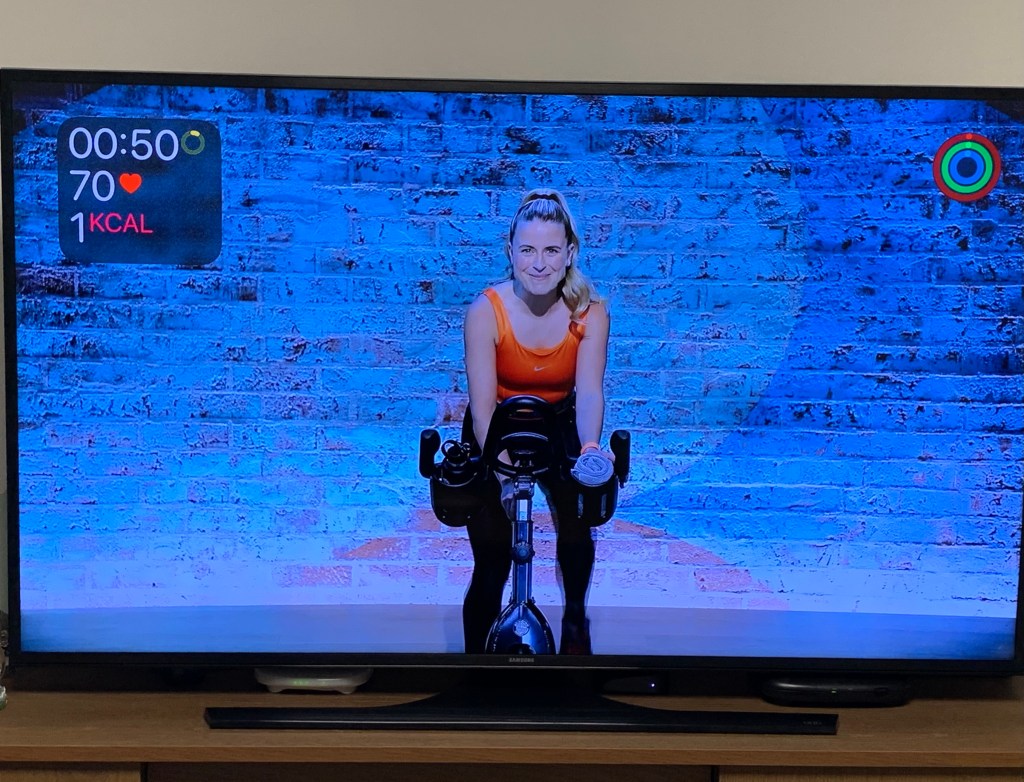
    집에 실내용 자전거가 있어서 10분짜리 코스로 운동을 했다

    음 일단 애플 피트니스 플러스가 너무 좋았던 이유 중 하나는 왼쪽 상단, 오른쪽 상단에 애플 워치 정보가 표시된다. 운동을 몇분 했고 나의 심박수가 현재 몇이고 칼로리를 얼마나 소비를 했는지 바로 보여준다. 그리고 오른쪽 상단에서는 운동링이 보여지는 데 저게 채워지는 과정을 볼 수 있어서 뭔가 게이미케이션 한 요소가 있어서 자극이 되었다.

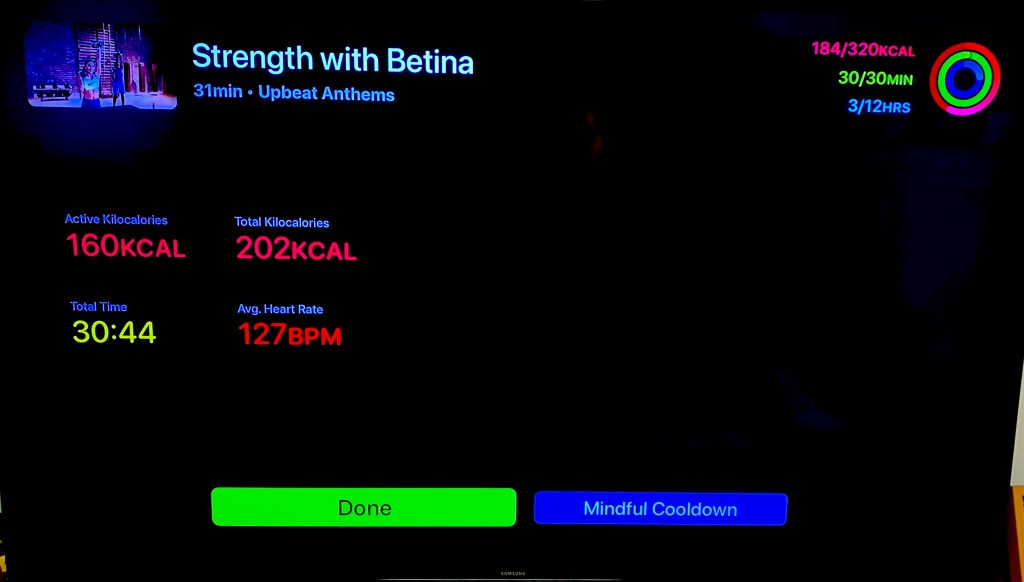
    운동을 마치고 나면 결과를 보여준다. 총 칼로리 소비량, 운동시간, 심박수 등등 다양한 정보가 나온다. 뭔가 오늘 하루 운동을 했다는 기록을 남긴 것 같아서 뿌듯함을 느낄 수 있다.

    스트레칭 같은 운동도 있다
    근력운동 30분 코스. 이건 정말 빡세다. 바벨 필수
    운동 결과를 보고나니 뿌듯 뿌듯…

    마무리

    애플은 참 서비스를 잘 만든다는 생각이 들었다. 코로나 때문에 1년치 등록한 헬스장을 못가고 있어서 답답했는데 애플 피트니스를 통해 집에서 운동을 하니 마치 헬스 트레이너가 앞에 있는 느낌이 들었고 운동의 종류도 너무나 다양해서 재미있었다. 피트니스 플러스 가격은 월 9.99 달러이지만 가족공유를 하면 5명까지 초대를 할 수 있고 즉 5명이서 월 9.99불에 사용할 수 있기 때문에 가격도 괜찮은 것 같다.

    음 그리고 애플워치를 아주 잘 활용한 서비스인 것 같다. 운동 종류마다 칼로리 소비량이 다른데 그것을 알아서 기록해줘서 사용자는 뭔가 기록을 위해 신경쓸 필요가 없다. 그냥 운동 종목 선택, 운동만 하면 되기 때문에 상당히 편리하다.

    아 참, 애플 피트니스에는 운동 뿐만 아니라 댄스도 있어서 춤을 배우고 싶은 사람들한테도 추천.