
This is series of the VS Code related posts. I’ll skip the repeated VS Code install steps. If you want to know basic steps, please check this post.
Step 1. Create working folder
mkdir c++cd c++code .
Step 2. Install C/C++ Extension by Microsoft

There are a lot of C/C++ extensions. For the basic setup, You only need the C/C++ Extension by Microsoft.
Step 3. Check clang and clang++ version in Terminal

Open a terminal, check are clang and clang++ installed on your Mac.
Step 4. Create 2 files: main.c and main.cpp

I’ll run a c and c++ programs.
main.c
<stdio.h>int main(void) { for (int i = 0; i <= 10; i++) { printf("%d\n", i); } return 0;}
main.cpp
<iostream>int main() { int numbers[] = {0, 1, 2, 3, 4, 5, 6, 7, 8, 9, 10}; for (int number : numbers) { std::cout << number << std::endl; } return 0;}
Step 5. Let’s run c++ code

Press fn + F5 and Select the C++ (GDB/LLDB)

Next, choose C/C++ debug and debug active file

Build finished successfully! 🎉

On Debug Console, you can see std::cout
Step 6. Let’s run C program

Run c program is almost the same as Step 5. But you have to select the clang build and debug active file not clang++

Build finished successfully! 🎉

Step 7. Let’s check Folder Structure

c++├── .vscode├── main├── main.dSYM│ └── Contents│ ├── Info.plist│ └── Resources│ ├── DWARF│ │ └── main│ └── Relocations│ └── aarch64│ └── main.yml├── main.c└── main.cpp
main
The main file is the compiled executable.
You can run it from the terminal with:
./main
This file contains machine code that macOS can execute.
main.dSYM
main.dSYM is a debug symbol bundle.
It contains information that helps the debugger connect the compiled machine code to the original source code.
For example, it can contain:
- Function names
- Variable names
- Source file names
- Source code line numbers
- Breakpoint information
- Call Stack information
The main.dSYM bundle is not the program itself, so you do not run it directly.
Why was main.dSYM generated?
The bundle was generated because the program was compiled with the -g option:
clang++ -g main.cpp -o main
The options mean:
clang++: Use the C++ compiler.-g: Include debugging information.main.cpp: Compile this source file.-o main: Name the executablemain.
The -g option allows VS Code and LLDB to provide features such as breakpoints, Variables, Watch, and Call Stack.
Contents
On macOS, a .dSYM file is actually a bundle directory. The Contents directory contains the metadata and debugging resources used by the debugger.
Info.plist
Info.plist contains metadata about the dSYM bundle.
For example:
<plist version="1.0"> <dict> <key>CFBundleDevelopmentRegion</key> <string>English</string> <key>CFBundleIdentifier</key> <string>com.apple.xcode.dsym.main</string> <key>CFBundleInfoDictionaryVersion</key> <string>6.0</string> <key>CFBundlePackageType</key> <string>dSYM</string> <key>CFBundleSignature</key> <string>????</string> <key>CFBundleShortVersionString</key> <string>1.0</string> <key>CFBundleVersion</key> <string>1</string> </dict></plist>
<key>CFBundlePackageType</key><string>dSYM</string>
This value indicates that the bundle contains debug symbols.
Resources
The Resources directory contains the debugging resources.
DWARF (Debugging With Attributed Record Formats)
DWARF is a standard format for storing debugging information.
The following file contains the actual debug symbols for the executable:
Resources/DWARF/main
LLDB uses this information to display variables, function names, source code line numbers, and breakpoint locations.
Relocations/aarch64/main.yml
The main.yml file contains relocation-related information for the aarch64 architecture.
aarch64 refers to the ARM64 architecture used by Apple Silicon Macs, such as Macs with M1, M2, M3, or M4 chips.
This information helps the debugger correctly connect debug symbols to the executable’s memory addresses.
Summary
main → The compiled executablemain.dSYM → A bundle containing debug symbolsInfo.plist → Metadata for the dSYM bundleDWARF/main → The actual debugging informationmain.yml → Relocation information for the ARM64 architecture
These files are generated automatically and normally do not need to be edited manually. If you delete them, they can be generated again by rebuilding the program with the -g option.
Step 8: One more thing. Running a Mixed C and C++ Project
A project can contain both C and C++ source files.
However, you should not compile main.c and main.cpp together if both files contain a main() function. The linker will find two entry points and report an error.
Instead, one file should contain the main() function, while the other C files provide helper functions.
For example:
mixedCandC++├── helper.c├── helper.h└── main.cpp

helper.c
"helper.h"int add(int a, int b) { return a + b;}
helper.h
HELPER_H HELPER_H __cplusplusextern "C" {int add(int a, int b); __cplusplus}
The extern "C" block tells the C++ compiler to use C linkage for the add function.
main.cpp
<iostream> "helper.h"int main() { int result = add(2, 3); std::cout << "Result: " << result << std::endl; return 0;}

Let’s run a project. Press FN + F5 and Select the C++ (GDB/LLDB)

Select clang++ build and debug active file

You may run into an issue. When you try to debug the mixed C and C++ project, you may run into the following error:
Undefined symbols for architecture arm64: "_add", referenced from: _main in main-96ba30.old: symbol(s) not found for architecture arm64clang++: error: linker command failed with exit code 1 (use -v to see invocation)Build finished with error(s).
This happens because VS Code compiles only the active file by default. In this example, VS Code compiles main.cpp, but it does not automatically include helper.c.
The add function is declared in helper.h and called from main.cpp, but its implementation is located in helper.c.
int result = add(2, 3);
Because helper.c was not included in the build command, the linker cannot find the implementation of add.
To fix this issue, open .vscode/tasks.json and include both source files in the args section:

Add only one line in .vscode/tasks.json
${workspaceFolder}/helper.c

Press Fn + F5 and select the clang++ configuration. The project should build successfully! 🎉
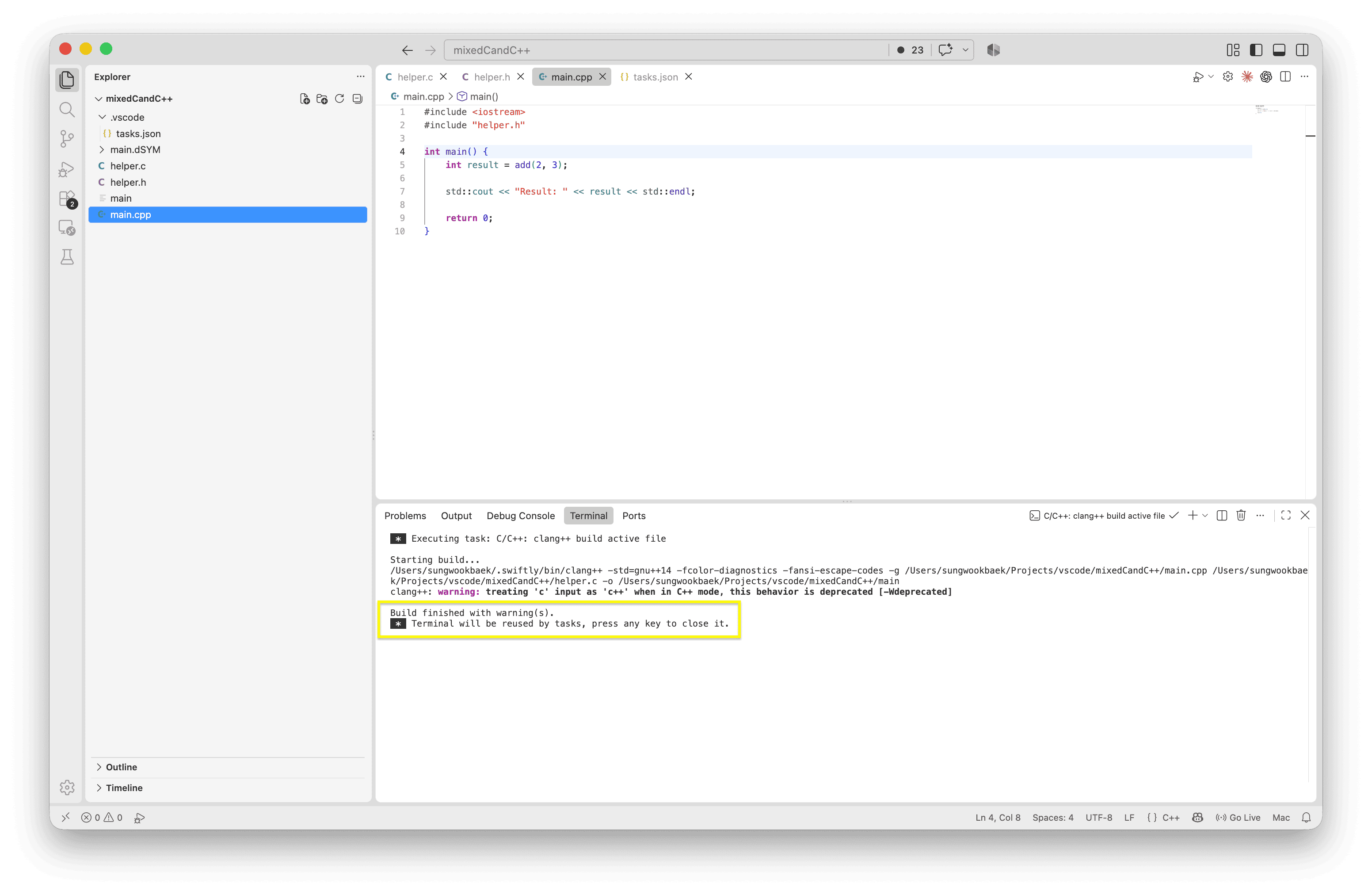
However, Clang may display the following warning because helper.c was passed to clang++. As a result, Clang treats the C source file as C++ code.
This is a warning rather than an error, so the executable is still created successfully.
For a real-world project, C and C++ files should be compiled separately with their respective compilers and then linked together.
CMake can automate this process, so I will introduce CMake and a more practical C/C++ project structure in the next post.

Check Debug Console, you will see the Results: 5
Conclusion
I created both C and C++ source files and ran them successfully in VS Code. C uses the clang compiler, while C++ uses clang++. After compiling with the -g option, I was also able to debug the programs using breakpoints and LLDB.
Leave a Reply